Help Center · Services & schedule
Add boats, vehicles, rooms, gear and staff
List what your sessions run on and who leads them, choose what each person can run and who crews each boat, then give them hours.
All help articlesChecked against Slate on
On this page
Before you start
- Only an owner or admin can add or change resources and staff.
- Your experiences exist. The Can run list shows them. See Create your first experience.
Steps
In the menu on the left, under Set up, click Settings. Click Schedule, then the Resources & staff tab.
In the Resources list, go to the empty row at the bottom. Type a name (at least 2 characters), then choose the Type: Vessel, Vehicle, Room, Chair, Equipment or Other.
Type the Capacity: how many guests it takes at once. A session on it gets that many seats unless you set a different number on the repeating time. Then choose its Location.
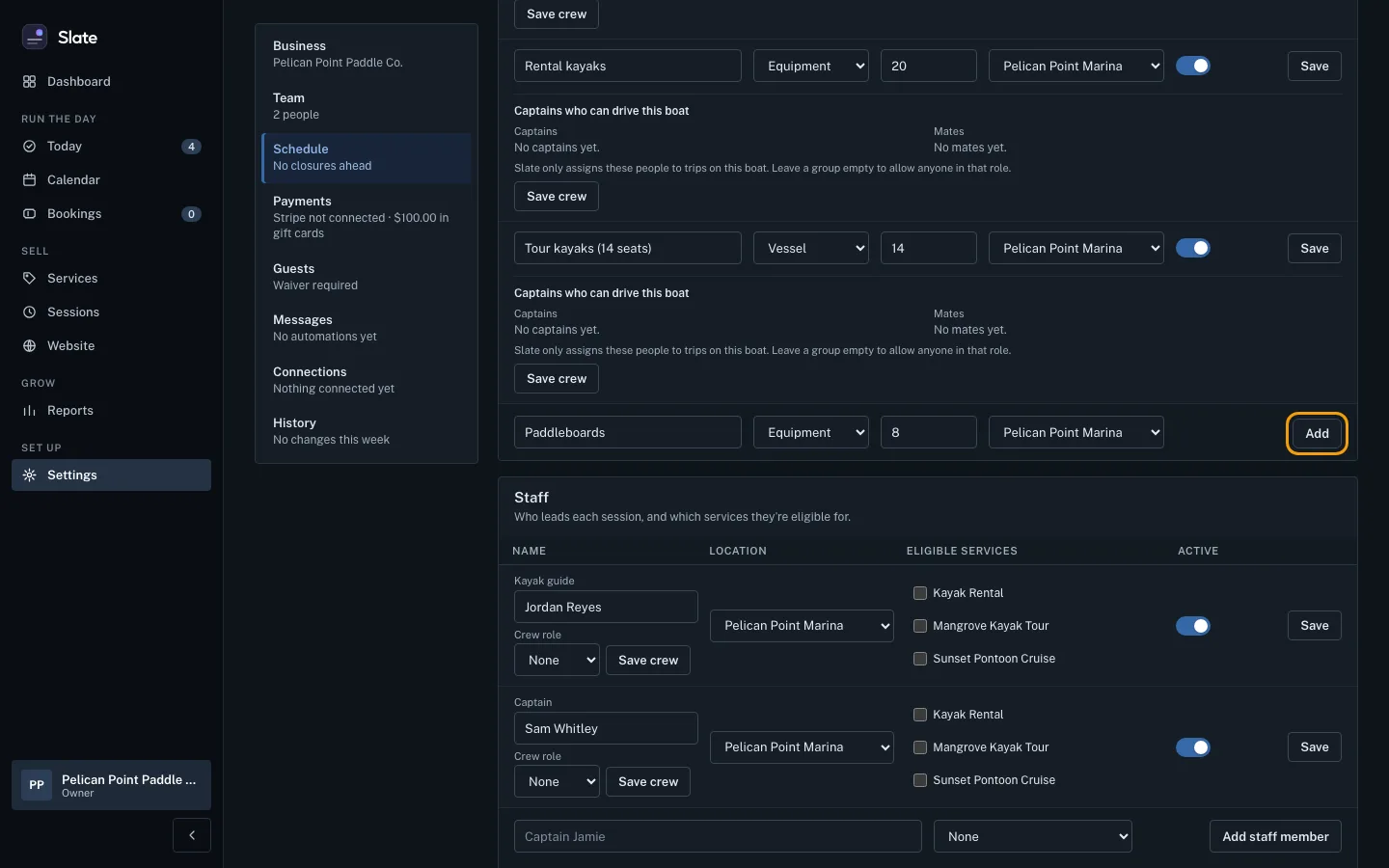
Click Add. The new resource joins the list, which is sorted by name.
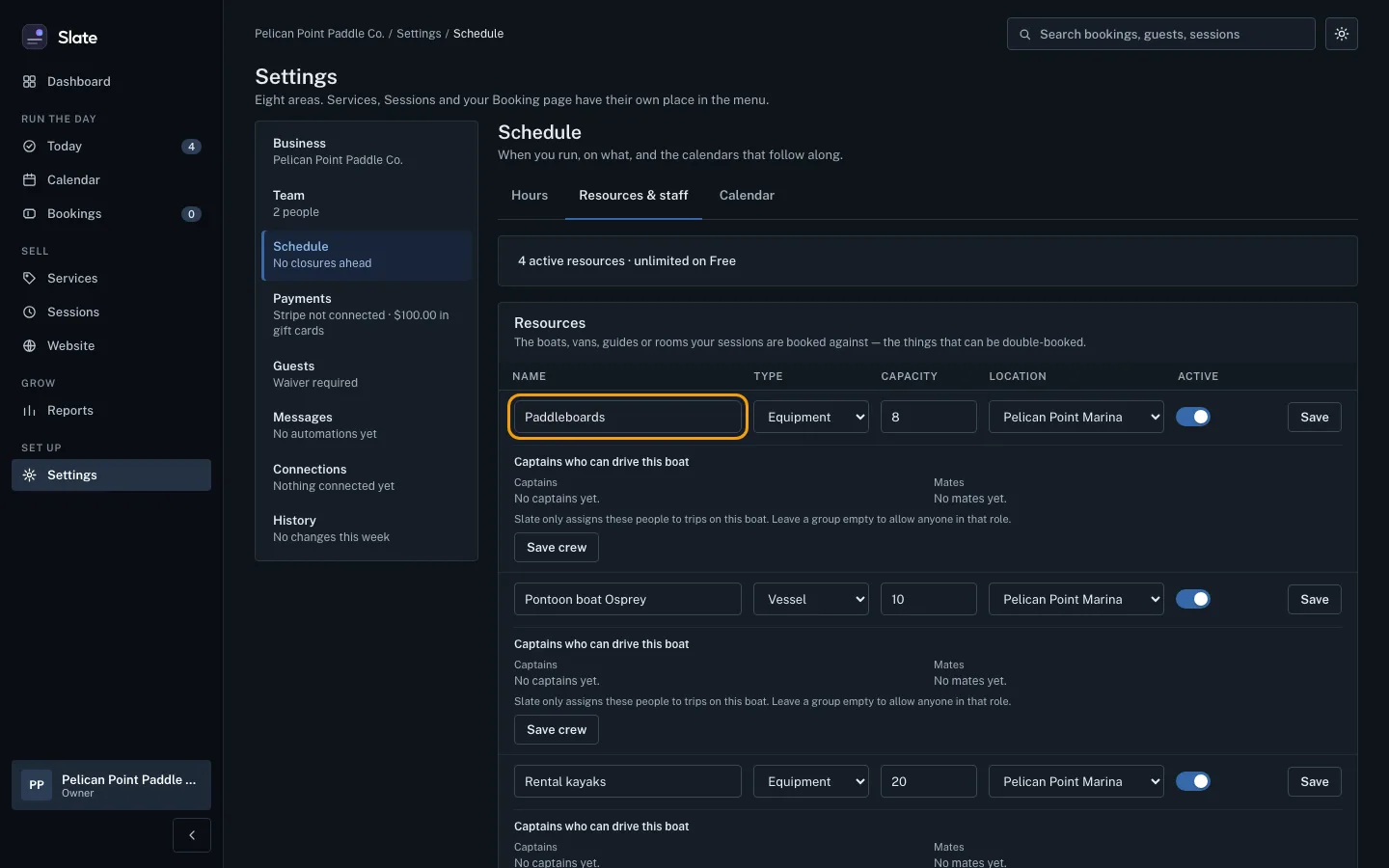
To add a person, go to the empty row at the bottom of the Staff list. Type their name and choose their location.
Open the Can run list and tick each experience they can lead. You can search the list. Leave it showing Any experience to let them run all of them.
Click Add staff member. They join the list with the experiences you ticked.
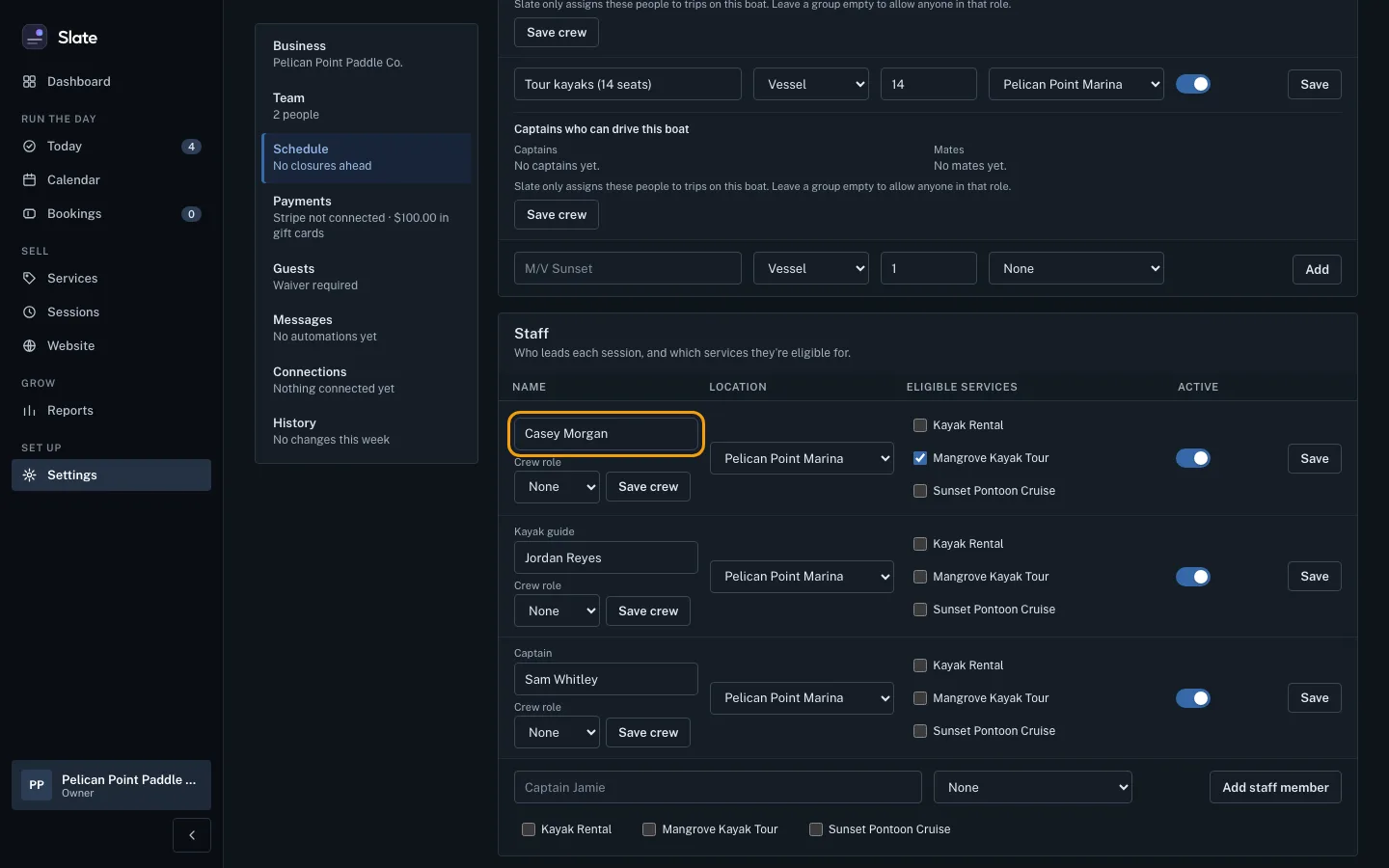
To mark someone as crew, find their row in the Staff list. Under Crew role, choose Captain or Mate, then click Save on that row.
To choose who crews a boat, find the boat's row (type Vessel). Click Crew under the row to open it. In Captains and Mates, tick the people for that boat, then click Save on the boat's row.
Now give each new resource or person their hours, under the Hours tab. Sessions can only be made inside them.


Tips
- Every row has its own Save. Change a resource or person, then click Save on that row. Other rows are not changed.
- Only an owner or admin sees Crew role as a list, and only they see the Crew section on a boat. For everyone else the crew role is a label.
- The Captains and Mates lists offer only active people with that crew role. Slate only assigns the people you tick to trips on that boat. Leave a list empty to allow anyone in that role.
- A crew member who is no longer an active captain or mate appears under Also on this boat with a Remove button.
- To stop using a resource or person without deleting it, turn off its Active switch and click Save. Inactive ones no longer appear on the Hours tab or in the choices on an experience's Schedule tab.
- Once you tick experiences under Can run, Slate does not make sessions for that person on any other experience.
- Adding someone to Staff does not let them sign in to Slate. To give someone their own login, invite them under Team.
- The line at the top shows how many active resources you have and what your plan allows.
Related
- Set your opening hours: Give each boat, room, piece of gear or staff member the hours they can run, a whole week at a time, so Slate only makes sessions inside them.
- Schedule sessions: the days and times you run: Set repeating times on an experience, such as weekends at 13:00, then fill the next 14 days with sessions guests can book, and delete times nobody booked.
- Add and edit locations: Add each place you run from, with its address and time zone, and keep the details up to date.
- Invite your team and choose their roles: Send someone an email invitation to join your business in Slate, as staff or as an admin.
- Create your first experience: Add something guests can book, then give it a ticket type with a price so it shows up ready to book on your booking page.
Still stuck?
Tell us what you were trying to do and what you saw. A person reads every message.
Contact support