Help Center · Services & schedule
Add and edit locations
Add each place you run from, with its address and time zone, and keep the details up to date.
All help articlesChecked against Slate on
On this page
Before you start
- Only an owner or admin can add or edit locations. Everyone else sees the list but cannot change it.
Steps
In the menu on the left, under Set up, click Settings. It opens on Business. Click the Locations tab.
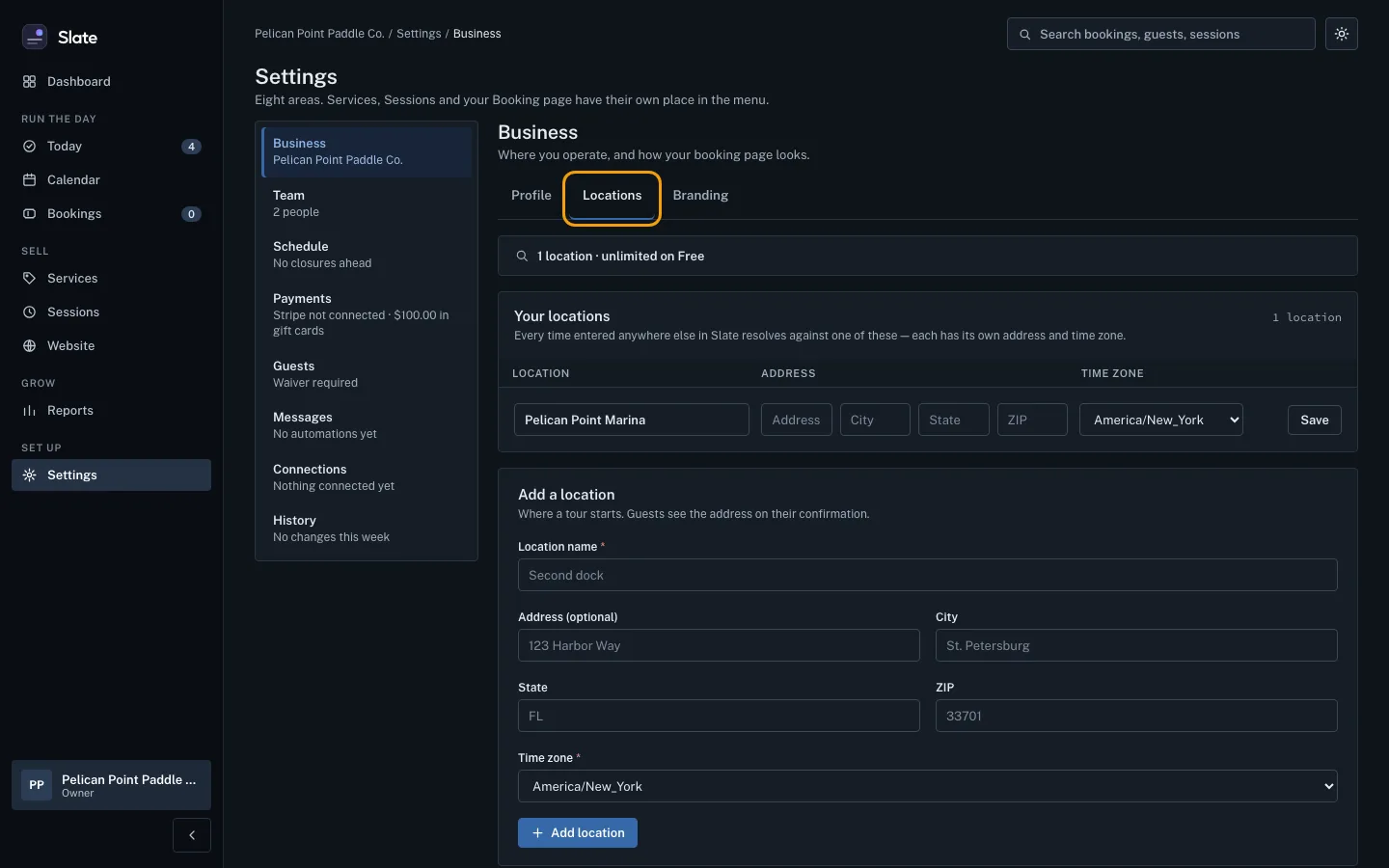
Under Add a location, type the Location name guests and staff will recognize, for example
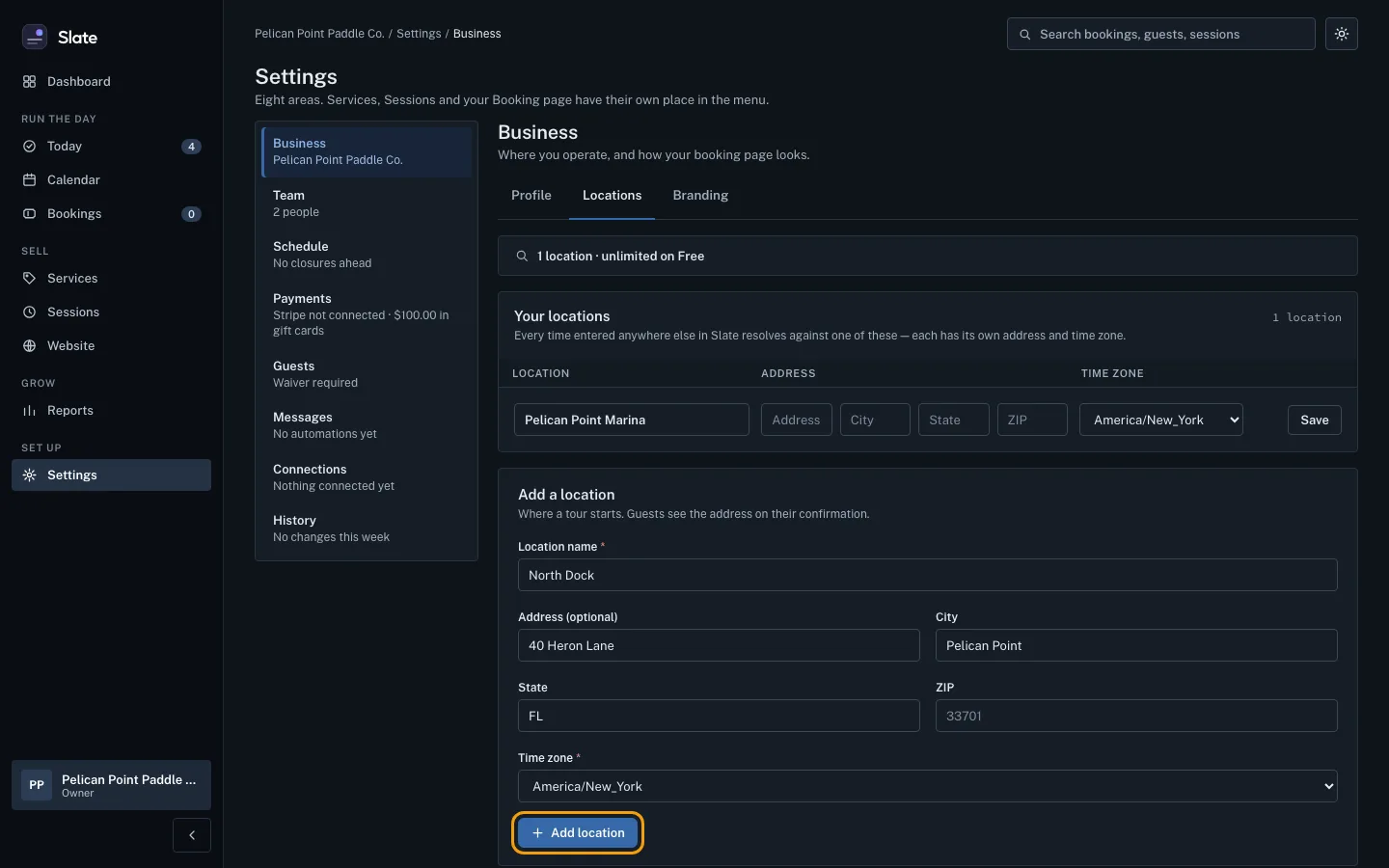
North Dock. It needs at least 2 characters.Fill in the address if you want to: Address (optional), City, State and ZIP.
Choose the Time zone the location is in, then click Add location.
The new location appears under Your locations, and the count at the top goes up by one.
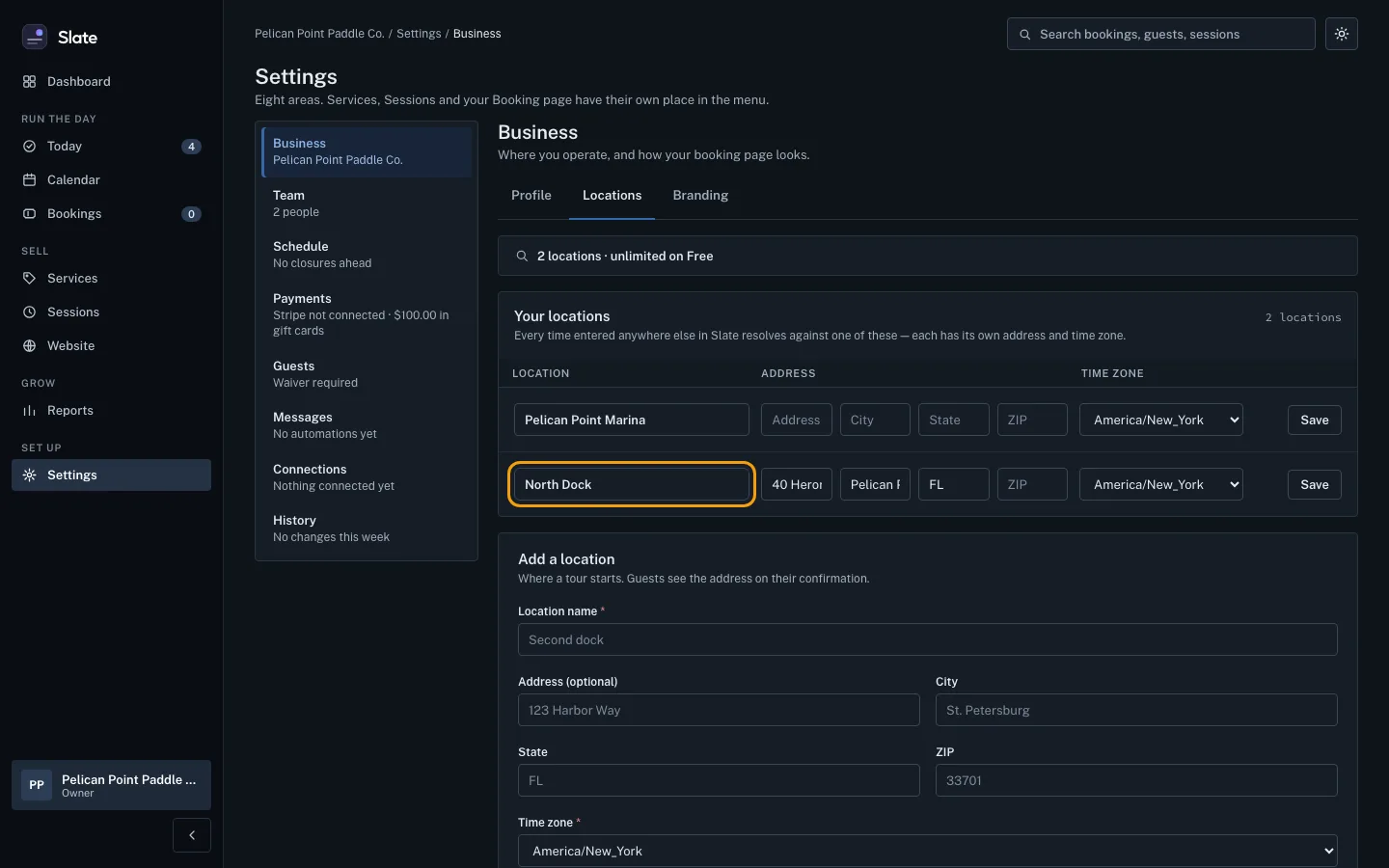
To change a location, edit its name, address or time zone in its row under Your locations, then click Save on that row.


Tips
- Each location keeps its own time zone, separate from your business's default time zone under Profile.
- To say where a boat, vehicle or staff member is based, choose the Location on their row under Settings, Schedule, Resources & staff. An experience has a Location too, on the form where you add it.
- There is no button to remove a location, so check the name before you add it. You can rename it later.
Related
- Add boats, vehicles, rooms, gear and staff: List what your sessions run on and who leads them, choose what each person can run and who crews each boat, then give them hours.
- Set your opening hours: Give each boat, room, piece of gear or staff member the hours they can run, a whole week at a time, so Slate only makes sessions inside them.
- Change your business name or time zone: Rename your business, set the time zone every time in Slate uses, and copy your booking page link.
- Create your first experience: Add something guests can book, then give it a ticket type with a price so it shows up ready to book on your booking page.
Still stuck?
Tell us what you were trying to do and what you saw. A person reads every message.
Contact support