Help Center · Services & schedule
Create your first experience
Add something guests can book, then give it a ticket type with a price so it shows up ready to book on your booking page.
All help articlesChecked against Slate on
On this page
Before you start
- You are signed in to Slate. If you are not, sign in at slate-booking.com/login.
- You know what you are selling: its name, how long it lasts, and what one ticket costs.
Steps
In the menu on the left, under Sell, click Experiences. This page lists everything you sell, and each thing is an experience.
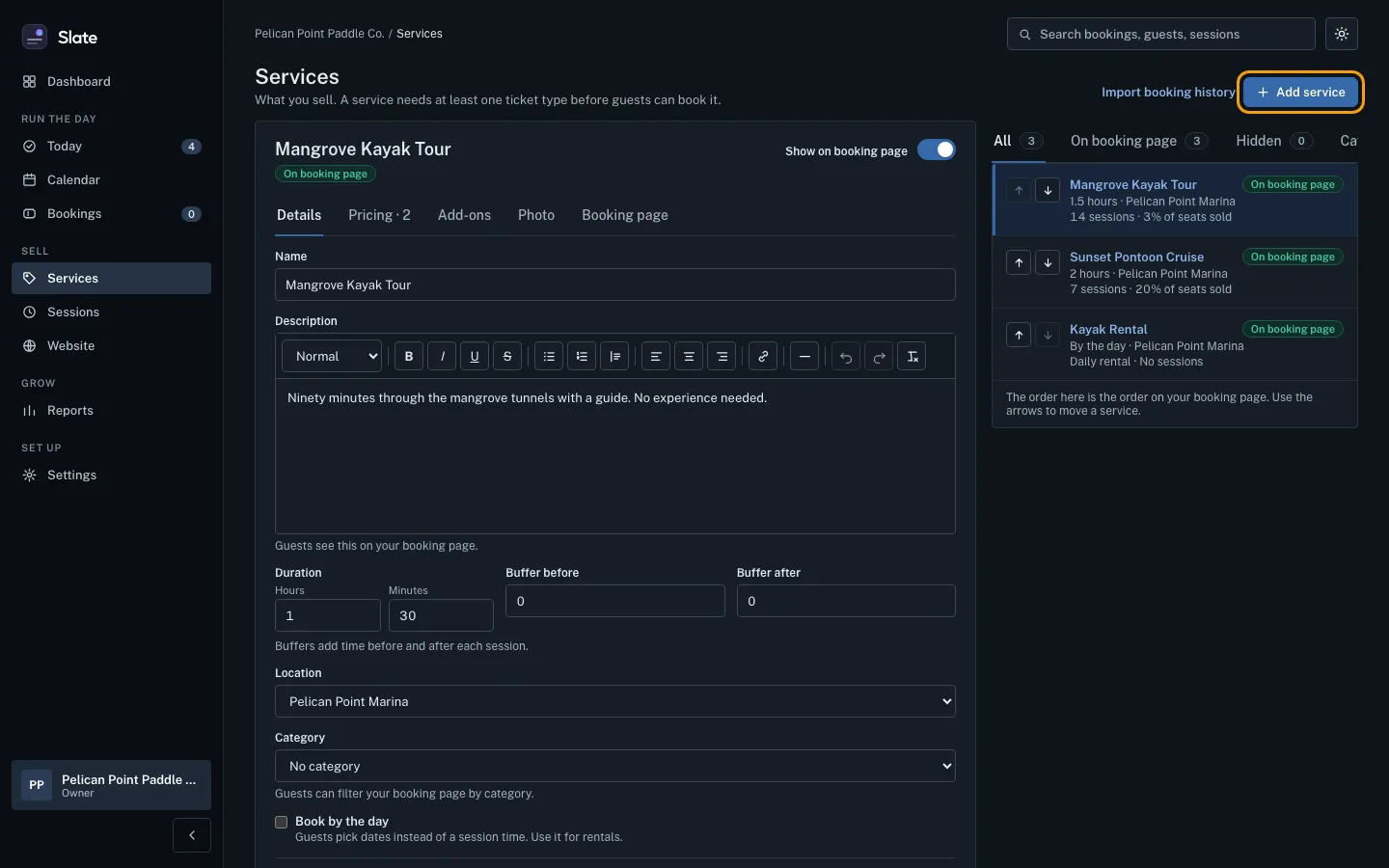
Click Add experience at the top right. If you have none yet, the page also shows an Add experience button in the middle. A form called Add a service opens.
Type a Name guests will recognize, for example
Dolphin Watch Kayak Tour, and a short Description of what they can expect. Set the Duration in hours and minutes.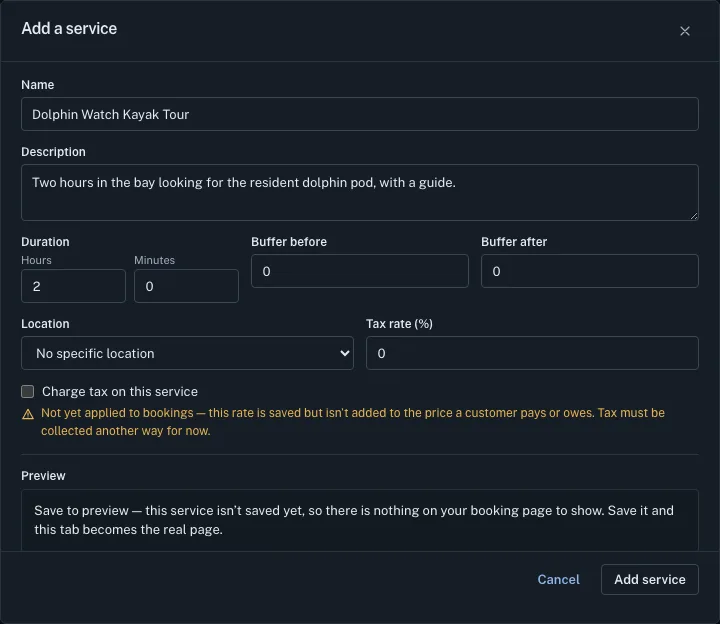
Leave Buffer before, Buffer after and Location as they are unless you need them. Buffers add time, in minutes, before and after each session, for example to get a boat ready or turn it around.
Click Add service at the bottom of the form. Your new experience opens on its Details tab. Its label says No tickets yet: guests can see it, but they cannot book it until it has a ticket type.
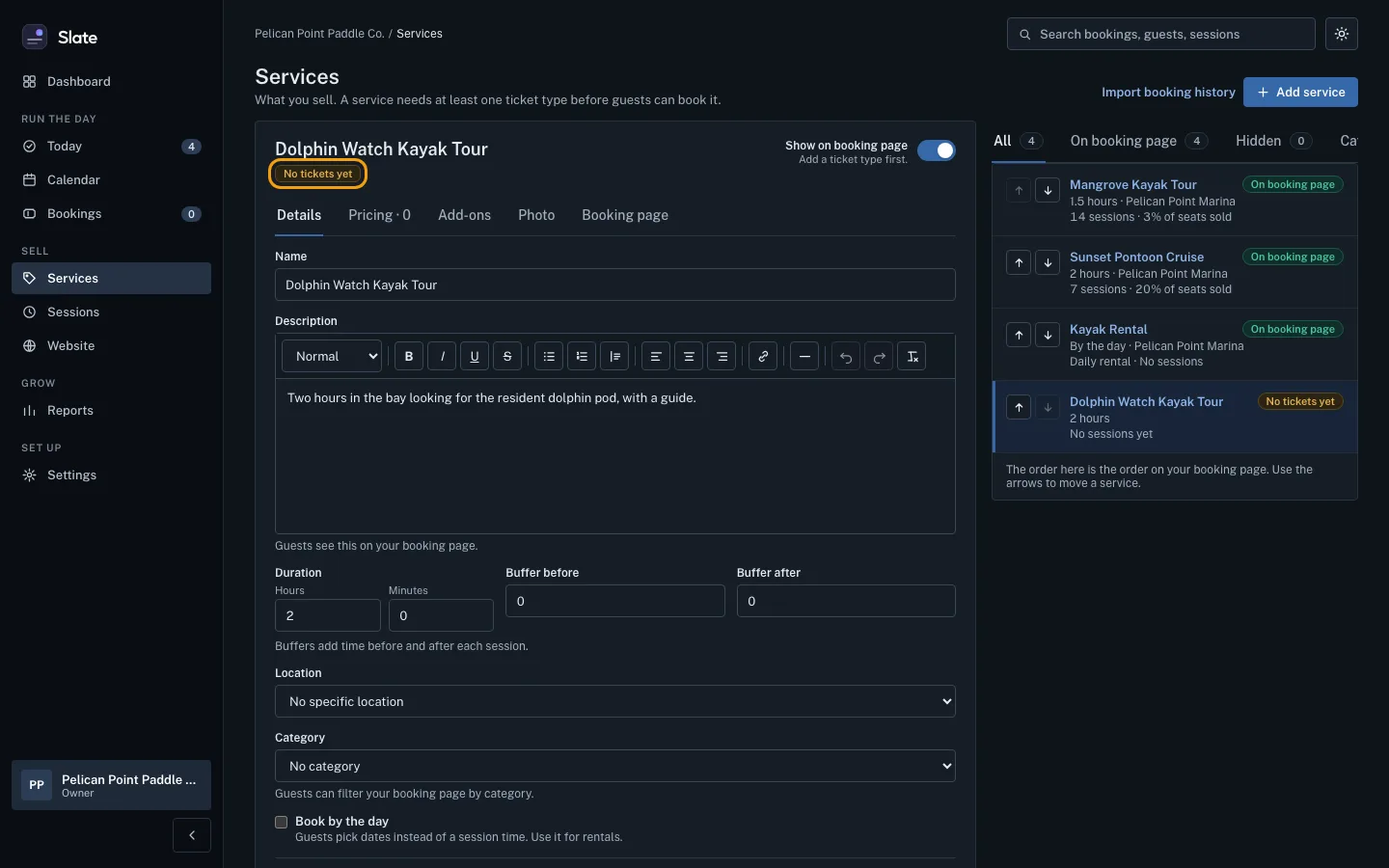
Click the Pricing tab, then Add ticket type. Type a Ticket name (for example
Adult), the Price ($) of one ticket, and Seats: how many places one ticket uses. Most tickets use 1.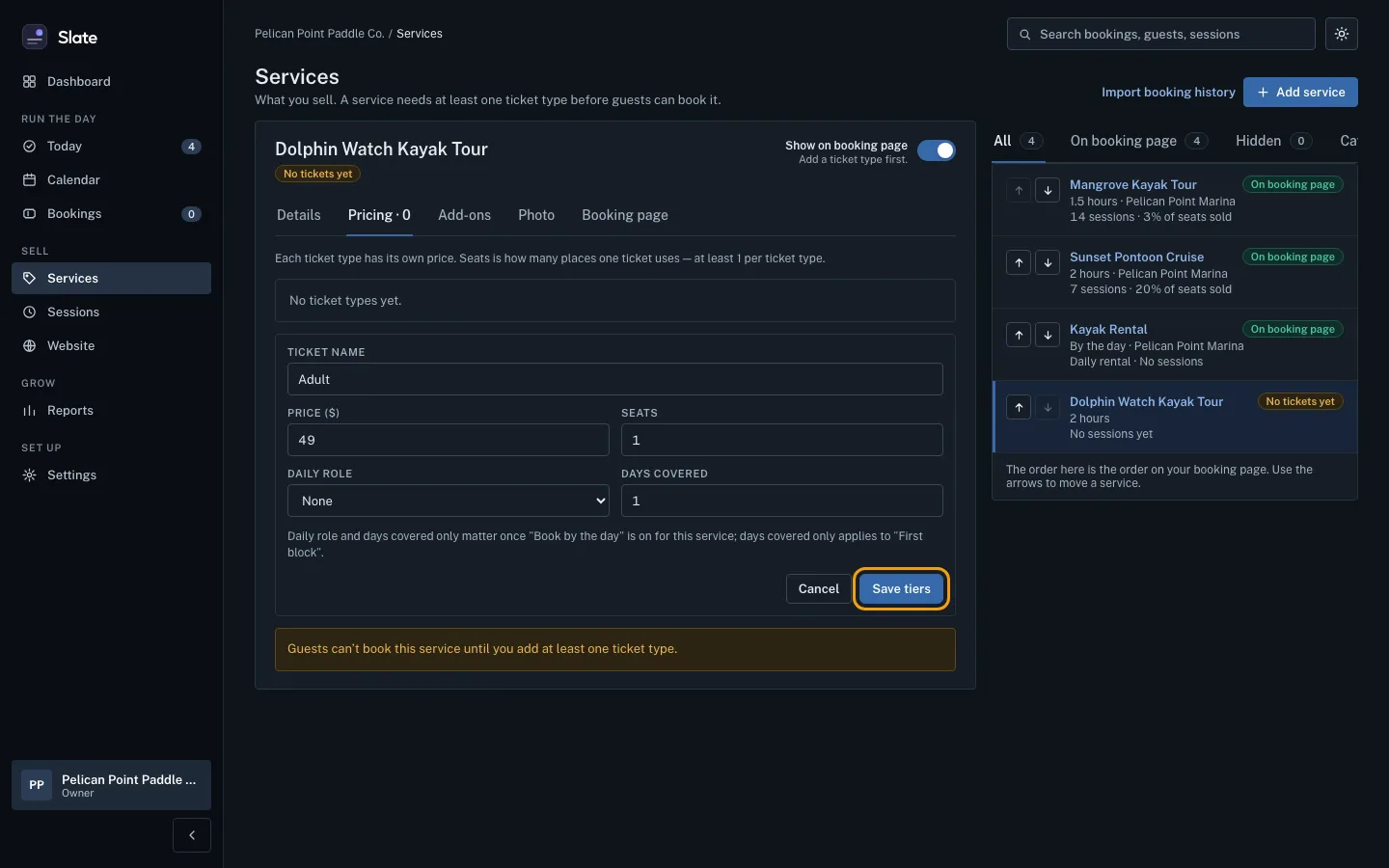
Click Save tiers. The label changes to On booking page: the experience is listed on your booking page with a price.
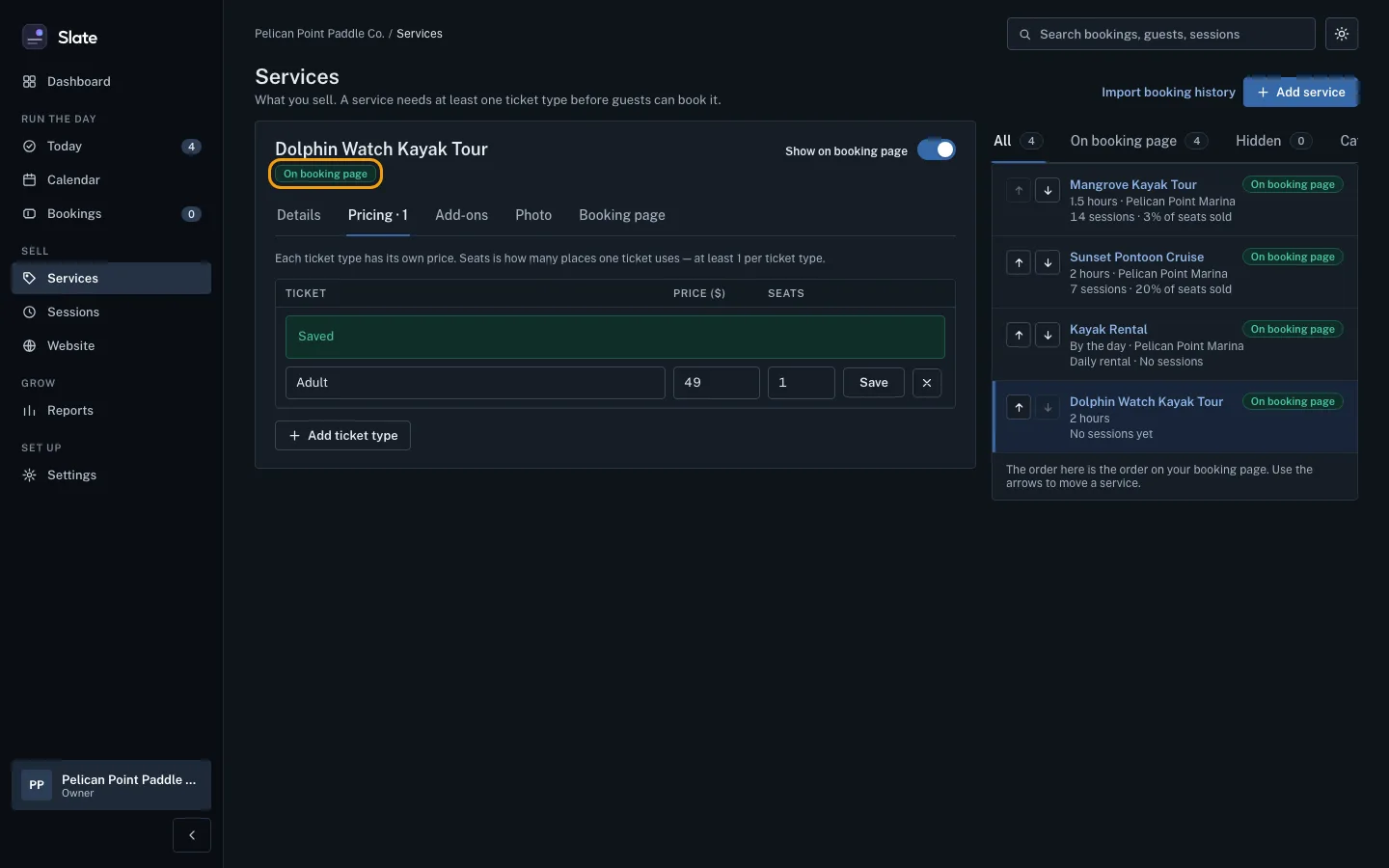
Guests book an experience at a time you offer, so add some. Click the Schedule tab at the top of the experience and add its days and times. Schedule sessions walks you through it.


Tips
- On a phone, the menu runs across the top of the screen. Swipe it sideways to find Experiences.
- Add more ticket types the same way, for example
Child (6-12)at a lower price. Each one has its own price. - To hide an experience without deleting it, turn off Show on booking page at the top of the experience.
- Selling by the day, like a rental? Open the Details tab and turn on Book by the day.
- The order of your experiences on this page is the order guests see. Use the arrows next to each one to move it.
- Only an owner or admin can add a photo, on the Photo tab.
- Want a link or a button for your own website? The Share tab has them.
Related
- Schedule sessions: the days and times you run: Set repeating times on an experience, such as weekends at 13:00, then fill the next 14 days with sessions guests can book, and delete times nobody booked.
- Add a photo to an experience: Upload a photo for an experience so guests see it next to it on your booking page, or replace or remove the one it has.
Still stuck?
Tell us what you were trying to do and what you saw. A person reads every message.
Contact support