Help Center · Services & schedule
Schedule sessions: the days and times you run
Set repeating times on an experience, such as weekends at 13:00, then fill the next 14 days with sessions guests can book, and delete times nobody booked.
All help articlesChecked against Slate on
On this page
Before you start
- You have at least one experience. See Create your first experience.
- You have a boat, vehicle, room, piece of gear or staff member to run it on, and that boat or person has opening hours.
- Only an owner or admin can add or change repeating times, and delete a time.
Steps
In the menu on the left, under Sell, click Experiences. Click the experience in the list, then click its Schedule tab.
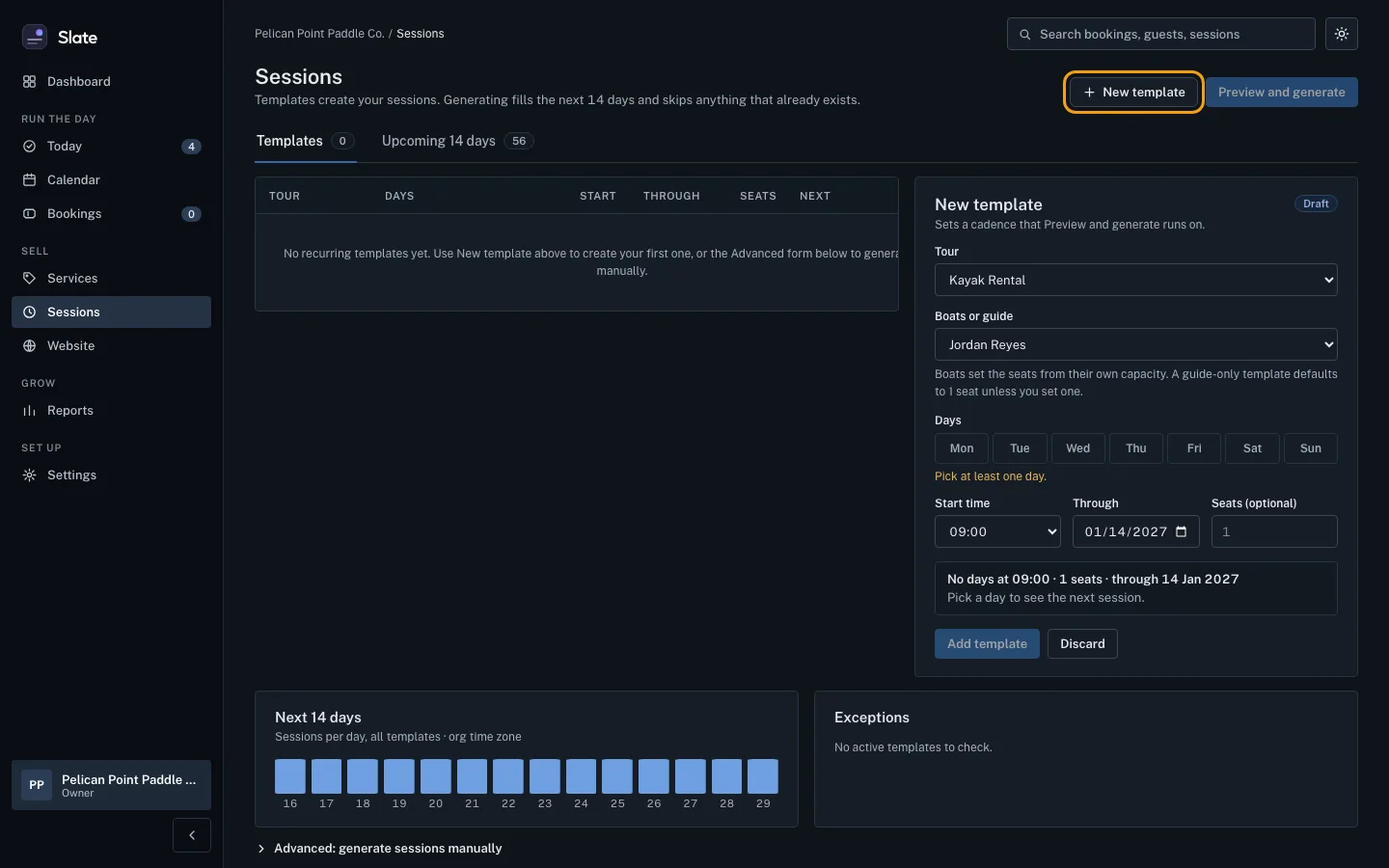
Under Repeating times, click Add times. A form opens with the experience already chosen. If Add times is missing, add a boat or person first, under Resources & staff.
Under Boats or guide, choose what it runs on. A boat sets the seats from its own capacity; a guide on their own gets 1 seat unless you type a number in Seats (optional).
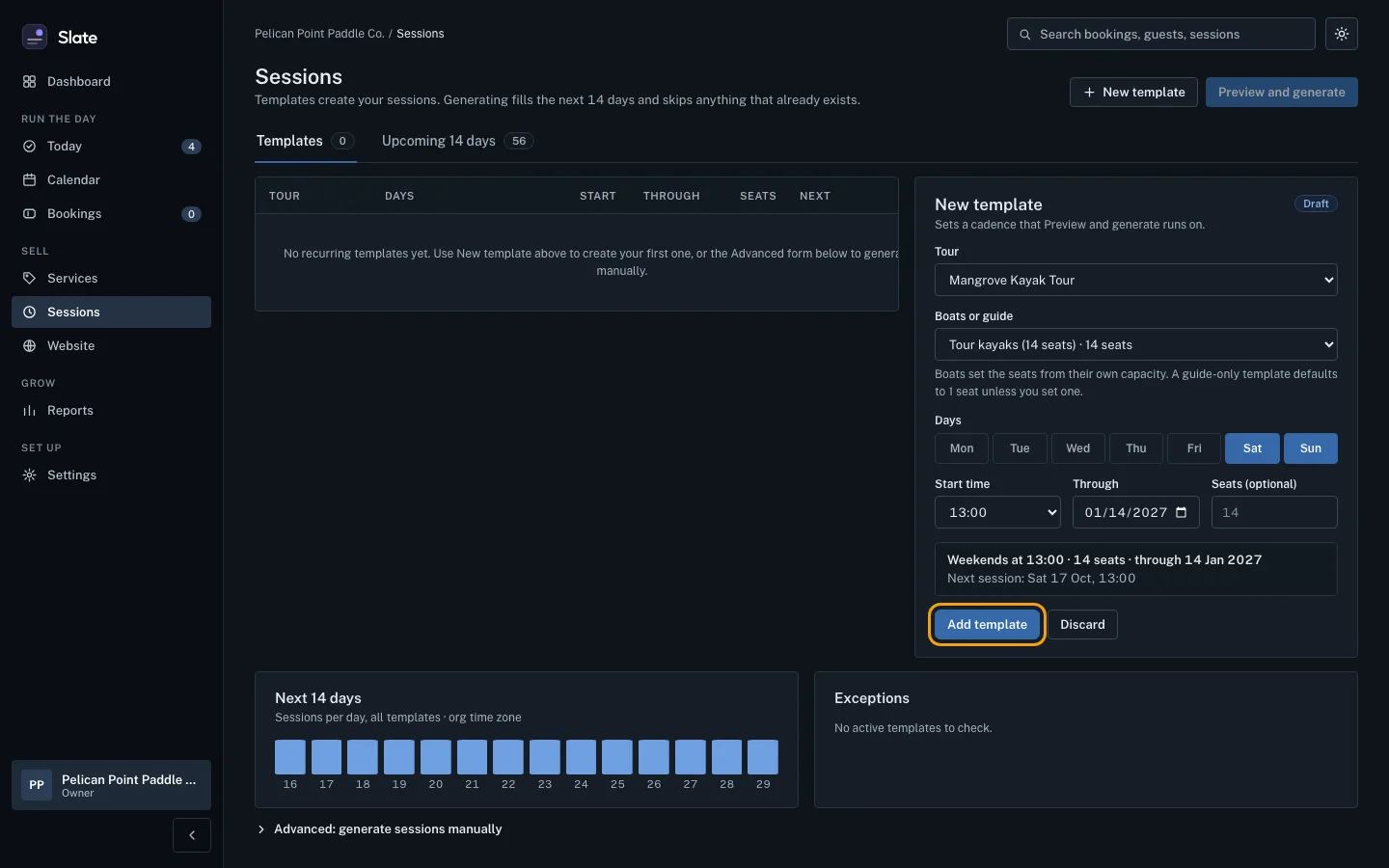
Under Days, click each day it runs, for example Sat and Sun. Pick a Start time, and check the Through date: the repeating time stops making sessions after it.
Read the summary under the fields, for example Weekends at 13:00 · 14 seats, and the next session it will make. Then click Add template. It joins the list, switched on.
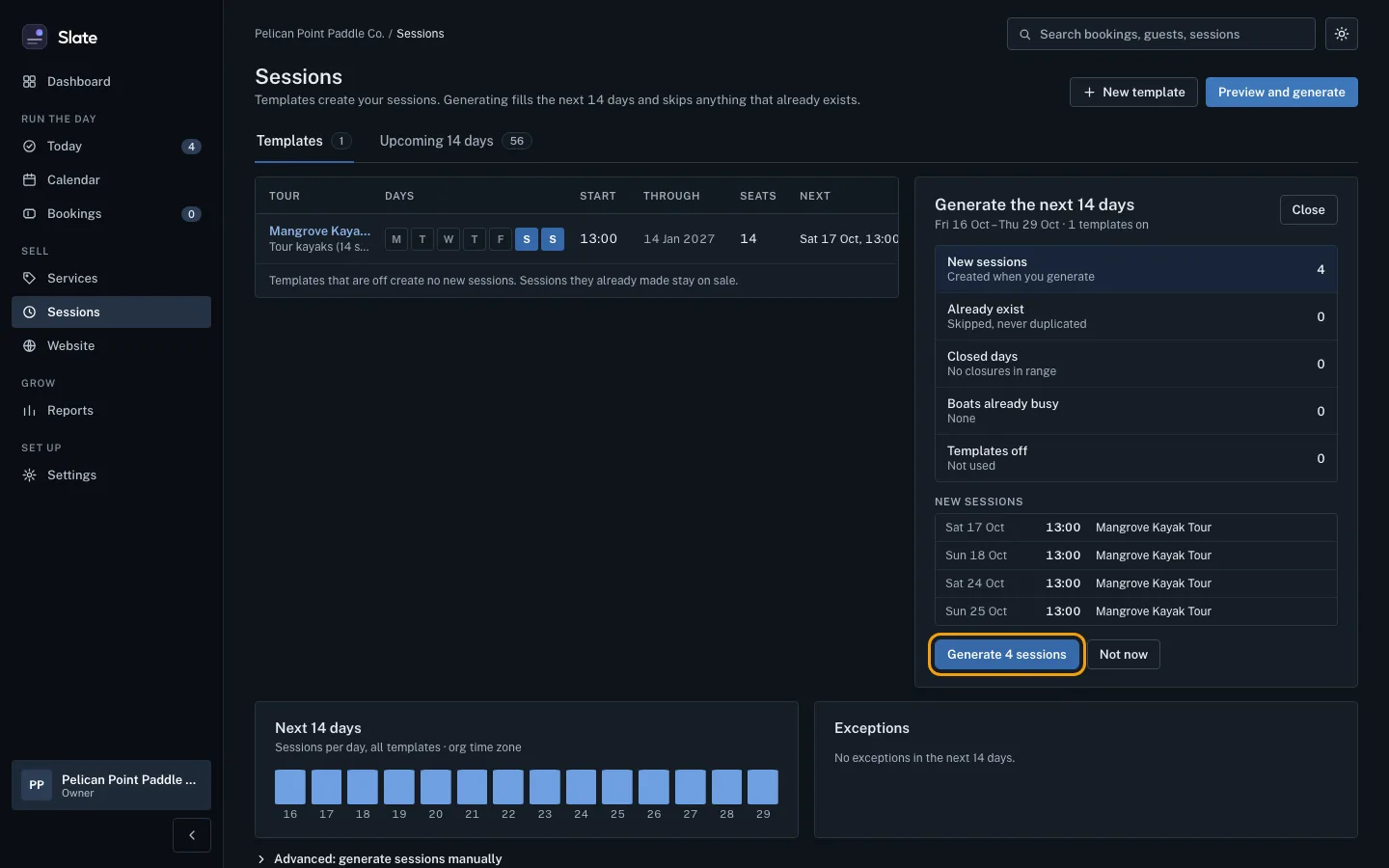
Click Fill the next 14 days. Slate makes the sessions this experience's repeating times call for, for the next 14 days. A note says Added and how many, for example Added 4 sessions. Guests can book the new sessions right away.
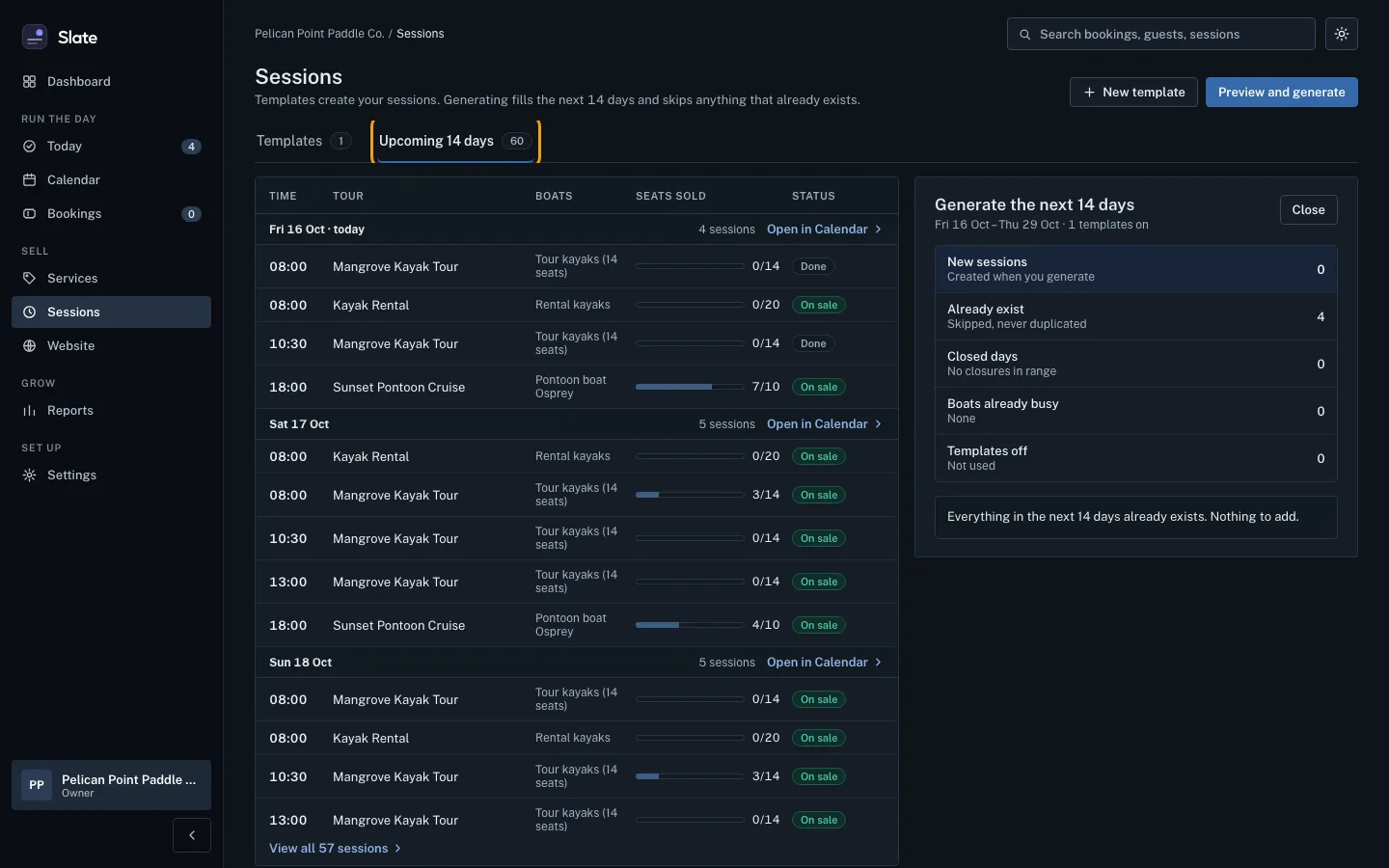
Look under Next 14 days. It counts this experience's sessions, seats and bookings, draws a bar for each day, and lists every session with its bookings, such as No bookings or 2 bookings.
To delete a time nobody has booked, click Delete time on its row, then Delete time again to confirm. The row goes, and a note says Time deleted. Guests can no longer book it.
To clear every unbooked time that is still ahead, click Delete all unbooked times…, read the question, and click the red button, for example Delete 6 unbooked times. A note says how many were deleted and how many were skipped. Slate deletes up to 200 at a time.


Tips
- Filling covers the next 14 days only. Slate does not add later sessions on its own, so come back and click Fill the next 14 days to keep your calendar full. Sessions that already exist are never made twice.
- A session only gets made when the boat or person has opening hours that cover the whole trip. The Days off card on the tab lists closures in the next 14 days, and each Add a day off for link opens that boat or person's hours.
- To stop a repeating time making new sessions, turn off its switch in the On column. Sessions it already made stay on sale. Click Edit on a row to change it.
- Changing a repeating time only changes sessions made from then on. Sessions that already exist keep their time and seats.
- A time with bookings cannot be deleted. Its row shows Has 2 bookings. Cancel or move them first. (with the real number). Open it in Calendar to cancel or move its bookings, using Open in Calendar at the bottom of the card.
- A time that has already started stays in your history. If every booking on a time was cancelled, the button says Cancel time instead: it stays in your history as Cancelled.
- A rental you book by the day uses the same Add times and Fill the next 14 days on its own Schedule tab. Each day it makes shows as All day. Keep to one repeating time for each day of the week: a day with two sessions cannot be booked online.
- Staff do not see the delete buttons. Only an owner or admin can delete a time.
- To see every experience's times together, click All schedules at the top right of Experiences. There, New template adds a repeating time for any experience, Preview and generate shows what a fill would create, and the Upcoming 14 days tab lists everything, with a Delete button on each unbooked time and a button such as Delete 6 unbooked times above the list. A time with bookings shows Booked.
- Need a one-off run instead of a repeating one? On All schedules, open Advanced: generate sessions manually at the bottom of the page.
- On a phone, the menu runs across the top of the screen. Swipe it sideways to find Experiences.
Related
- Set your opening hours: Give each boat, room, piece of gear or staff member the hours they can run, a whole week at a time, so Slate only makes sessions inside them.
- Add boats, vehicles, rooms, gear and staff: List what your sessions run on and who leads them, choose what each person can run and who crews each boat, then give them hours.
- Create your first experience: Add something guests can book, then give it a ticket type with a price so it shows up ready to book on your booking page.
- Use the calendar and a session's manifest: See your sessions by day, week or month, open any session to see who is booked, and open its full manifest.
Still stuck?
Tell us what you were trying to do and what you saw. A person reads every message.
Contact support