Help Center · Bookings & guests
Use the calendar and a session's manifest
See your sessions by day, week or month, open any session to see who is booked, and open its full manifest.
All help articlesChecked against Slate on
On this page
Before you start
- You are signed in to Slate.
- You have scheduled some sessions. If the week is empty, the calendar offers Generate sessions.
Steps
In the menu on the left, under Run the day, click Calendar. It opens on this week, Monday to Sunday. Each session shows its start time, service, and seats booked out of seats available, for example
3/14.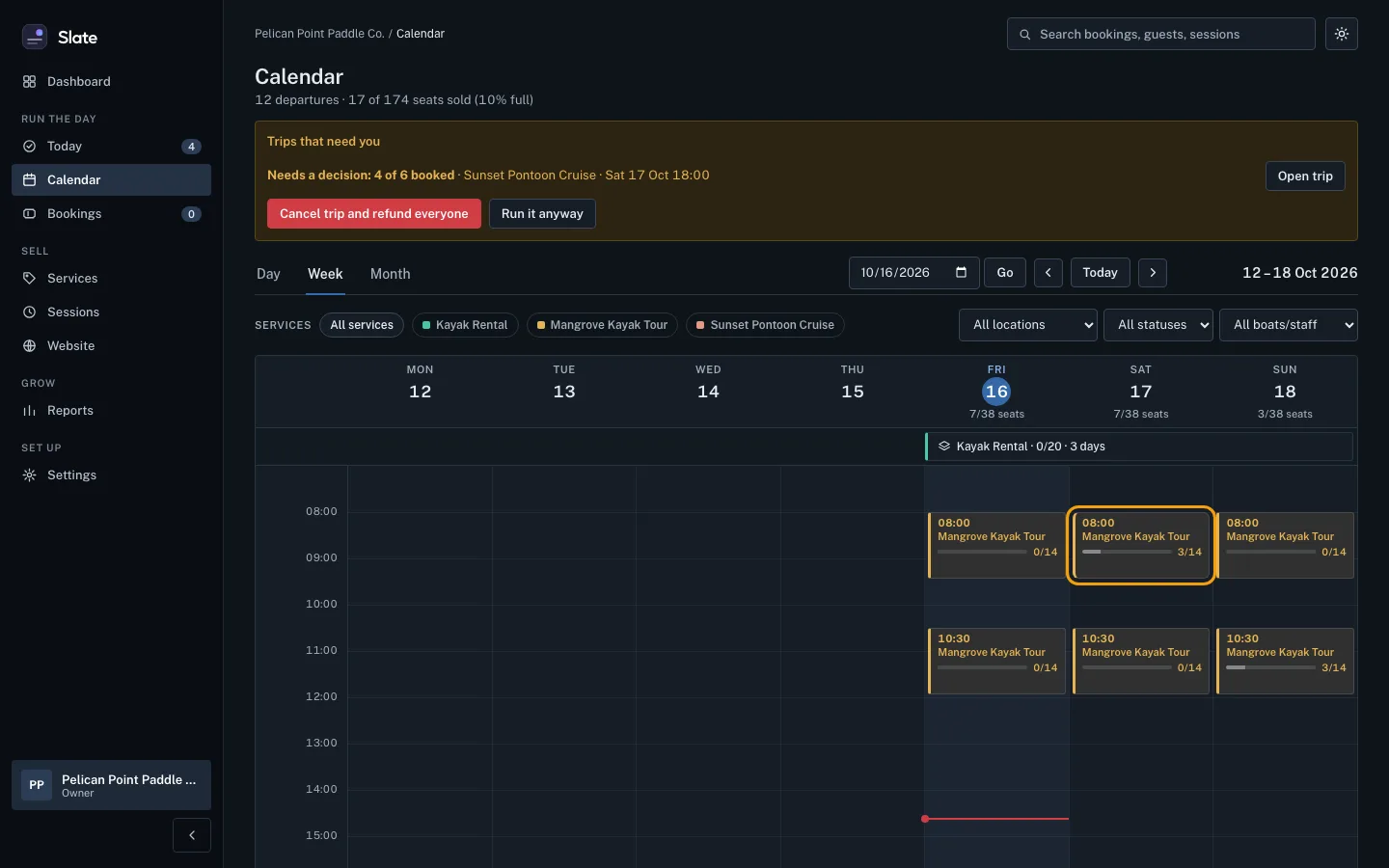
Use Day, Week and Month at the top left to change the view. Use the arrows on either side of Today to move back and forward, or pick a date in the date box and click Go.
Click a session. A panel opens on the right with its time, a status such as On sale, Almost full or Full, its Resource and Staff, how many seats are Booked and Seats left, and each booking on it.
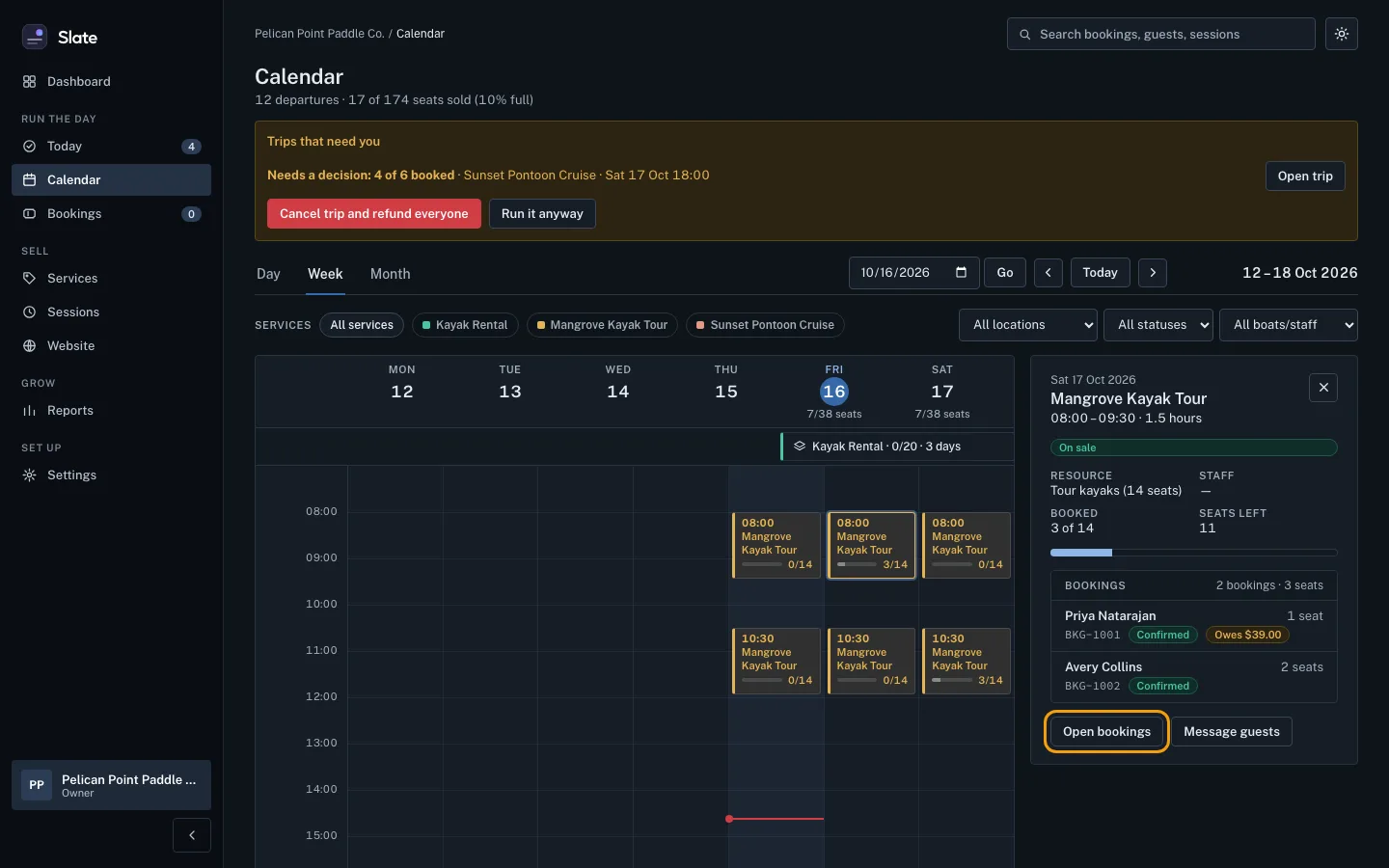
Click Open bookings in the panel. The session's page opens with its Manifest: every booking's reference, status, guest name and contact details, seats, and what is still due.
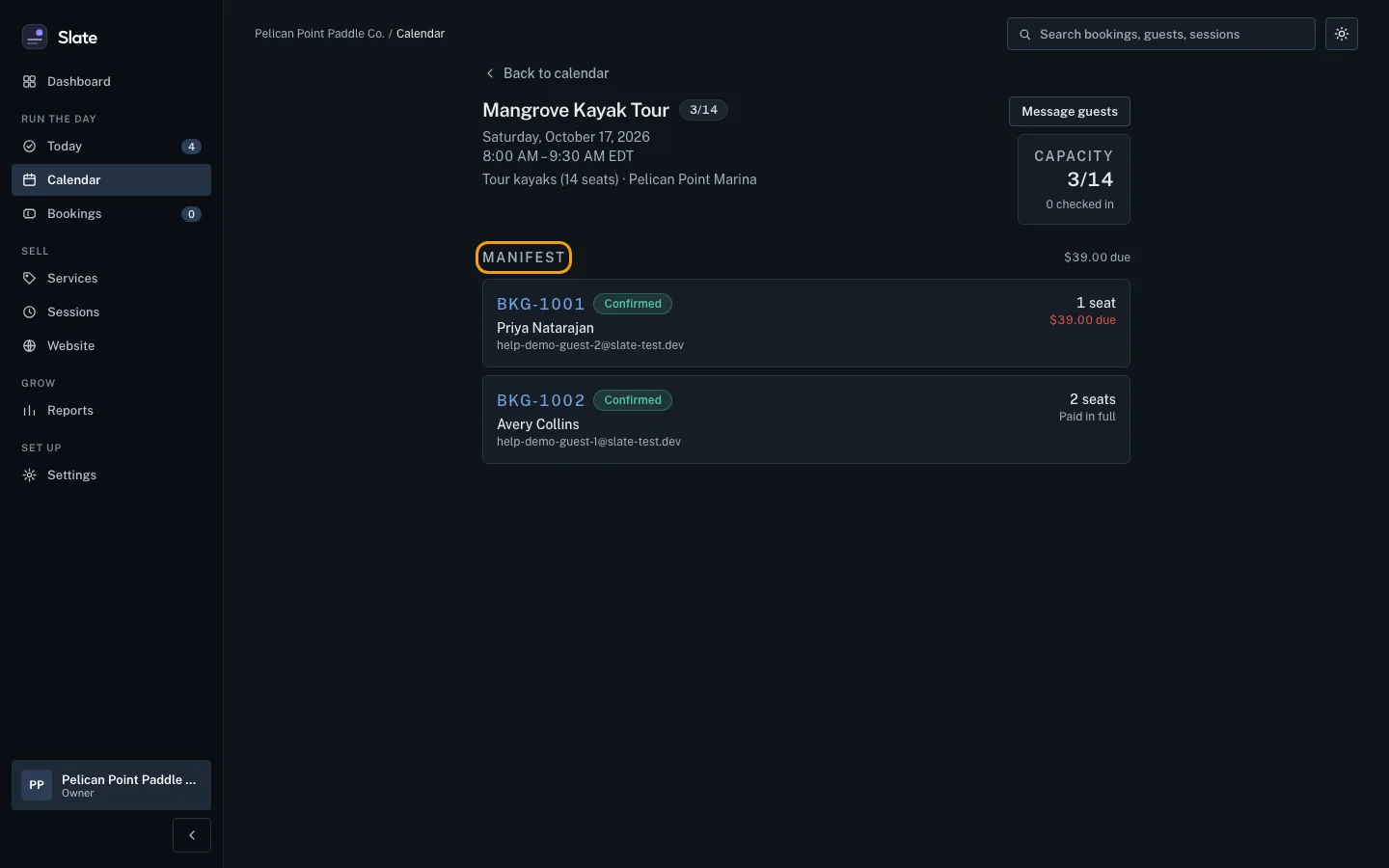
Click a booking reference, for example
BKG-1001, to open that booking. To get back, click Back to calendar on the session's page.


Tips
- In the Day view, clicking a session opens its manifest straight away. In the Month view, click a day to open it in the Day view.
- Narrow the week or day with the filters above it: a service, All locations, All statuses or All boats/staff.
- Daily rentals run across the top of the week as one bar per service. Click one to see how many are booked each day.
- You can't move or cancel a booking from the calendar. Open the booking to do that.
- An owner or admin can remove a time nobody booked. Open the session and click Delete time at the bottom of the panel, then Delete time again to confirm. Guests can no longer book it, and this cannot be undone. A time with bookings shows Has 2 bookings. Cancel or move them first. (with the real number) and has no button. A time that has already started stays in your history.
- If every booking on a time was cancelled, the button says Cancel time instead, and the time stays in your history as Cancelled.
- A rental day nobody booked can be deleted the same way, from its day in the rental bar's panel (Delete). A day with a rental on it says Booked and cannot be deleted.
- Need to tell everyone on a session about a delay? Click Message guests in the panel or on the session's page.
Related
- Run your day from Today: check guests in: See every session running today, open the next one's guest list, check parties in as they arrive, and find any guest fast.
- Read a booking: guests, payment and history: Open a booking to see who booked, when they are coming, what they bought, what they have paid and everything that has happened to it.
- Schedule sessions: the days and times you run: Set repeating times on an experience, such as weekends at 13:00, then fill the next 14 days with sessions guests can book, and delete times nobody booked.
- Find a booking: Search your bookings by reference, guest name, email or phone, narrow them by date or status, and open the one you need.
Still stuck?
Tell us what you were trying to do and what you saw. A person reads every message.
Contact support