Help Center · Bookings & guests
Read a booking: guests, payment and history
Open a booking to see who booked, when they are coming, what they bought, what they have paid and everything that has happened to it.
All help articlesChecked against Slate on
On this page
Before you start
- You are signed in to Slate.
- You know which booking you want. You can search for it in Bookings by reference, name, email or phone.
Steps
In Bookings, click the booking in the list. Its details open on the right, or under the list on a phone.
Read the top of the booking: its reference, its status, the amount still due (if any), the guest's name, email and phone, and when it was booked.
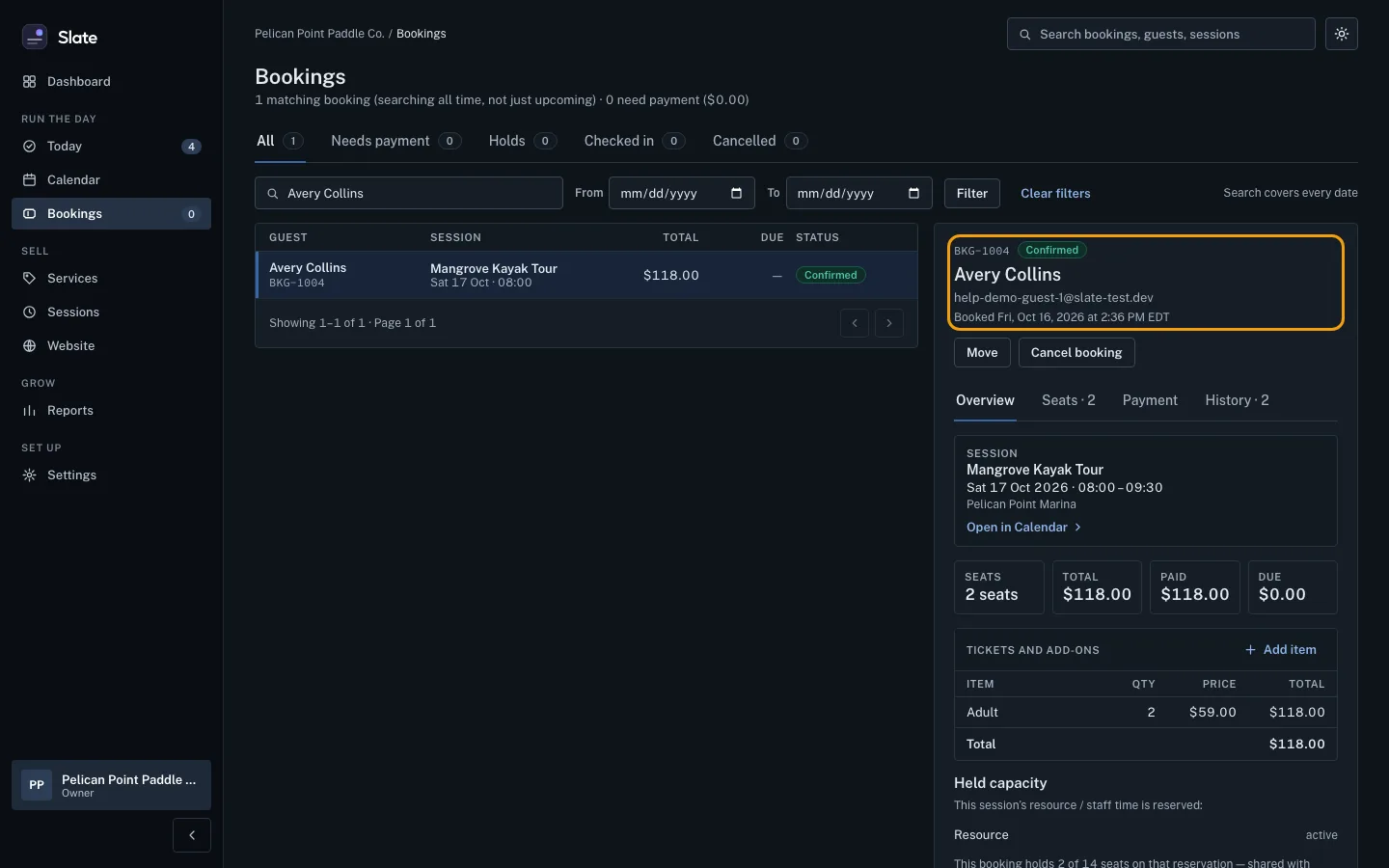
Below that are the actions you can take now, for example Move and Cancel booking. While money is still due you also see a blue button that records a payment and names the amount, for example Mark $177.00 paid on a booking with $177.00 due.
Stay on the Overview tab to see the session (the service, day and time, and where), the Seats, Total, Paid and Due amounts, and the Tickets and add-ons the guest bought.
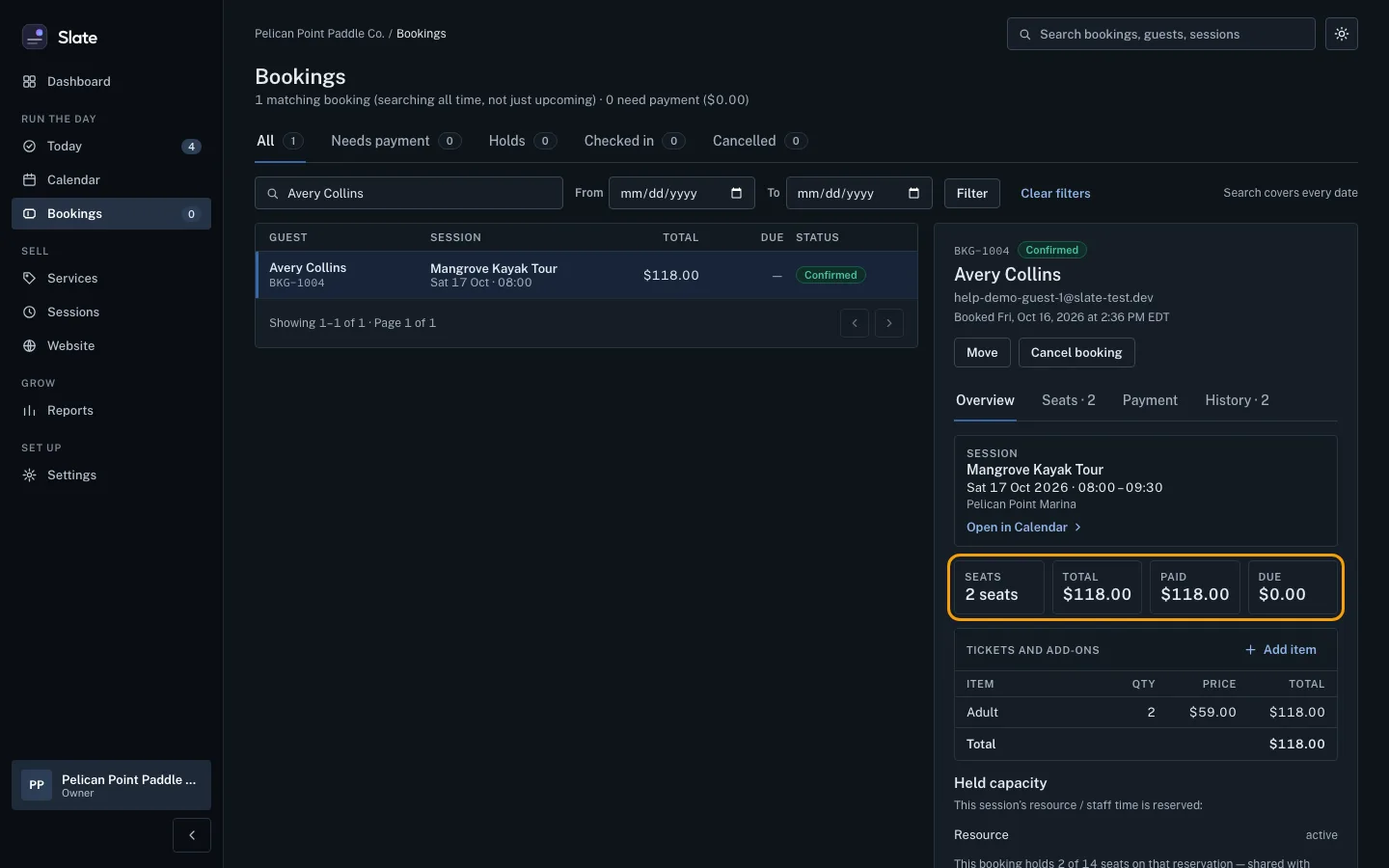
Click Open in Calendar to see the whole session. On the day of the session you also see Check in on Today.
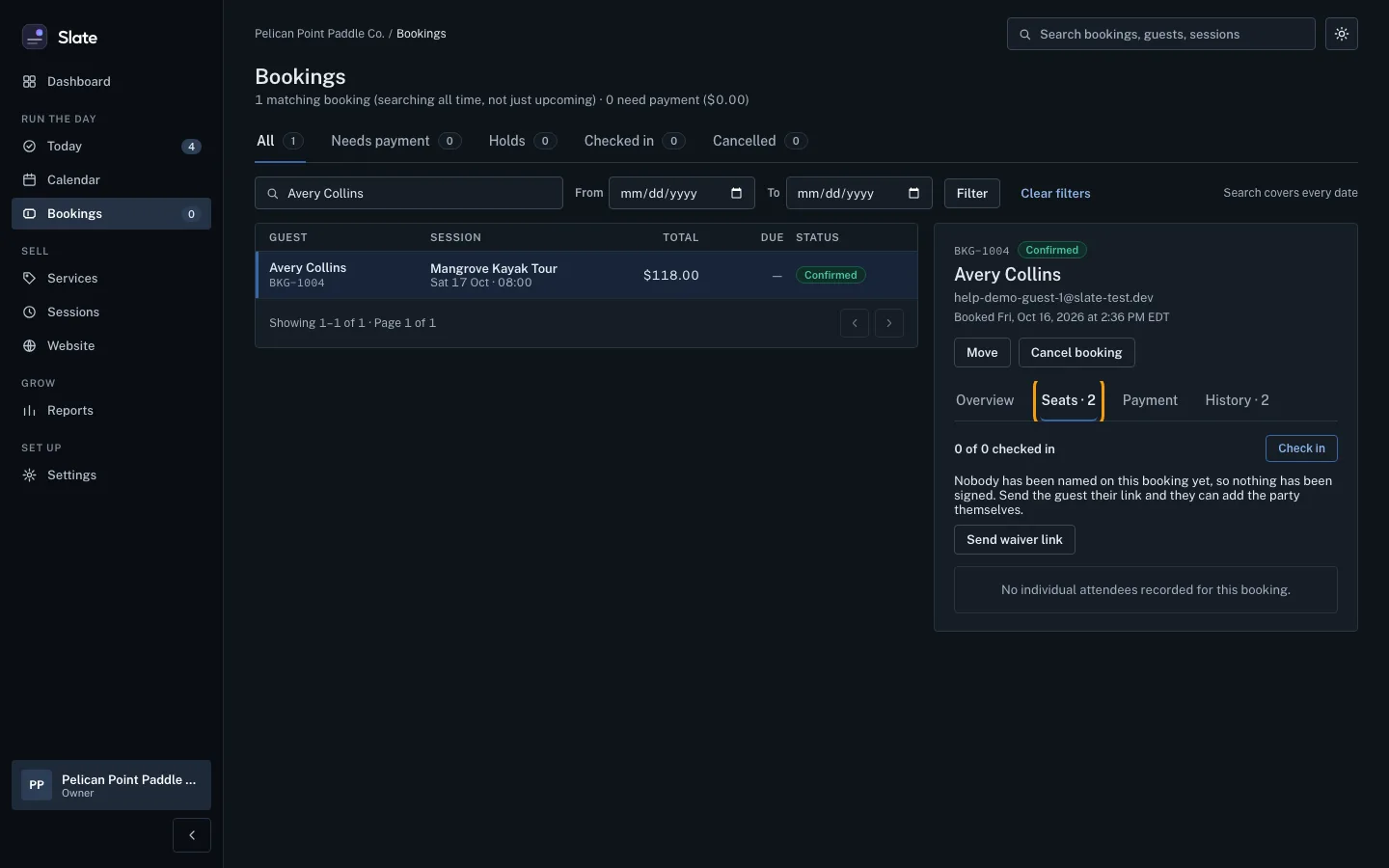
Click the Seats tab to see how many guests are checked in, the waiver status, and each guest named on the booking.
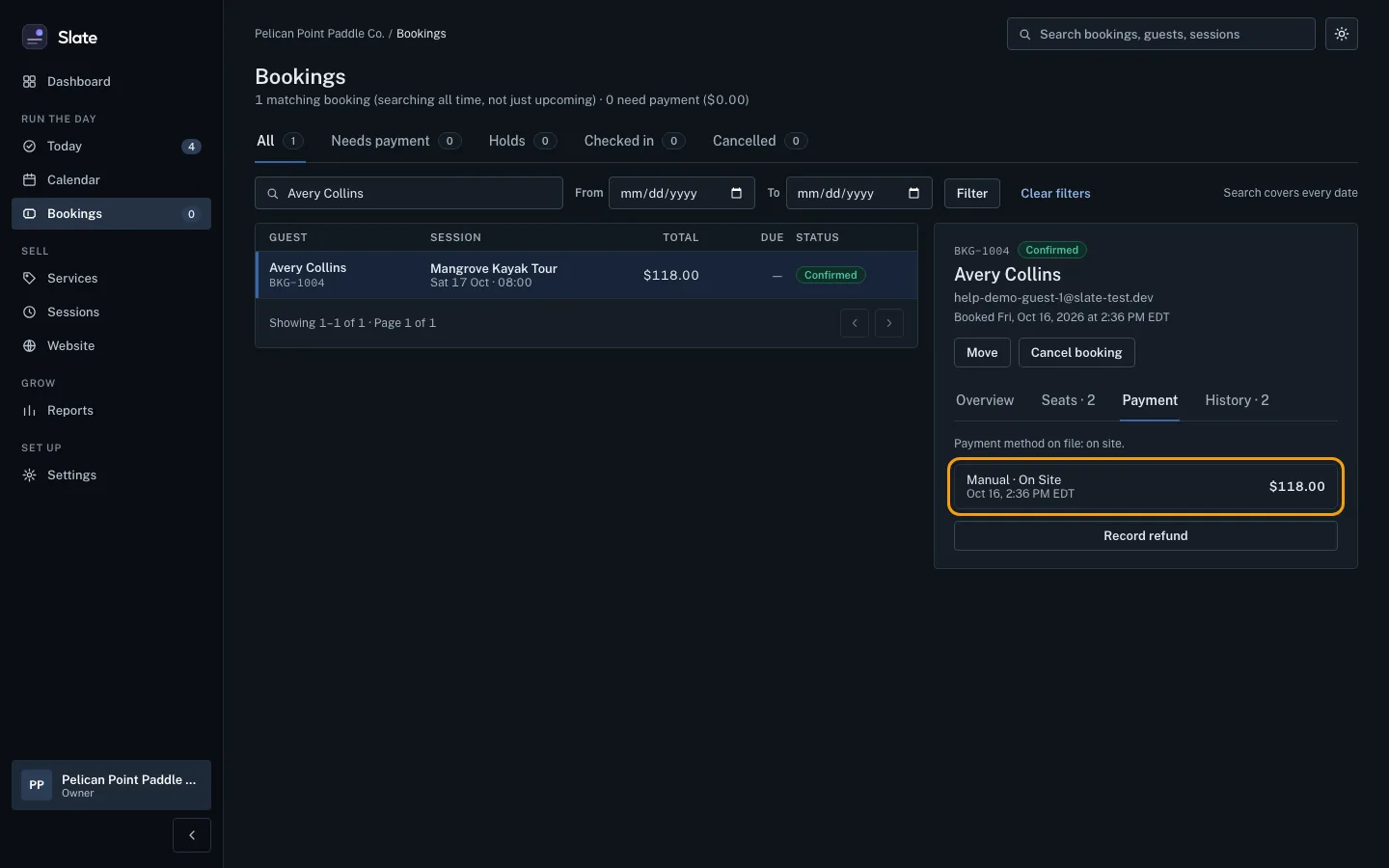
Click the Payment tab to see every payment and refund recorded on the booking, with the date and how it was paid.
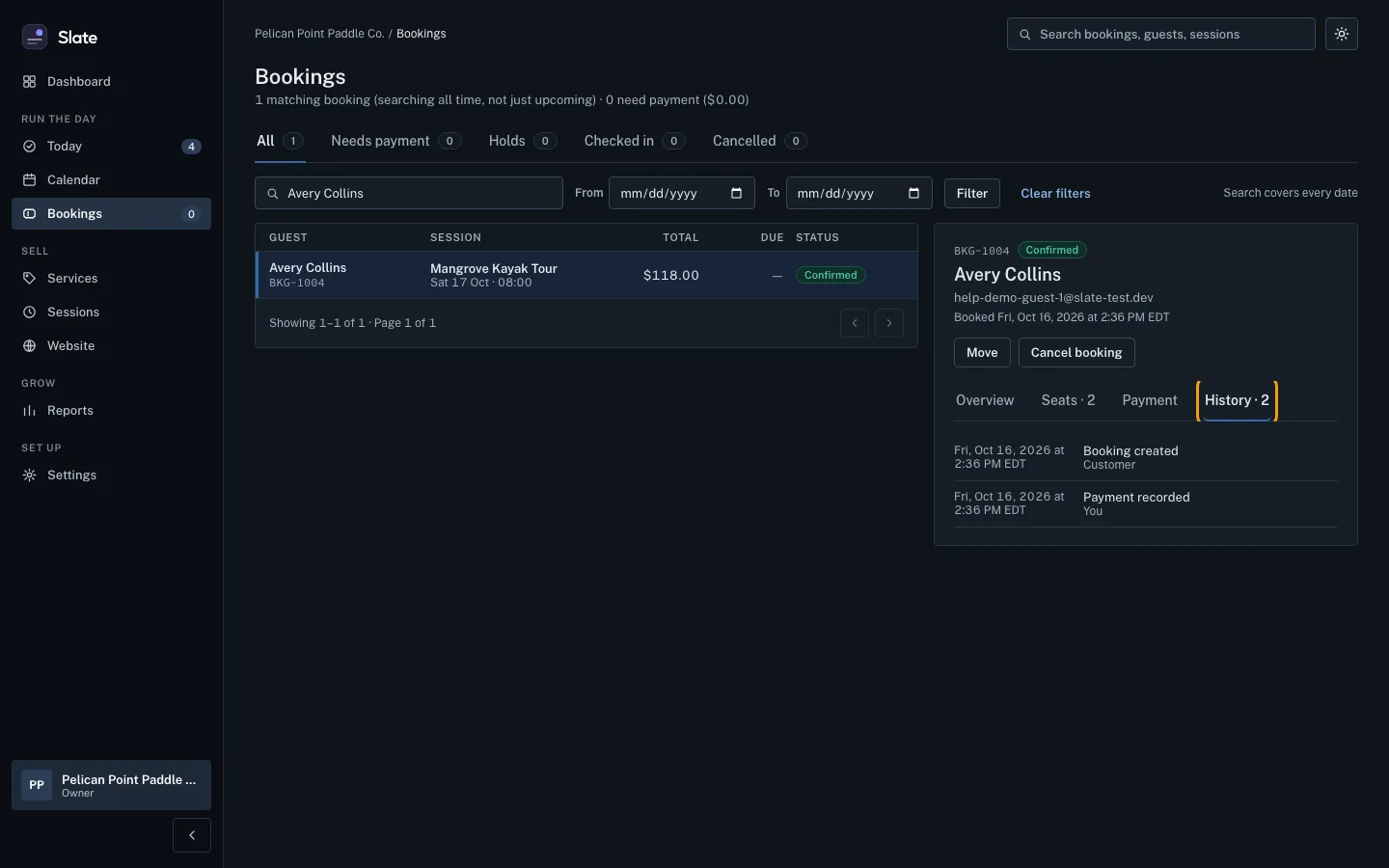
Click the History tab to see everything that happened to the booking and who did it: You, a Team member, the Customer, or System.


Tips
- The number on the Seats tab is how many places the booking takes. The number on History is how many entries it has.
- Only an owner or admin sees Record refund on the Payment tab.
- A booking that is waiting for payment or holding a seat shows a yellow note with the time its hold runs out.
- When the guest picked options at checkout, the Overview tab also shows a Guest choices list.
Related
- Find a booking: Search your bookings by reference, guest name, email or phone, narrow them by date or status, and open the one you need.
- Check guests in, one by one or all at once: Mark a party as arrived from Today or from the booking, check in a whole departure in one click, or check in each named person.
Still stuck?
Tell us what you were trying to do and what you saw. A person reads every message.
Contact support