Help Center · Bookings & guests
Find a booking
Search your bookings by reference, guest name, email or phone, narrow them by date or status, and open the one you need.
All help articlesChecked against Slate on
On this page
Before you start
- You are signed in to Slate. Everyone on your team can open Bookings.
Steps
In the menu on the left, under Run the day, click Bookings. The list starts at today and runs forward, soonest first. The line under the title says how many bookings that is and how many still need payment.
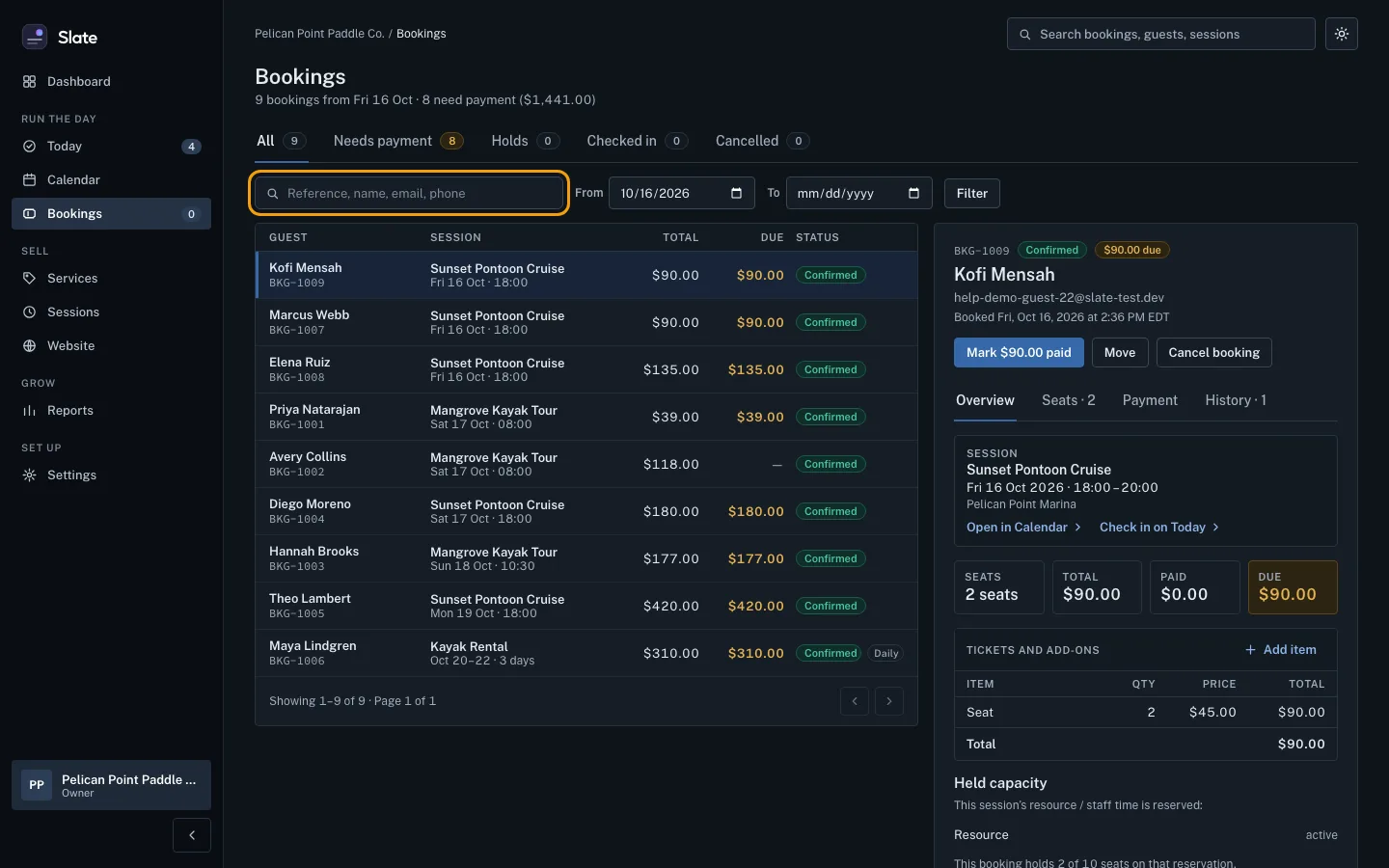
Click the search box (it says Reference, name, email, phone) and type part of the booking reference, the guest's name, their email or their phone number.
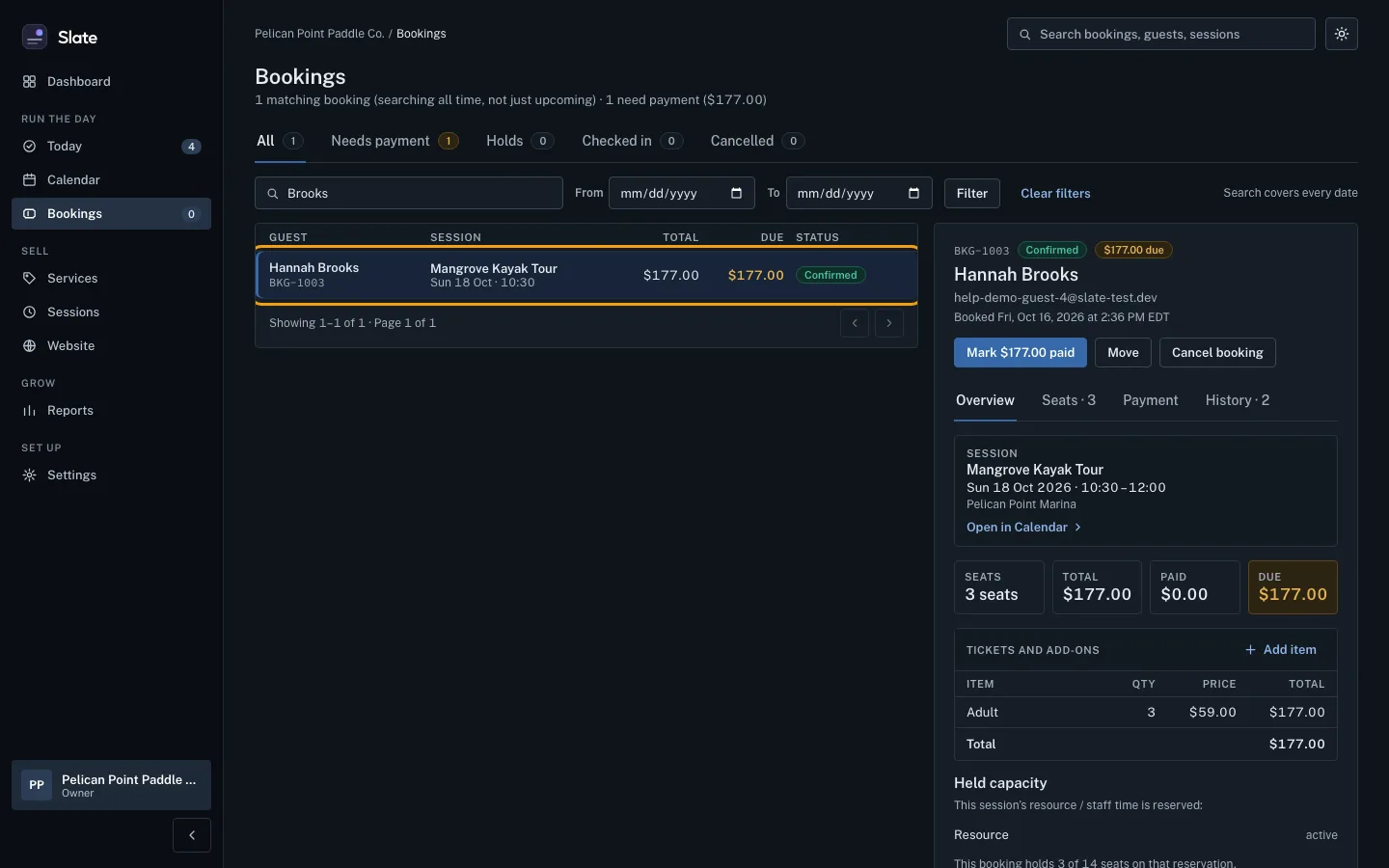
To search past bookings too, clear the From date. Slate fills in today's date there, and a search only looks back in time when From and To are both empty.
Click Filter. The matching bookings are listed. When the search covers every date, the page says Search covers every date.
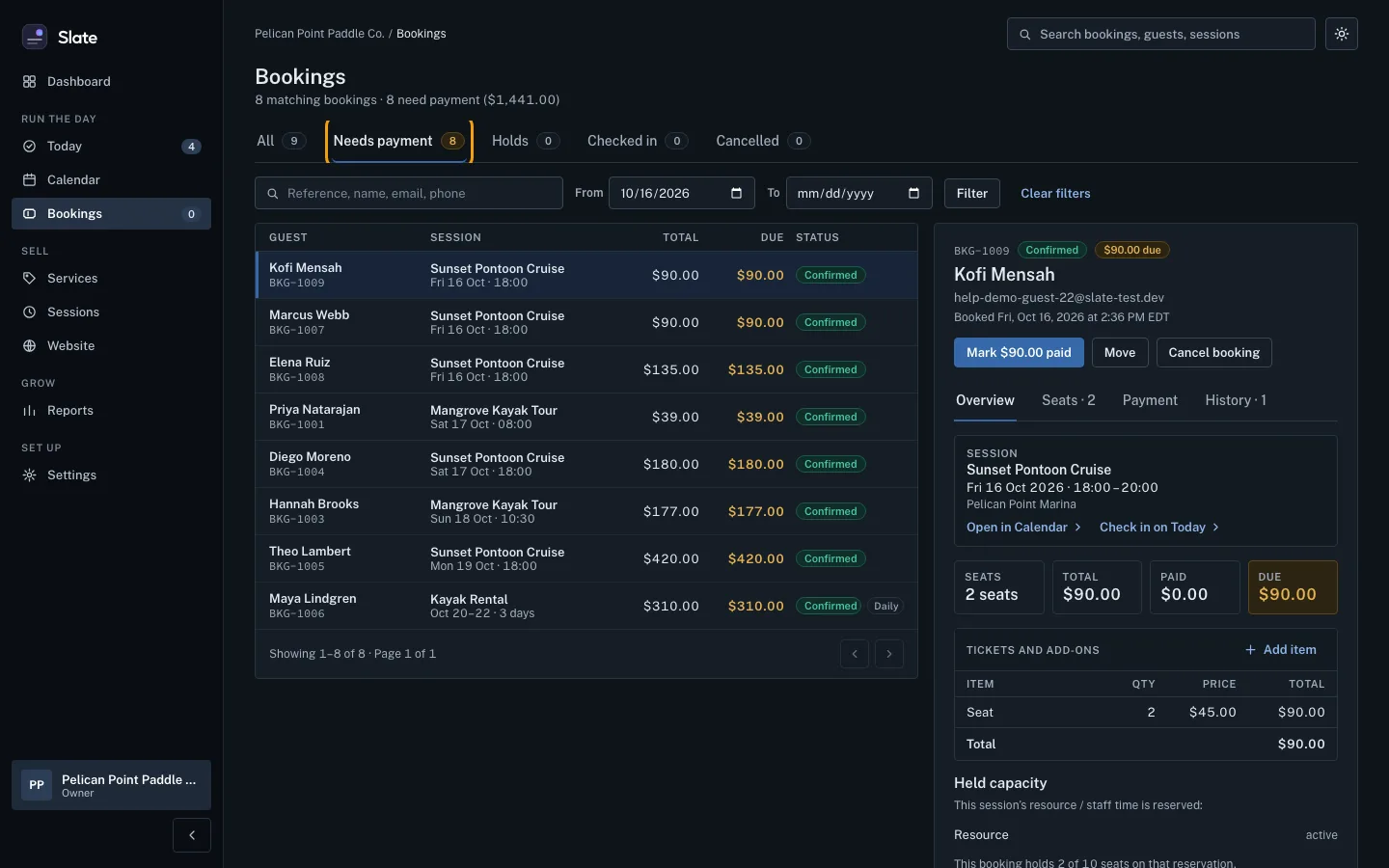
To see one kind of booking, click a tab above the search box: All, Needs payment, Holds, Checked in or Cancelled. The number on each tab is how many bookings it holds.
To look at a range of days, pick a From and a To date and click Filter.
Click a booking in the list to open it. Its details show on the right, or under the list on a phone.
To go back to the full list, click Clear filters.


Tips
- Needs payment lists every booking that still has money due, except cancelled and refunded ones.
- The list shows 20 bookings at a time. Use the arrows at the bottom to see the next page.
- A rental booked by the day shows its dates and a small Daily tag next to its status.
- On a phone, the menu runs across the top of the screen. Swipe it sideways to find Bookings.
Related
- Read a booking: guests, payment and history: Open a booking to see who booked, when they are coming, what they bought, what they have paid and everything that has happened to it.
- Run your day from Today: check guests in: See every session running today, open the next one's guest list, check parties in as they arrive, and find any guest fast.
- Use the calendar and a session's manifest: See your sessions by day, week or month, open any session to see who is booked, and open its full manifest.
Still stuck?
Tell us what you were trying to do and what you saw. A person reads every message.
Contact support