Help Center · Bookings & guests
Run your day from Today: check guests in
See every session running today, open the next one's guest list, check parties in as they arrive, and find any guest fast.
All help articlesChecked against Slate on
On this page
Before you start
- You are signed in to Slate. Owners, admins and staff can all use Today.
- You have sessions scheduled for today. If you have none, Today says Nothing on the board today.
Steps
In the menu on the left, under Run the day, click Today. The line under the title shows today's date, how many sessions you run, and how many seats are booked.
Look down the Timeline on the Sessions tab. Each session shows its time, its boat or guide, and how many seats are booked. All-day rentals are listed under Out all day. The next departure is open on the right.
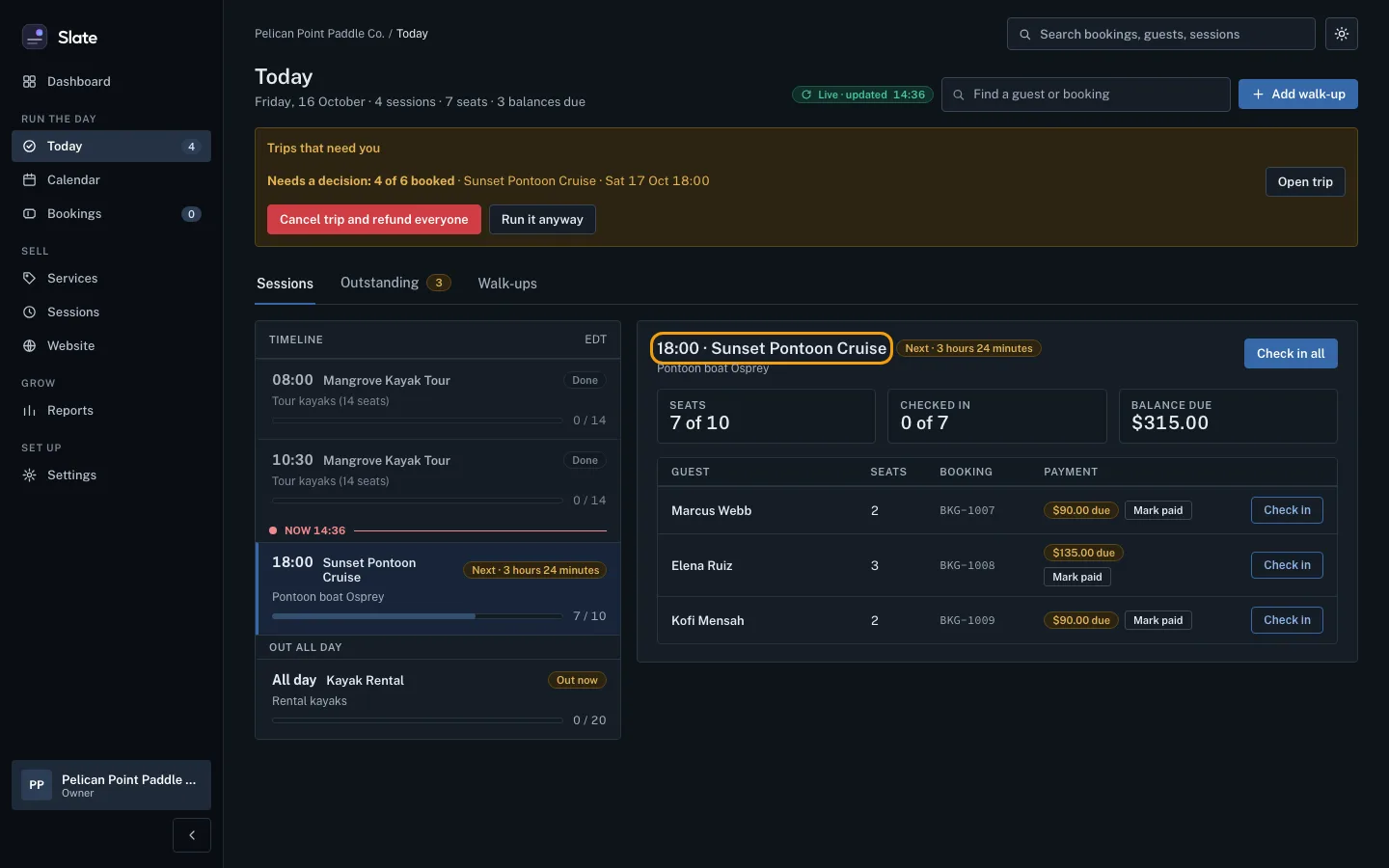
To see a different session, click it in the Timeline. Its card shows Seats, Checked in and Balance due, then one row per booking with the guest's name, seats and booking reference.
When a party arrives, click Check in on their row. The button turns green and reads Checked in, and the Checked in count at the top goes up by their seats.
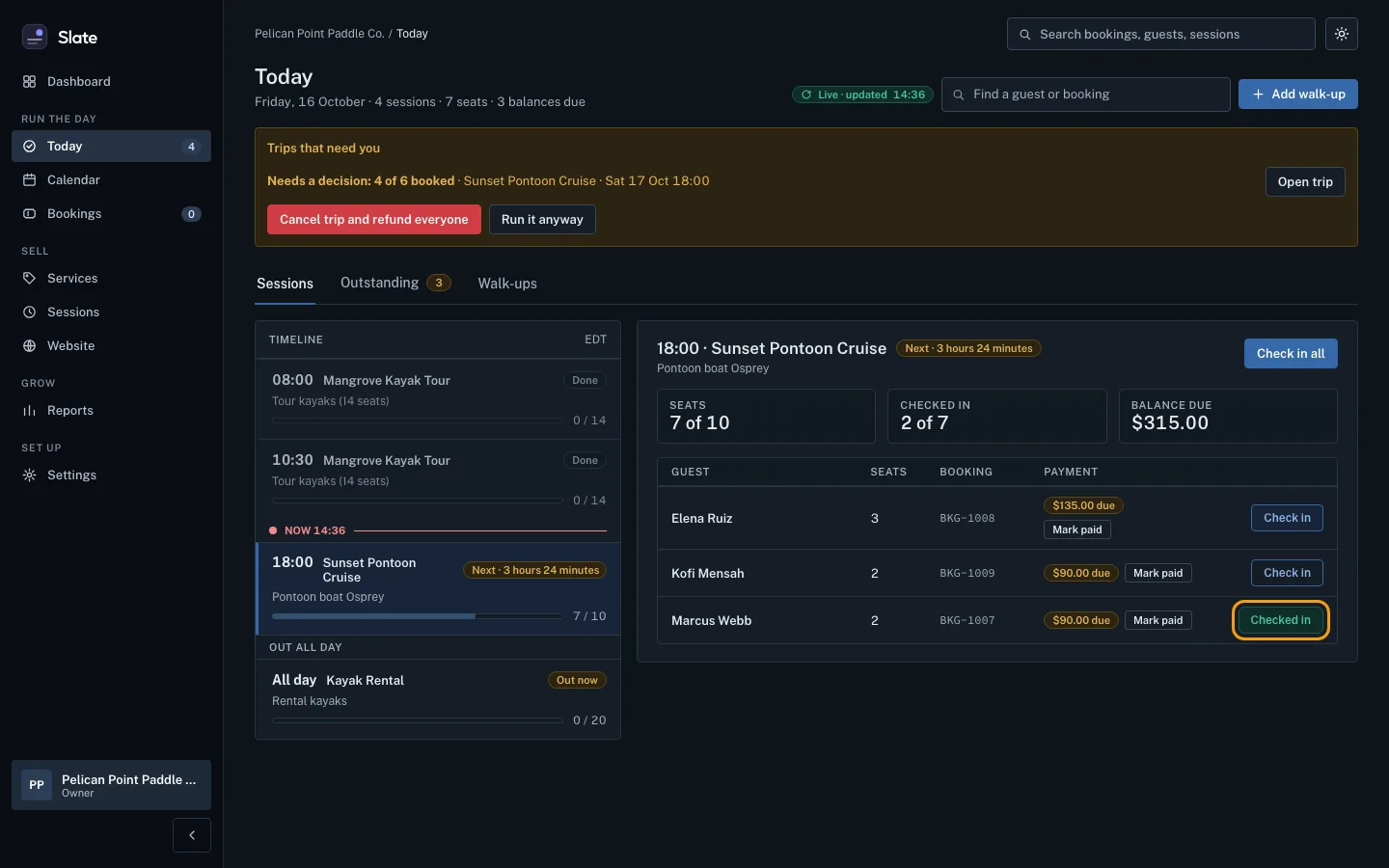
If the whole group is at the dock, click Check in all at the top of the card instead. It changes to All checked in when everyone is in.
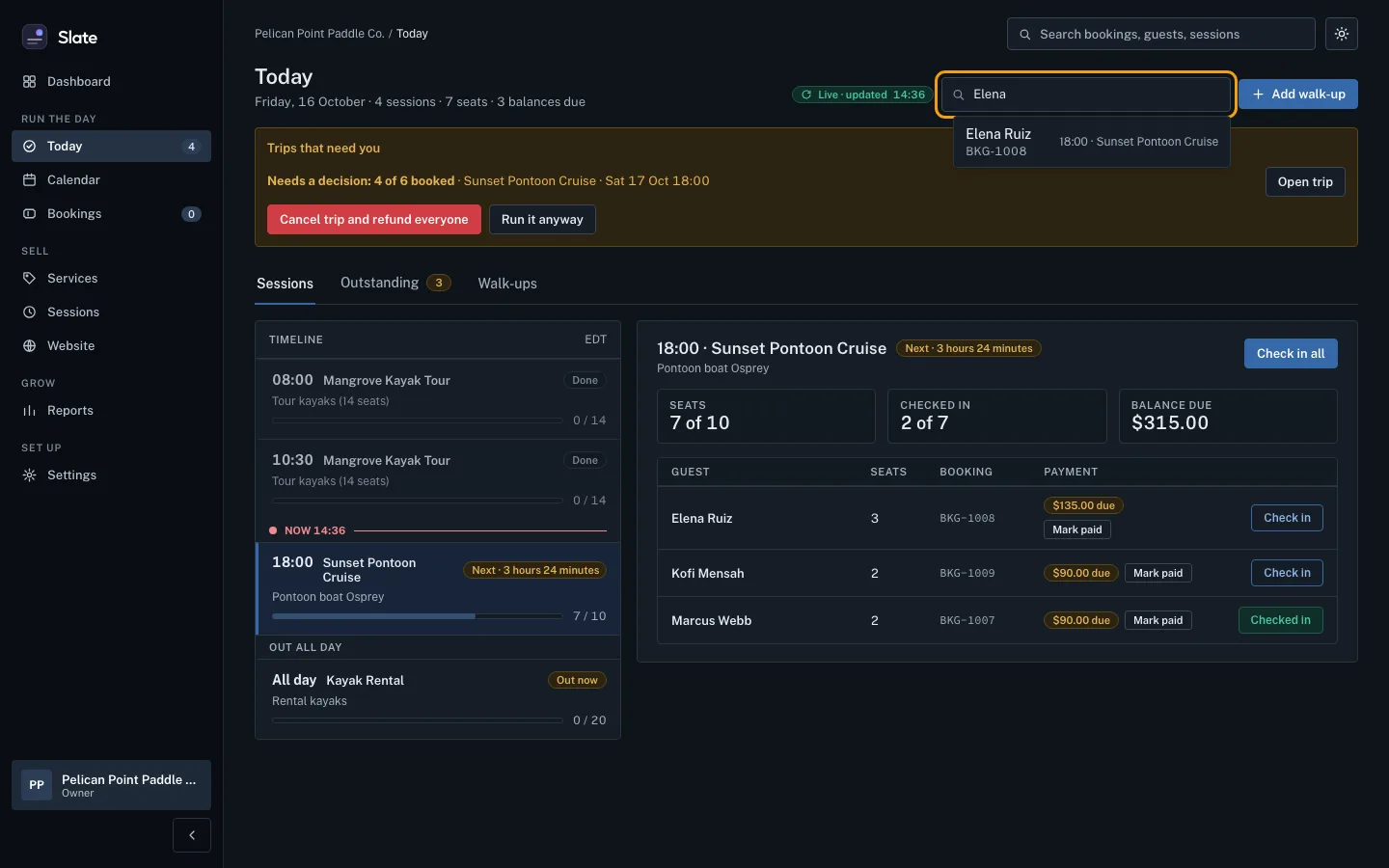
To find one guest without scrolling, type their name or booking reference in Find a guest or booking at the top. Click the match to open their booking.
Tips
- Checked a party in by mistake? Click Checked in on their row to undo it.
- Today keeps itself up to date: the Live label at the top shows when it last refreshed, about once a minute.
- Click a guest's name in the list to open their full booking.
- Someone at the dock with no booking? Click Add walk-up at the top right.
- If a trip is still under its minimum number of guests when its decision is due, it shows at the top under Trips that need you.
- On a phone, the menu runs across the top of the screen. Swipe it sideways to find Today.
Related
- Check guests in, one by one or all at once: Mark a party as arrived from Today or from the booking, check in a whole departure in one click, or check in each named person.
- Use the calendar and a session's manifest: See your sessions by day, week or month, open any session to see who is booked, and open its full manifest.
- Read a booking: guests, payment and history: Open a booking to see who booked, when they are coming, what they bought, what they have paid and everything that has happened to it.
Still stuck?
Tell us what you were trying to do and what you saw. A person reads every message.
Contact support