Help Center · Services & schedule
Set your opening hours
Give each boat, room, piece of gear or staff member the hours they can run, a whole week at a time, so Slate only makes sessions inside them.
All help articlesChecked against Slate on
On this page
Before you start
- You have added the boat, room, gear or person under Resources & staff. Hours always belong to one of them.
- Only an owner or admin can change hours.
Steps
In the menu on the left, under Set up, click Settings. Then click Schedule. It opens on the Hours tab.
Under Who or what, open the list and choose the boat, room, gear or person. The list is grouped into Staff and Resources. The page reloads with their week: one row per day, Monday first.
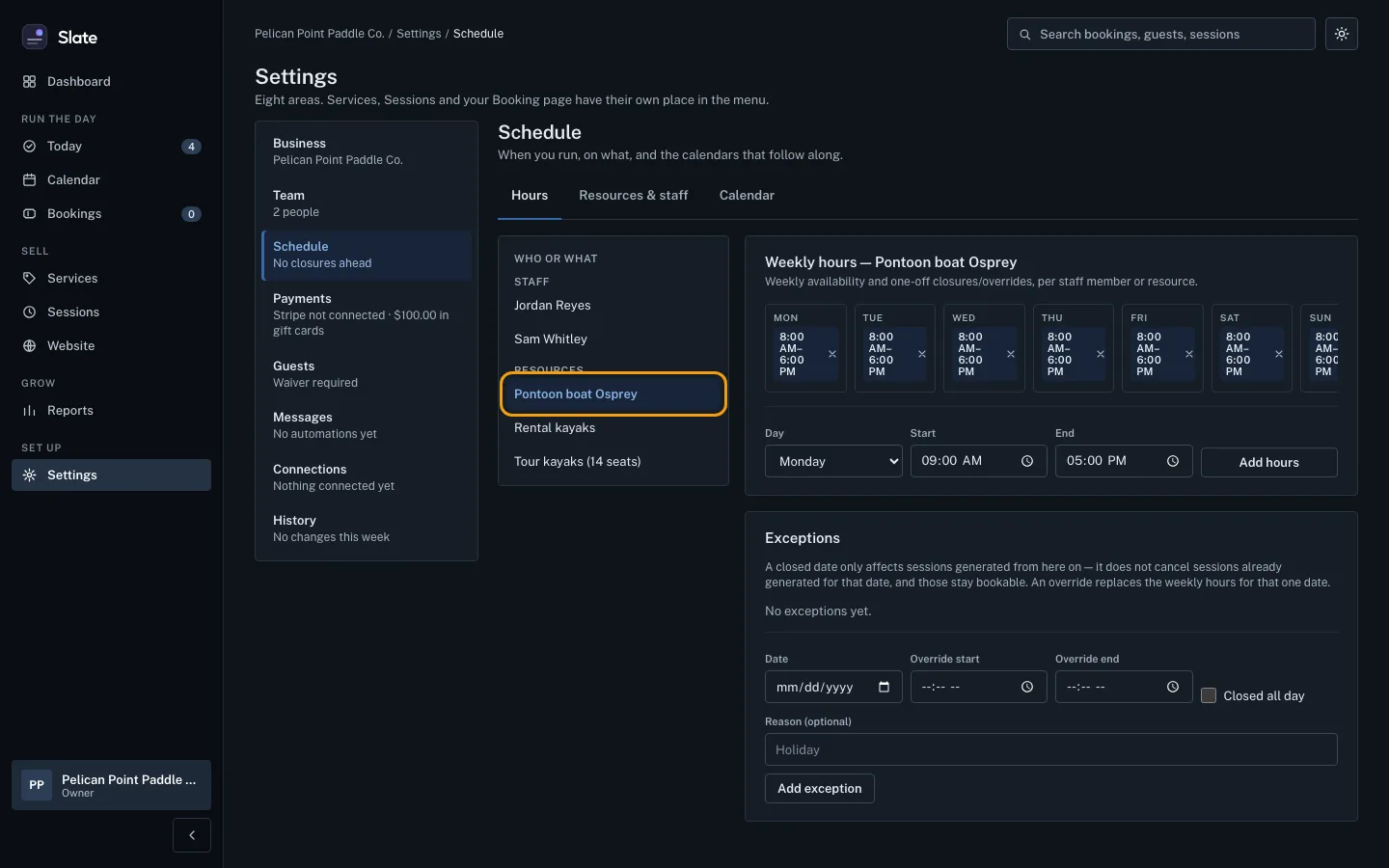
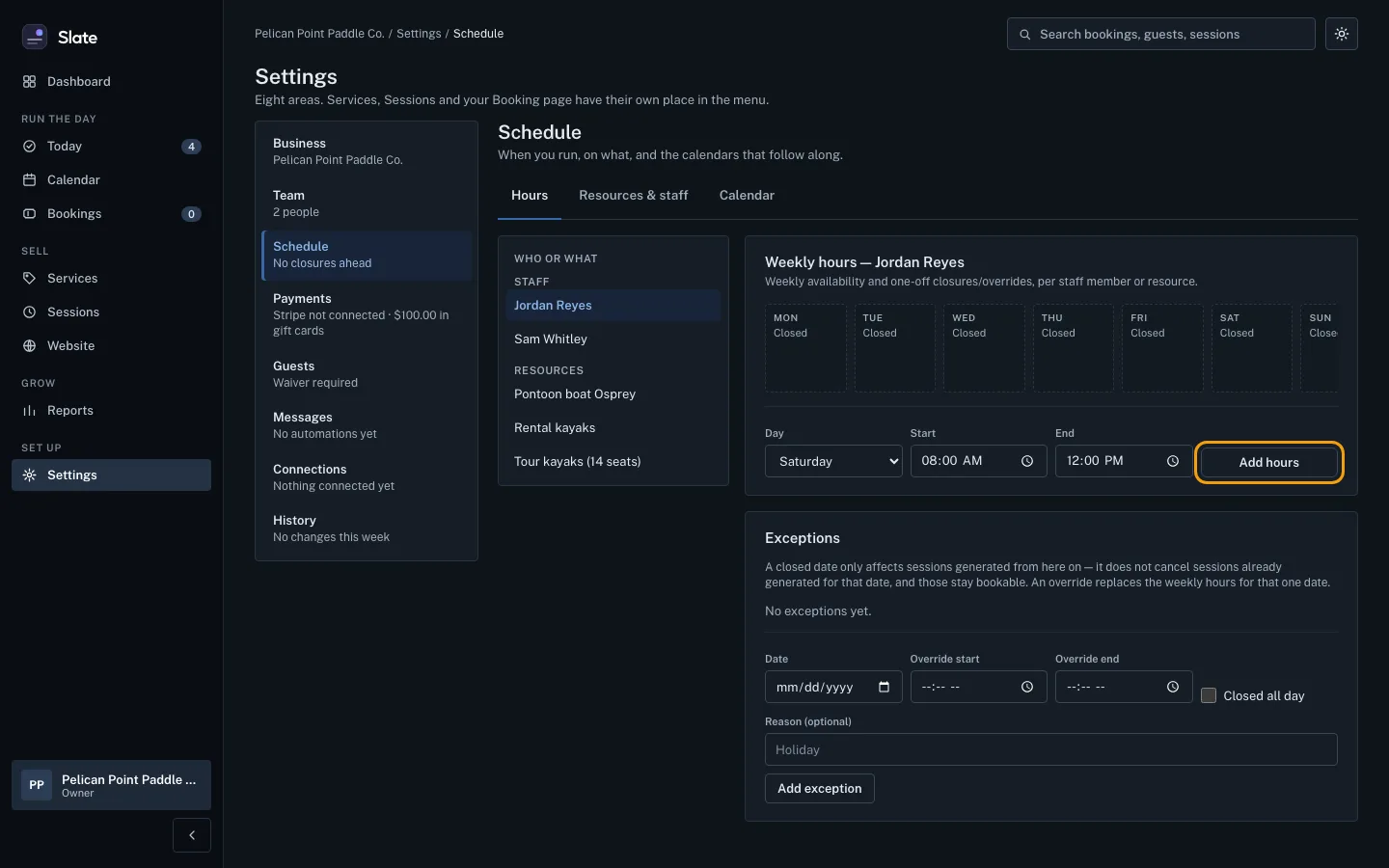
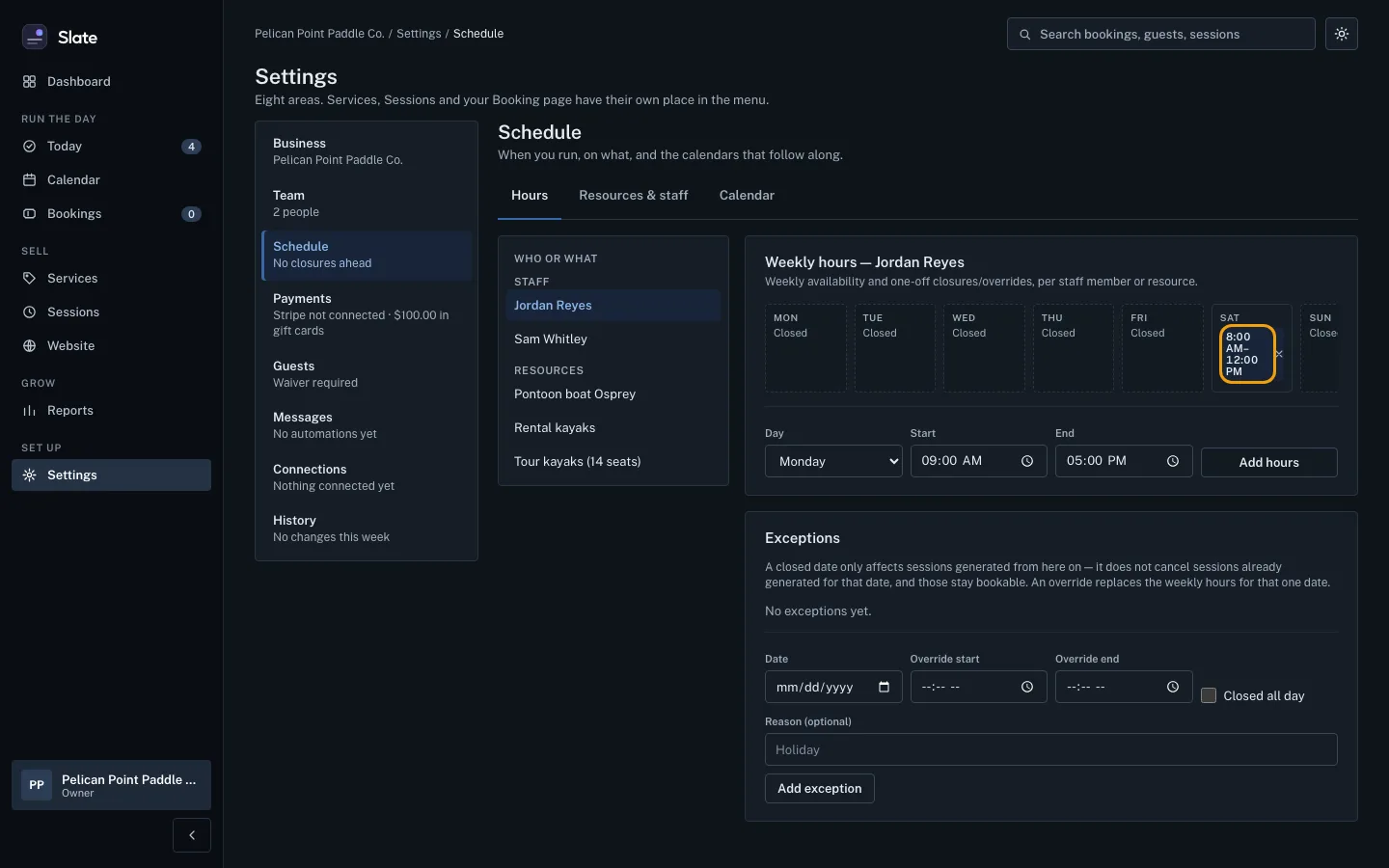
On each day, choose Open or Closed in the list next to the day's name. An open day shows two time lists, with to between them: when it opens and when it closes. A day with no hours yet starts at 9:00 AM to 5:00 PM when you open it.
Choose the opening time and the closing time for each open day from the two time lists. The closing time has to be later than the opening time.
To split a day, click Add a break on that day. A second pair of times appears under the first. Set it to the hours after the break. Click Remove next to it to take it away again.
To give every day the same hours, set Monday first, then click Copy Monday to every day at the top right of the card.
Click Save hours at the top right of the card. The whole week is saved at once, and Hours saved. appears above the week.
For a day that is different, scroll to Exceptions. Pick the Date. Under That day, choose Closed all day or Different hours (then choose when it Opens and Closes). Type a Reason if you like and click Add exception.


Tips
- Nothing is saved until you click Save hours. If you close or reload the tab with changes you have not saved, your browser asks first. Moving to another page inside Slate does not ask, so save before you go.
- If the page says These hours changed since you opened the page. Reload to see the latest, then save again., someone else changed this week while you had it open. Reload the page, make your changes again and click Save hours.
- A day can have up to 10 opening times. Two on the same day that overlap are not saved: the page says Two opening times on the same day overlap. Fix them, then save.
- To remove an exception, click Remove next to it in the Exceptions list.
- A closed date only affects sessions made from then on. It does not cancel sessions already made for that date, and those stay bookable. A Different hours exception replaces the weekly hours for that one date.
- Hours decide when Slate can make sessions. A repeating time skips any day where the hours do not cover the whole trip. On an experience's Schedule tab, the Days off card lists those days and has an Add a day off for link that opens this page on that boat or person.
- Changing hours does not move or remove sessions that already exist.
- A person or boat with no hours at all cannot have sessions made for them until you add some.
- On a phone, each day's times sit under its name. Scroll down the page to reach the rest of the week.
Related
- Schedule sessions: the days and times you run: Set repeating times on an experience, such as weekends at 13:00, then fill the next 14 days with sessions guests can book, and delete times nobody booked.
- Add boats, vehicles, rooms, gear and staff: List what your sessions run on and who leads them, choose what each person can run and who crews each boat, then give them hours.
- Add and edit locations: Add each place you run from, with its address and time zone, and keep the details up to date.
- Use the calendar and a session's manifest: See your sessions by day, week or month, open any session to see who is booked, and open its full manifest.
Still stuck?
Tell us what you were trying to do and what you saw. A person reads every message.
Contact support