Help Center · Services & schedule
Add a photo to an experience
Upload a photo for an experience so guests see it next to it on your booking page, or replace or remove the one it has.
All help articlesChecked against Slate on
On this page
Before you start
- You are signed in as an owner or admin. Staff see Only an owner or admin can change a service's photo. on this tab instead of the upload form.
- You have the photo on your computer or phone as a PNG, JPEG or WebP file.
Steps
In the menu on the left, under Sell, click Experiences, then click the experience in the list.
Click the Photo tab. An experience with no photo shows No photo yet. Guests still see this service’s details.
Click the file box under PNG, JPEG or WebP and choose your photo.
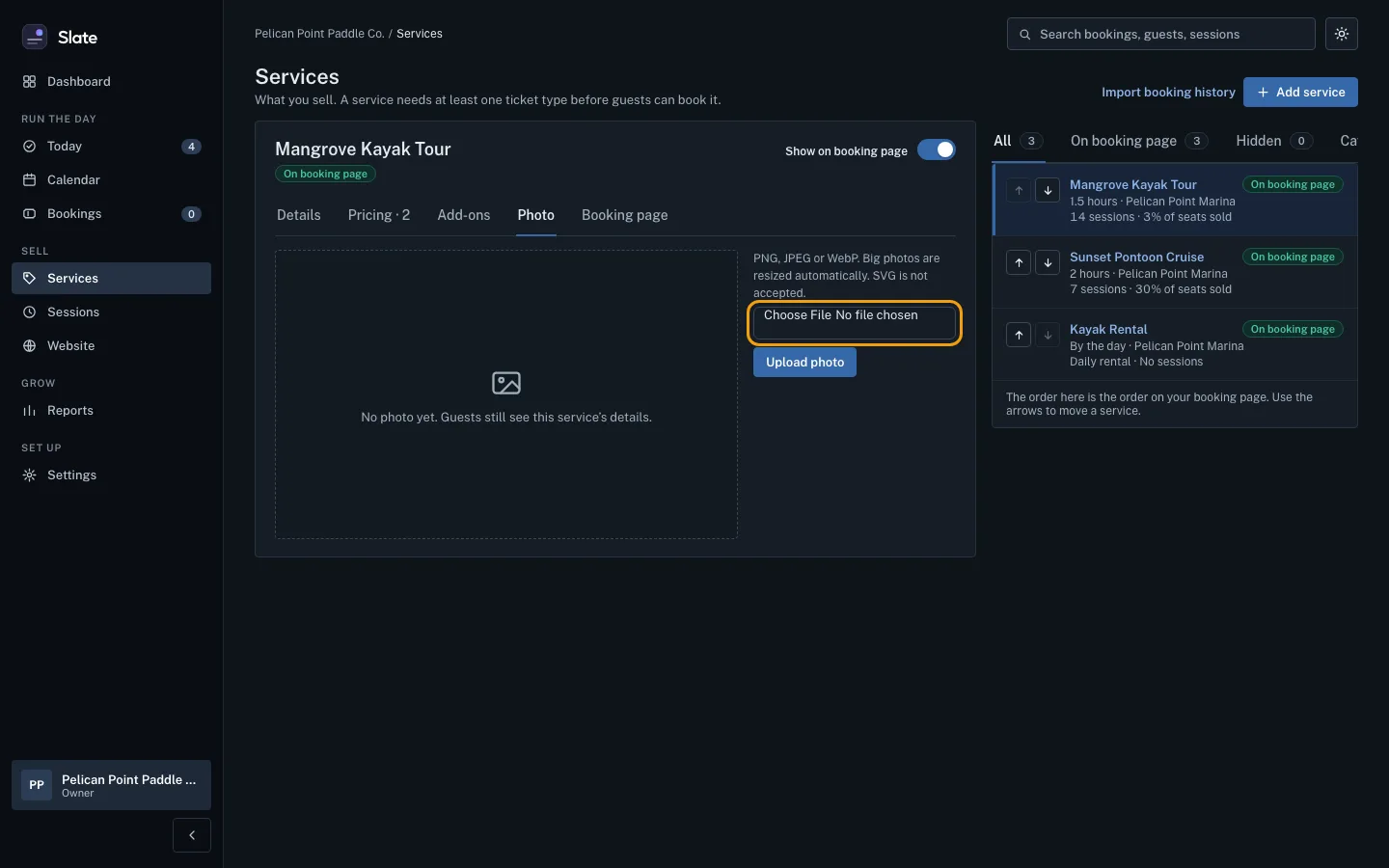
Click Upload photo. The button reads Preparing photo… and then Saving… while it works. When it is done, Photo saved. appears above the photo and the photo shows on the tab.

Tips
- Big photos are resized for you before they upload, so you can use one straight from your phone. SVG files are not accepted.
- To change the photo, choose a new file and click Replace photo.
- To take the photo off, click Remove. Photo removed. appears and the experience goes back to having no photo.
- On your booking page, guests see the photo as a small square picture next to the experience in your list, and as a wide picture across the top when they open it to book. Both are cropped to fit, so keep the main subject in the middle.
Related
- Edit an experience: details, category and order: Change an experience's name, description, length, buffers or location, sort it into a category, and choose where it sits on your booking page.
- Create your first experience: Add something guests can book, then give it a ticket type with a price so it shows up ready to book on your booking page.
- Add your logo and colors: Put your logo, a banner, your colors and fonts on your booking page, booking widget and the emails your guests get.
Still stuck?
Tell us what you were trying to do and what you saw. A person reads every message.
Contact support