Help Center · Team & integrations
Add your logo and colors
Put your logo, a banner, your colors and fonts on your booking page, booking widget and the emails your guests get.
All help articlesChecked against Slate on
On this page
Before you start
- You are signed in as an owner or admin.
- Your logo is a PNG, JPEG or WebP file. SVG files are not accepted.
Steps
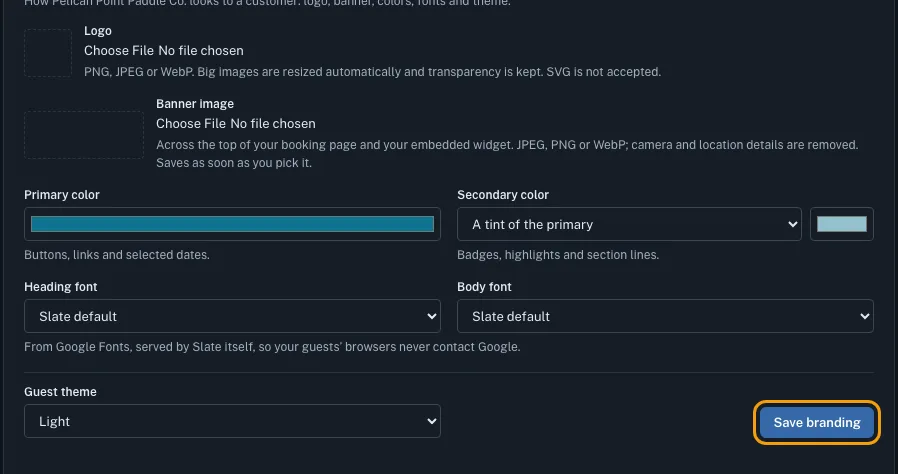
In the menu on the left, under Set up, click Settings. In the settings list, click Business, then the Branding tab.
Next to Logo, choose your logo file. Big images are resized for you, and a transparent background stays transparent.
Next to Banner image, choose a wide photo for the top of your booking page and widget. It saves as soon as you pick it.
Pick your Primary color, used for buttons, links and selected dates. For Secondary color, keep A tint of the primary or choose Its own color.
Choose a Heading font and a Body font, or leave them on Slate default.
Choose a Guest theme: Dark, Light or Match the visitor’s device.
Check the Preview below the form. Switch between Booking page and Widget to see both. If a color is too light or too dark to read, a note under the preview tells you which one to change.
Click Save branding. You see Branding saved.

Tips
- Your logo and colors also appear on your booking emails to guests and on signed waiver copies.
- To take your logo off, click Remove logo. To take the banner off, click Remove banner.
- A new logo can take up to a minute to show everywhere.
- The questions guests see on your booking page are set on a different page: under Sell, click Experiences, then Share all at the top. They are on the Appearance card.
Related
- Share your booking page: link, QR code and FAQ: Copy your booking page address, show its QR code, and add the questions and answers guests see before they book.
- Add booking to your own website: Pick where your website is built, copy the code or link Slate gives you, follow the steps for that builder, then check that guests can book.
- Change your business name or time zone: Rename your business, set the time zone every time in Slate uses, and copy your booking page link.
Still stuck?
Tell us what you were trying to do and what you saw. A person reads every message.
Contact support