Help Center · Team & integrations
Share your booking page: link, QR code and FAQ
Copy your booking page address, show its QR code, and add the questions and answers guests see before they book.
All help articlesChecked against Slate on
On this page
Before you start
- You are signed in to Slate. Anyone on the team can copy the link and show the QR code. Only an owner or admin can change the questions.
Steps
In the menu on the left, under Sell, click Experiences, then click Share all at the top.
On the Booking page link card, click Copy link. The button says Copied for a moment. Paste the address anywhere guests will see it: a post, an email or a text.
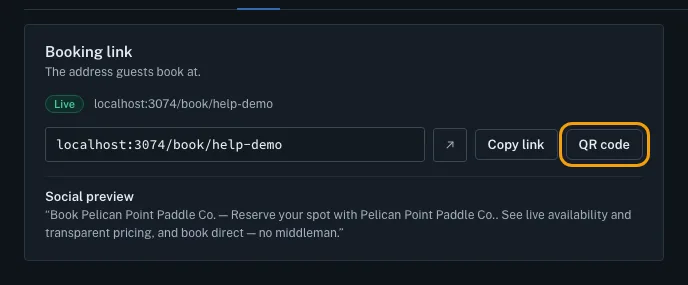
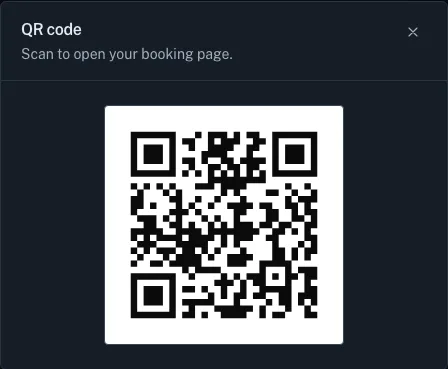
Your own booking page address appears here. Click QR code. Guests who scan it with a phone camera open your booking page. To put it on a flyer or a sign, take a screenshot of it or print this screen.
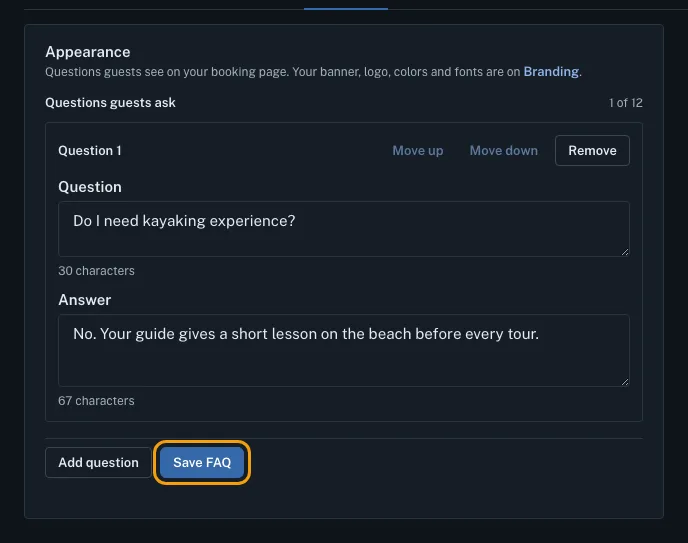
To answer common questions on your booking page, find the Appearance card lower on the page, then click Add question.
Type the Question and its Answer.
Click Save FAQ. You see FAQ saved. Guests see your questions in an FAQ section below the booking steps.


Tips
- To share only one experience, under Sell click Experiences, click the experience, then its Share tab. The Booking link card has a Copy link button for that experience alone. From there, Share all experiences → takes you back to this page.
- To see your booking page as a guest does, click Open on the Booking page link card. It opens in a new tab.
- You can add up to 12 questions. Use Move up and Move down to change their order, then click Save FAQ.
- To delete a question, click Remove on it, then click Save FAQ.
- Your logo, banner, colors and fonts are set under Settings, Business, Branding.
Related
- Create a booking link for one service: Make a separate link that opens booking for just one service, for an ad, a social post or a partner, with an optional price and end date.
- Add booking to your own website: Pick where your website is built, copy the code or link Slate gives you, follow the steps for that builder, then check that guests can book.
- Add your logo and colors: Put your logo, a banner, your colors and fonts on your booking page, booking widget and the emails your guests get.
Still stuck?
Tell us what you were trying to do and what you saw. A person reads every message.
Contact support