Help Center · Team & integrations
Create a booking link for one service
Make a separate link that opens booking for just one service, for an ad, a social post or a partner, with an optional price and end date.
All help articlesChecked against Slate on
On this page
Before you start
- You are signed in as an owner or admin.
- The service is active. A link always opens exactly one service.
Steps
In the menu on the left, under Sell, click Experiences, then click Share all at the top. Find the Private booking links card.
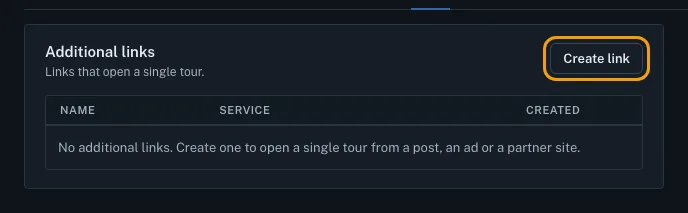
Click Create link. The New booking link panel opens.
Choose the Service this link opens.
To sell only one price through this link, choose it in Price tier. Leave it on Any tier to offer every price.
Type a Label so you can tell your links apart, for example
Instagram bio. Guests see the label too, under your business name.To stop the link working after a date, pick it in Expires. Leave it blank and the link never expires.
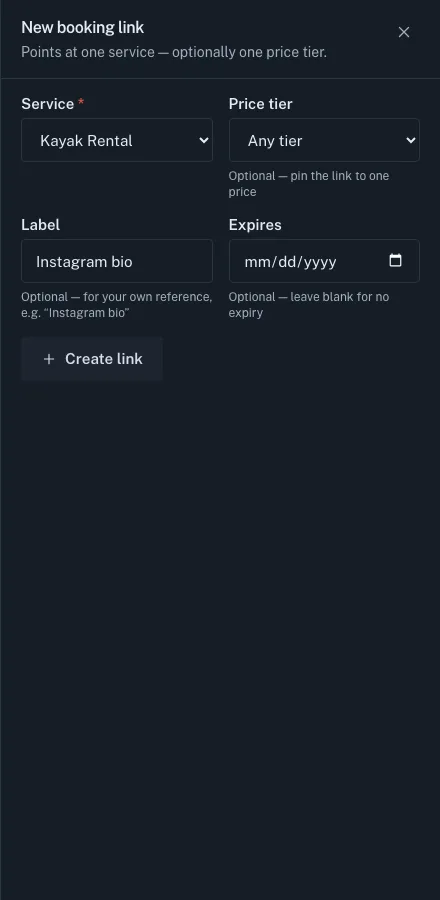
Click Create link. Your new link appears with a Copy link button. Copy it now: this is the only time Slate shows the whole link. Afterward the list shows only its last four characters.
Paste the link where you want it. Guests who open it see only that service and its upcoming times, and book from there.


Tips
- To turn a link off, click Revoke next to it in the list, then Confirm. Its label changes to Revoked. A revoked link cannot be turned back on; create a new one instead.
- A link with an end date stops working at the end of that day in UTC (Coordinated Universal Time). It then shows as Expired in the list.
- Click Create another to make a second link without closing the panel.
Related
- Share your booking page: link, QR code and FAQ: Copy your booking page address, show its QR code, and add the questions and answers guests see before they book.
- Add booking to your own website: Pick where your website is built, copy the code or link Slate gives you, follow the steps for that builder, then check that guests can book.
Still stuck?
Tell us what you were trying to do and what you saw. A person reads every message.
Contact support