Help Center · Team & integrations
Add booking to your own website
Pick where your website is built, copy the code or link Slate gives you, follow the steps for that builder, then check that guests can book.
All help articlesChecked against Slate on
On this page
Before you start
- You are signed in to Slate. Anyone on the team can follow the steps. Only an owner or admin can email them to a web developer or run the check at the end.
- You can edit your website, or you know who does.
Steps
In the menu on the left, under Sell, click Experiences, then click Share all at the top. If nothing is installed yet, Install booking on your website is already open. Otherwise click Add to my website on the Installations card.
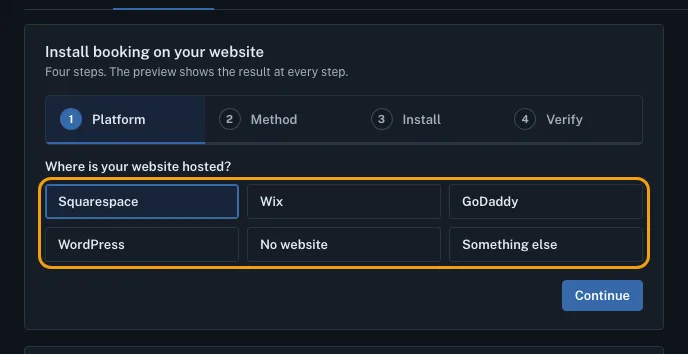
Under Where is your website hosted?, click yours: Squarespace, Wix, GoDaddy, WordPress, No website or Something else. Then click Continue.
Choose how guests book on your site. The best fit is marked Recommended. If a Requirement note appears, check your plan meets it; if it does not, pick the Book now button instead.
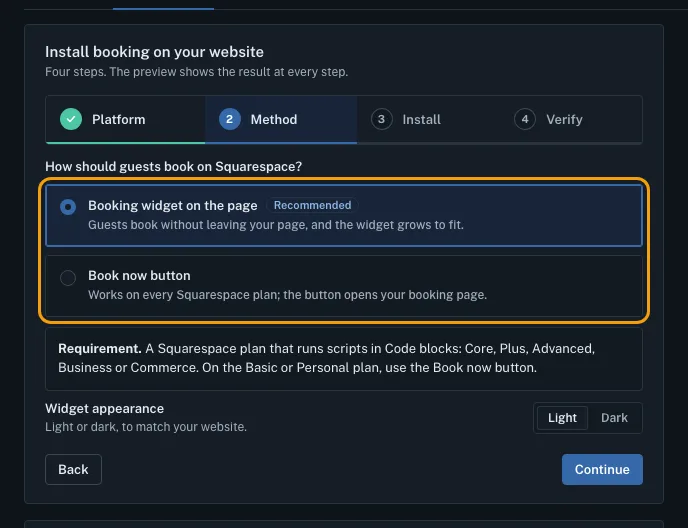
If you chose the booking widget, pick Light or Dark under Widget appearance to match your website. Then click Continue.
Click Copy code. For a link instead of code, the button says Copy address.
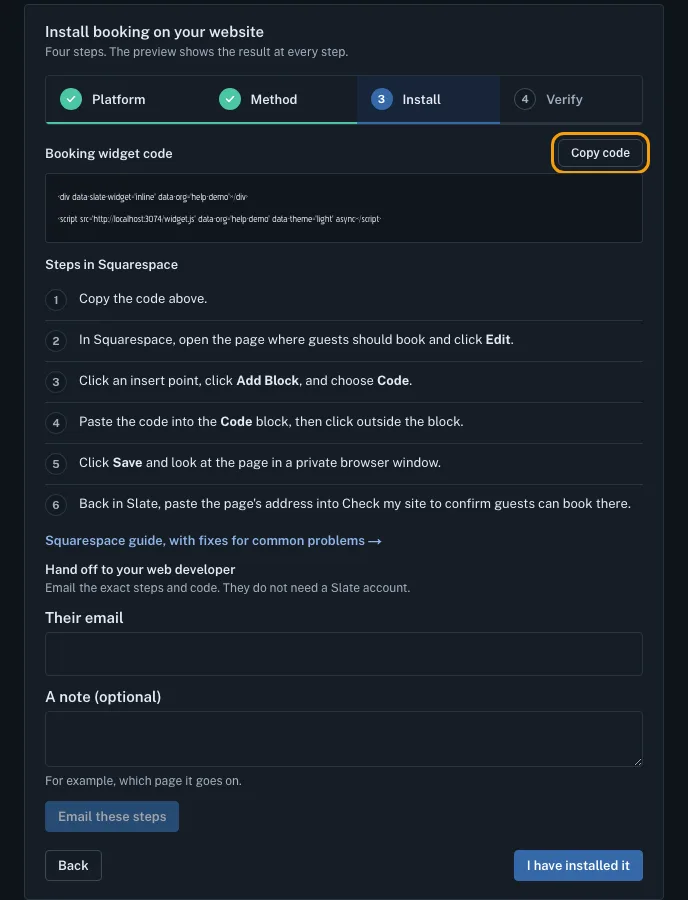
Follow the numbered steps under the code, in your website builder. They name the exact buttons to click there. For more help, open the guide link below the steps.
Back in Slate, click I have installed it.
Under Verify installation, type the address of the page where you added booking, for example
yourbusiness.com/book, and click Run check. Working means guests can book there. Any other result comes with what to fix.


Tips
- To put your whole lineup on your site, use the Share all page's Book now button (Copy button), Slate script (once per website) (Copy script) and Embed the full lineup on a page (Copy embed) cards. The button opens all your experiences in a pop-up.
- Want a Book now button in the corner of every page? On Experiences, Share all, use Floating Book now button: pick a corner and the text, click Copy code, and paste it in place of your Slate script. It uses your brand color from Branding; if you change that color later, copy the code again. Open automatically is off unless you turn it on.
- Want a button or link for only one experience? Under Sell, click Experiences, click the experience, then its Share tab. Four cards give you a Booking link (Copy link), a Book button with text you choose (Copy button), the Slate script (once per website) (Copy script) and Embed on a page (Copy embed). Add the script to your site once; the button and the embed need it.
- If your plan does not include the booking widget, the Book button, script and embed cards show a note about upgrading instead of the code. The Booking link card always has the link.
- Someone else builds your website? On the install step, an owner or admin can type their address under Their email and click Email these steps. They get the code and the steps, and do not need a Slate account.
- Pages you check are listed under Installations. Slate checks them again once a day. You can keep up to 3 pages there.
- No website? Choose No website for steps to put your booking page address on Instagram, Facebook and your Google Business Profile.
Related
- Share your booking page: link, QR code and FAQ: Copy your booking page address, show its QR code, and add the questions and answers guests see before they book.
- Create a booking link for one service: Make a separate link that opens booking for just one service, for an ad, a social post or a partner, with an optional price and end date.
- How the booking widget works on your website: What guests see when your booking form sits inside your own website, either on the page or in a panel that slides out.
- Add your logo and colors: Put your logo, a banner, your colors and fonts on your booking page, booking widget and the emails your guests get.
Still stuck?
Tell us what you were trying to do and what you saw. A person reads every message.
Contact support