Help Center · Services & schedule
Edit an experience: details, category and order
Change an experience's name, description, length, buffers or location, sort it into a category, and choose where it sits on your booking page.
All help articlesChecked against Slate on
On this page
Before you start
- You are signed in as an owner or admin. Staff can see your experiences but cannot save changes to them.
- The experience already exists. If it does not, see Create your first experience.
Steps
In the menu on the left, under Sell, click Experiences.
In the list of experiences, click the one you want to change. It opens on its Details tab.
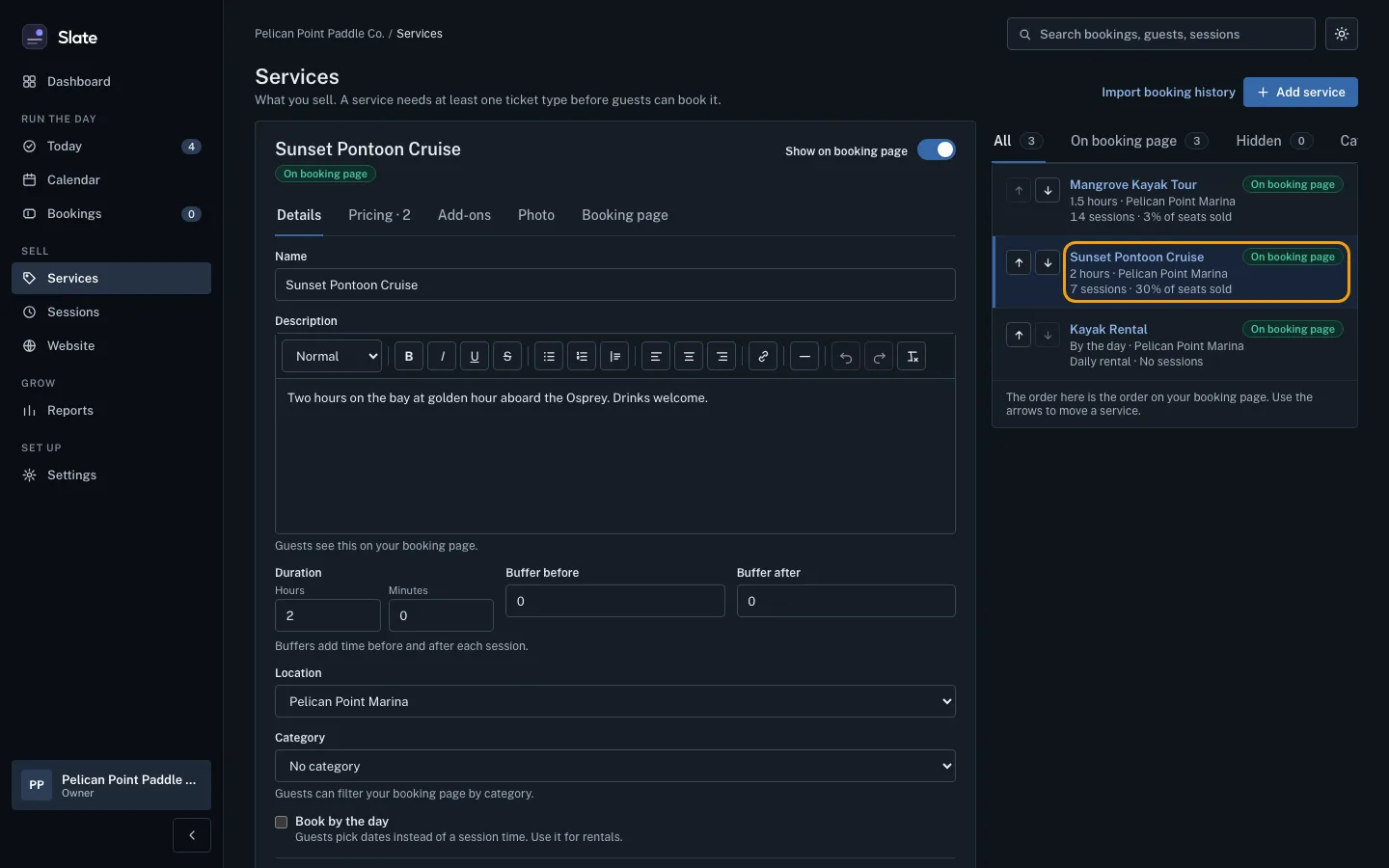
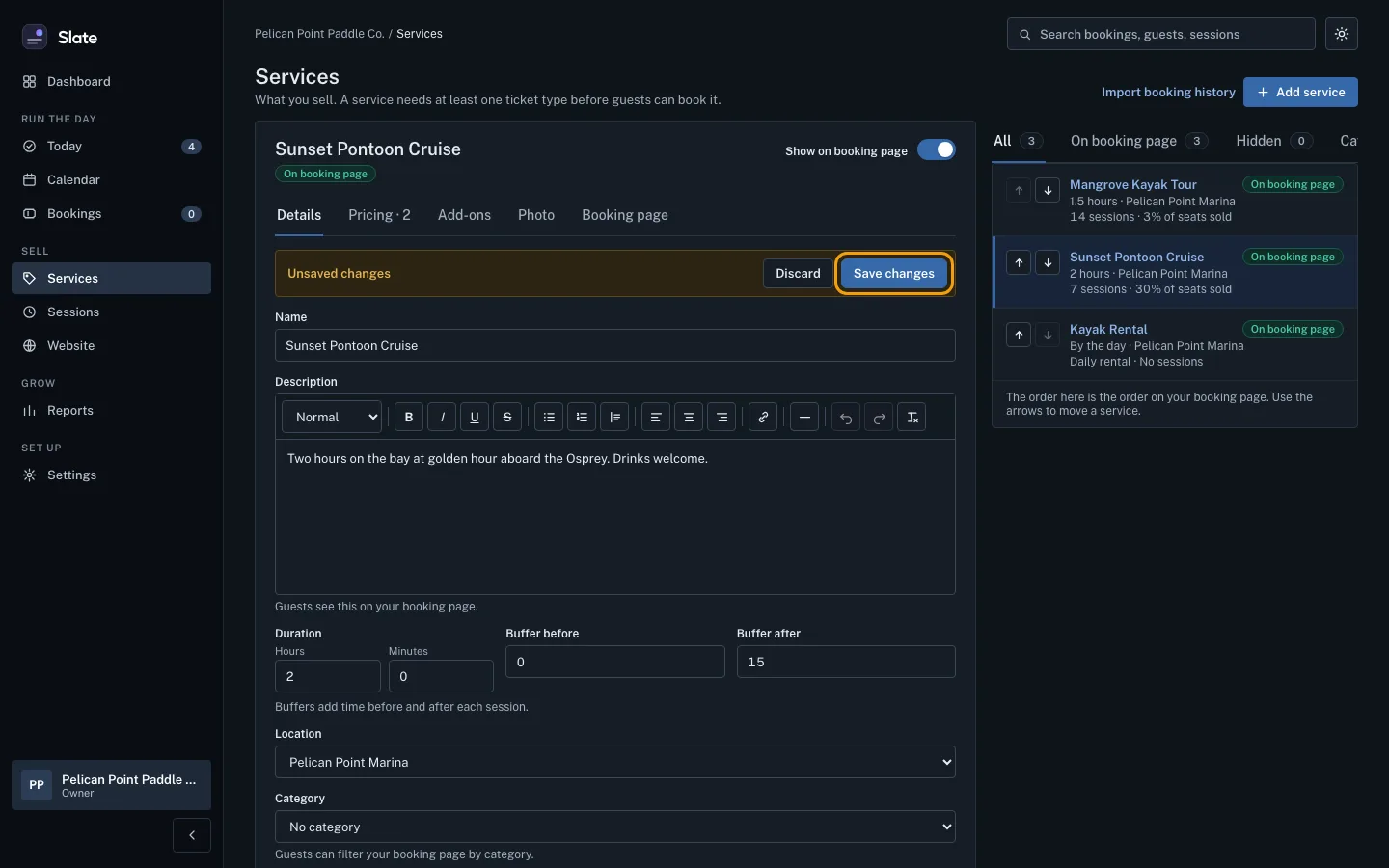
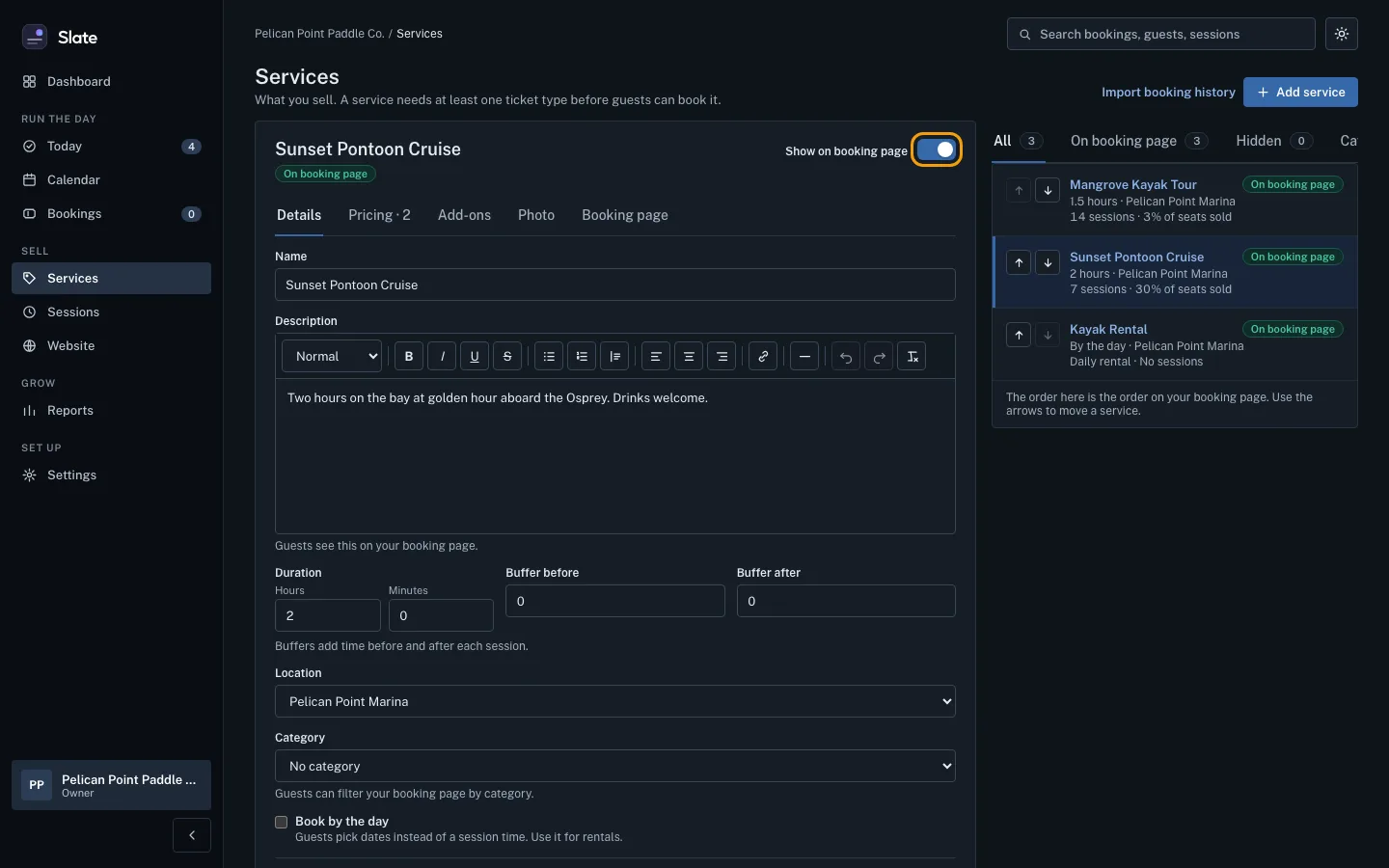
Change what you need: Name, Description, Duration (hours and minutes), Buffer before, Buffer after or Location. As soon as you change something, an Unsaved changes bar appears at the top of the tab.
Click Save changes in that bar. To throw your edits away instead, click Discard.
To group experiences, first make a category. Above the list of experiences, click the Categories tab, type a Name (for example
Guided tours), and click Add category.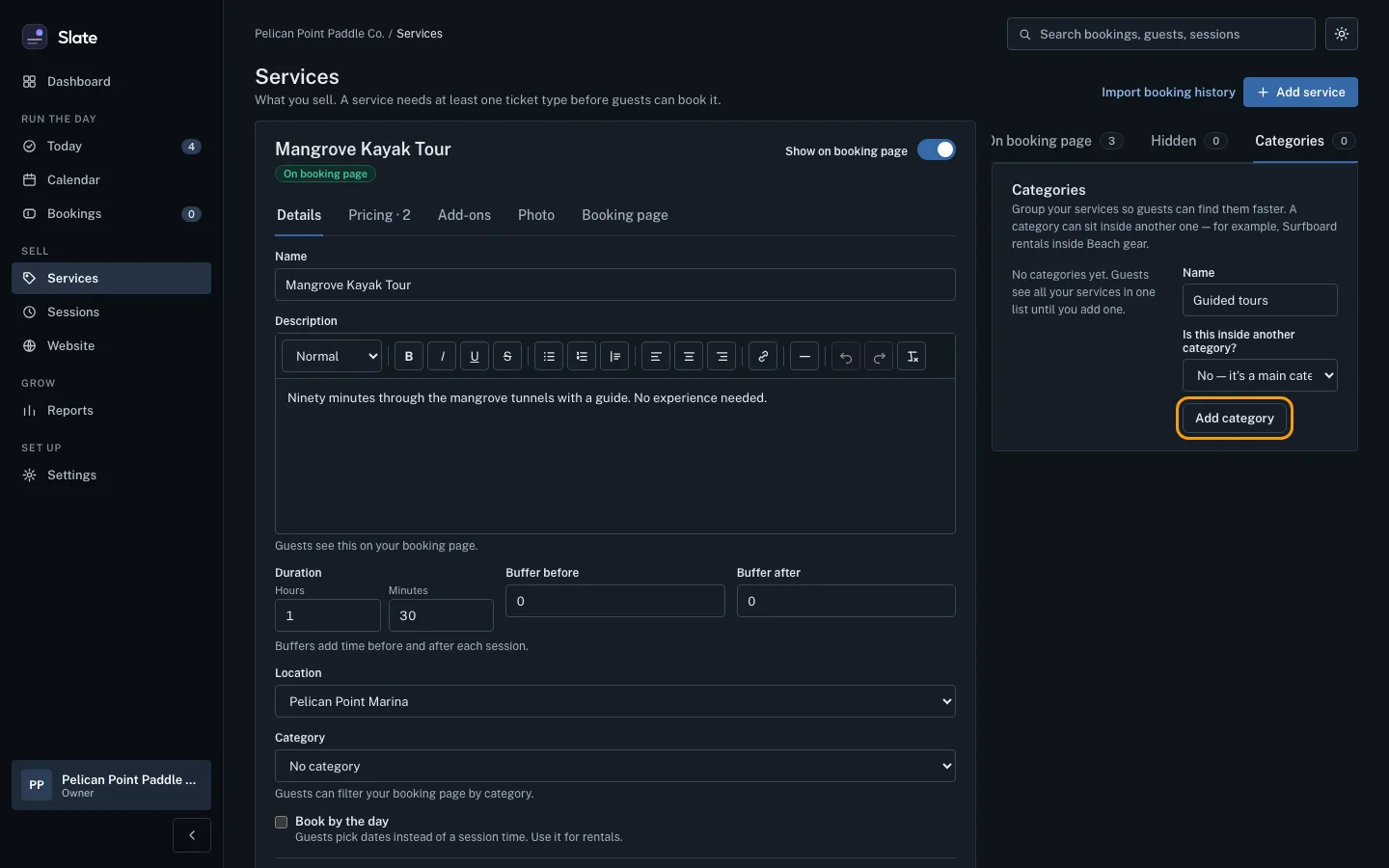
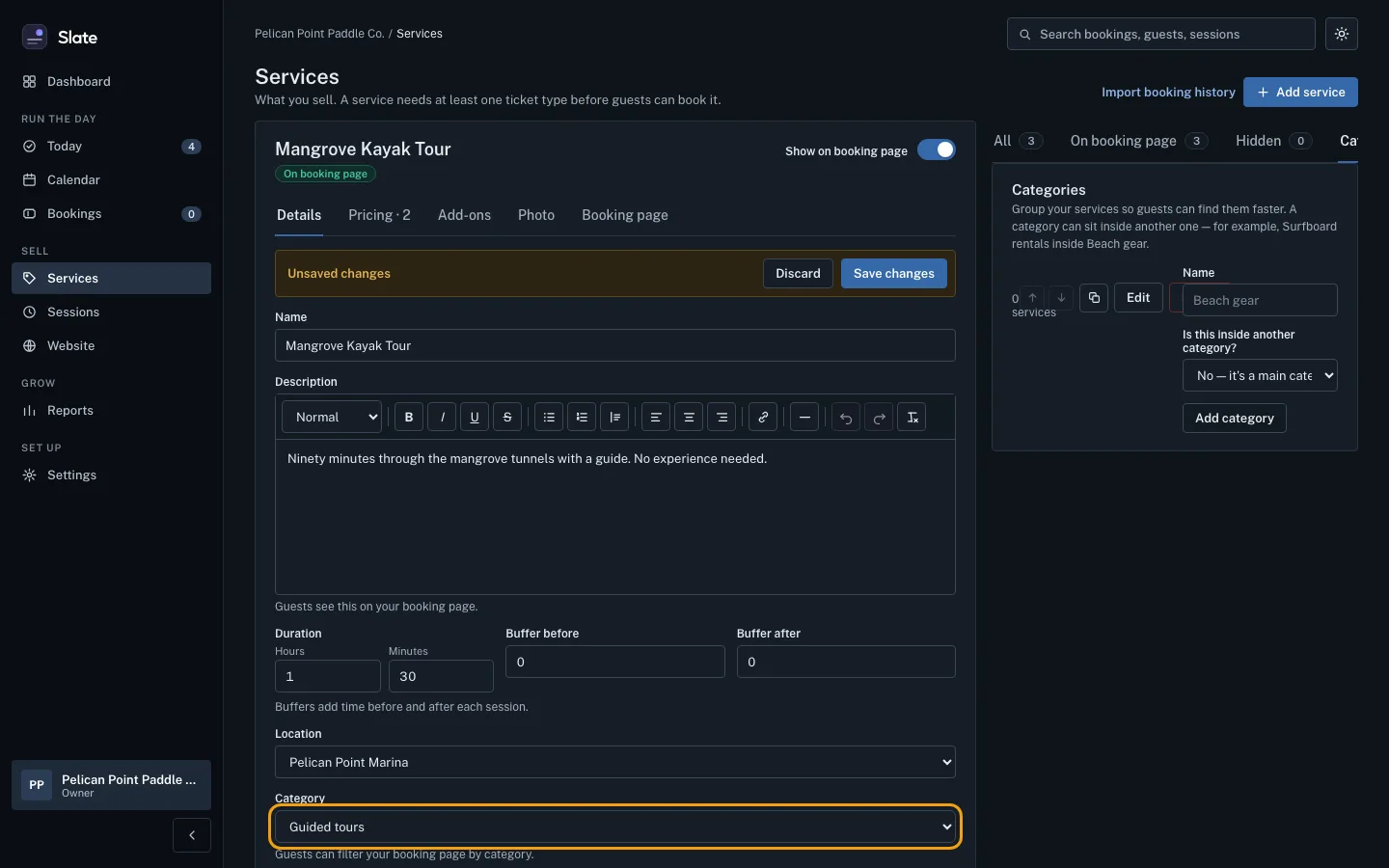
Click the All tab and click the experience again. On its Details tab, choose the category in the Category list and click Save changes. Guests can then filter your booking page by category.
To change the order guests see, click the All tab above the list and use the up and down arrows next to an experience. The order of the list is the order on your booking page.
To take an experience off your booking page without deleting it, turn off Show on booking page at the top of the experience. It moves to the Hidden tab. Turn the switch back on to show it again.


Tips
- On a phone, the list of experiences sits above the one you are editing. Scroll down to reach its tabs.
- If you cannot see the Categories tab, swipe or scroll the row of tabs above the list sideways.
- A category can sit inside another one. When you add it, choose Yes — inside and the main category under Is this inside another category?
- With many experiences, type in Find an experience above the list to narrow it. While a search is on, the arrows are replaced by numbers; clear the search to change the order.
- To see the experience the way guests do, open its Share tab and look under How it looks.
- Each experience has six tabs: Details, Pricing (prices and ticket types), Add-ons (guest choices), Photo, Schedule (the days and times it runs) and Share (links and codes for your website).
Related
- Create your first experience: Add something guests can book, then give it a ticket type with a price so it shows up ready to book on your booking page.
- Add a photo to an experience: Upload a photo for an experience so guests see it next to it on your booking page, or replace or remove the one it has.
Still stuck?
Tell us what you were trying to do and what you saw. A person reads every message.
Contact support