Help Center · Team & integrations
Invite your team and choose their roles
Send someone an email invitation to join your business in Slate, as staff or as an admin.
All help articlesChecked against Slate on
On this page
Before you start
- You are signed in as an owner or admin. Staff can see the team list but cannot invite anyone.
- You have the email address the person will sign in with.
Steps
In the menu on the left, under Set up, click Settings. In the settings list, click Team.
Under Invite somebody, type their Email.
Choose a Role: Staff or Admin. Admins can invite others and change settings such as branding, waivers, webhooks and API keys. Staff cannot change those settings.
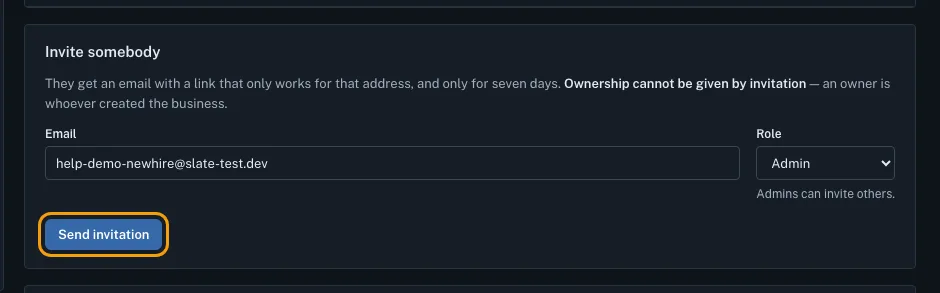
Click Send invitation. You see Invitation sent to and their address.
They get an email with a link to accept. The link only works for that email address, and only for seven days. If they do not have a Slate account yet, they create one with that same address.
Until they accept, they are listed under Pending invitations. Once they accept, they appear under Members.

Tips
- Lost the email? Under Pending invitations, click Resend next to their address. It replaces the old link with a new one.
- To cancel an invitation, click Withdraw next to it, then click Withdraw again. Their link stops working straight away.
- Nobody can be invited as an owner. To hand the whole business to someone, they join first, then the owner offers them ownership.
- This page does not change a member's role or remove a member after they join. If you need either, contact support.
Related
- Join a team from an invite: Accept an invitation to someone else's business on Slate, with a new account or the one you already have.
- Switch between businesses: When you belong to more than one business on Slate, change which one the console shows from the account menu.
Still stuck?
Tell us what you were trying to do and what you saw. A person reads every message.
Contact support