Help Center · Getting started
Take the console tour and find your way around
Walk through the nine steps of the Slate console tour in two minutes, replay it any time, and jump to any page from the keyboard.
All help articlesChecked against Slate on
On this page
Before you start
- You are signed in to Slate.
Steps
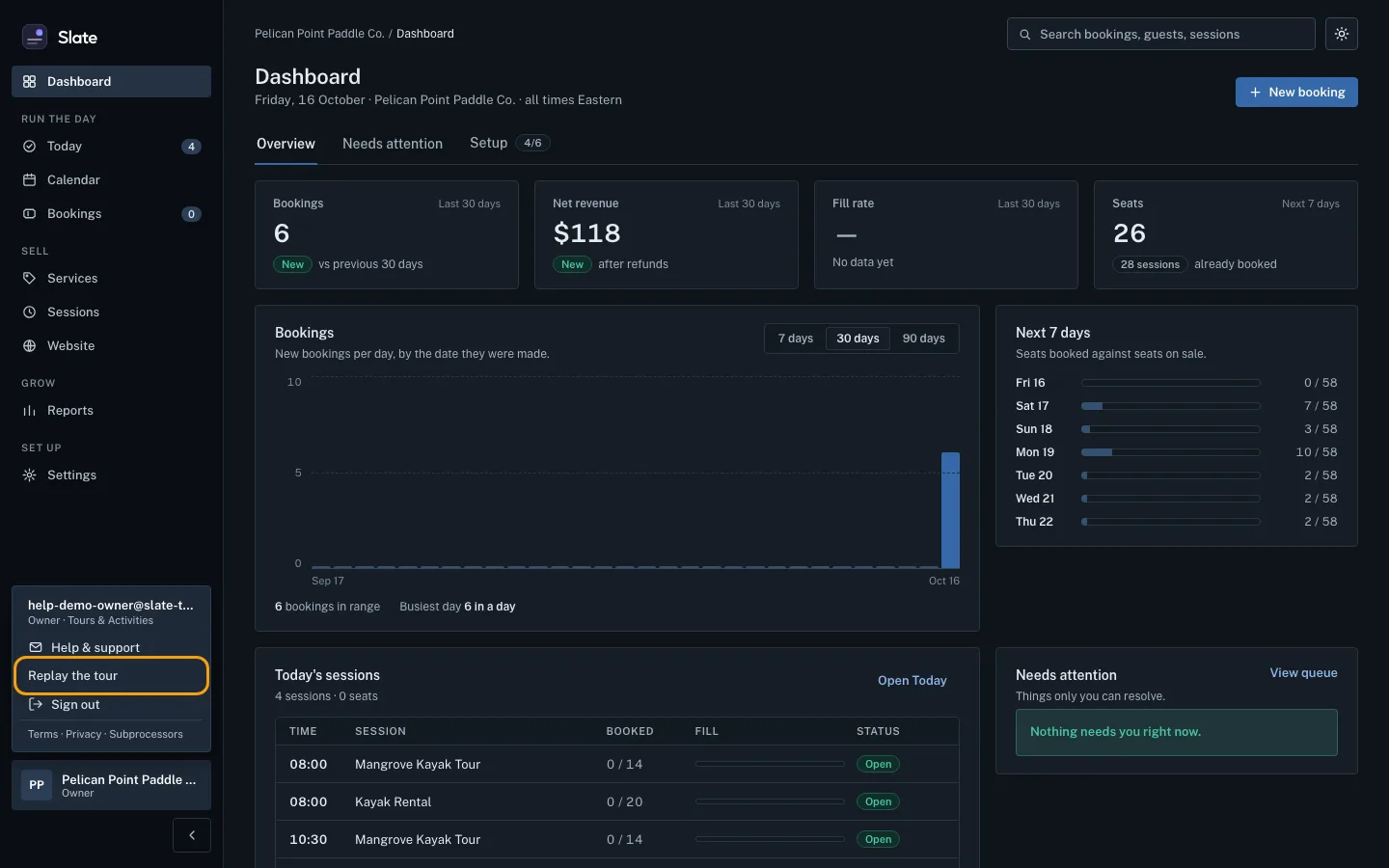
On a computer, click your business's name at the bottom of the menu on the left. On a phone, tap your business's name at the top of the screen.
Click Replay the tour.
The tour starts on your dashboard with Your day at a glance. Each step outlines part of the page and explains it in a sentence or two.
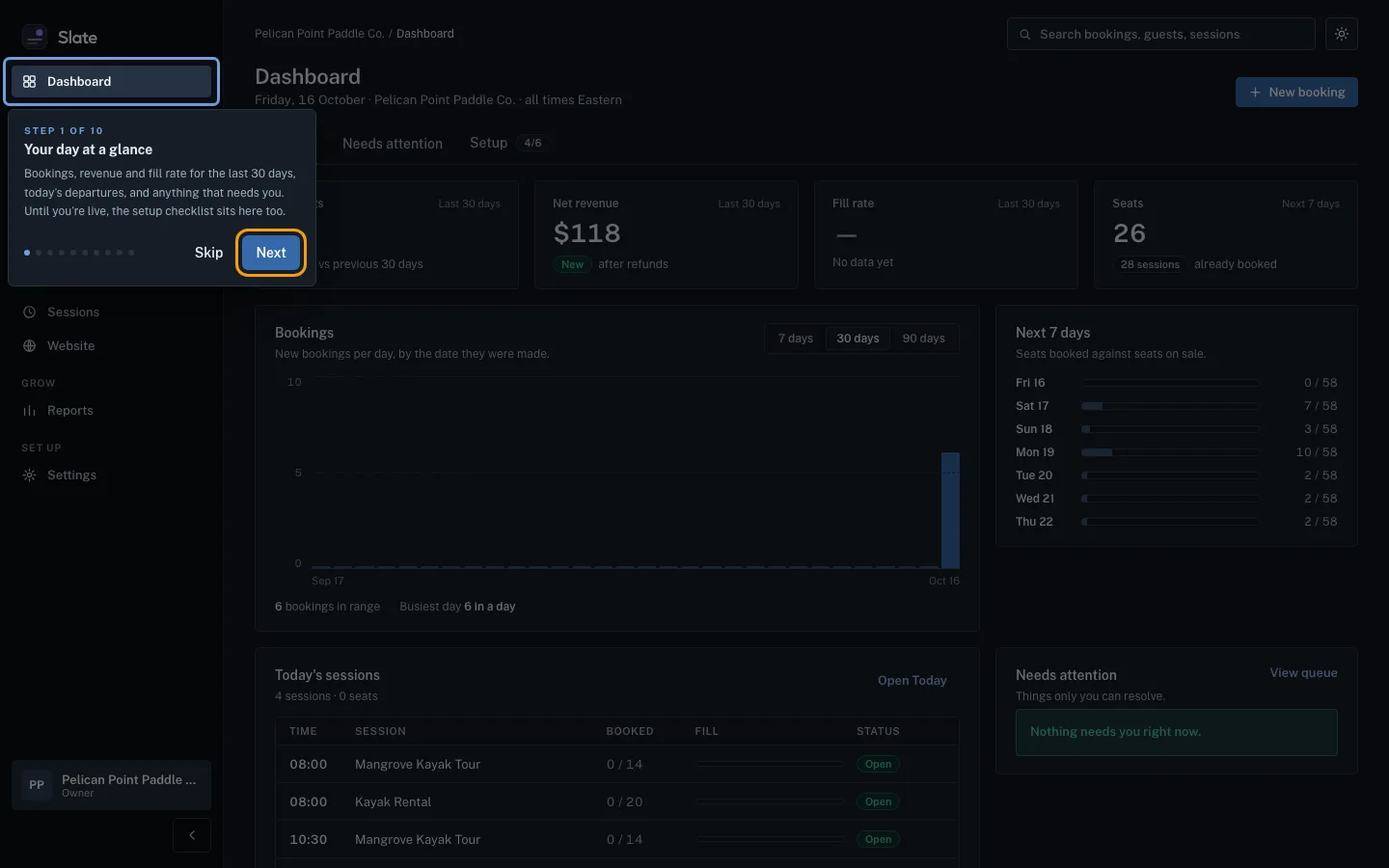
Click Next to move on. The tour opens each page for you in turn: Today, the calendar, bookings, experiences, your booking page, reports, and the setup checklist. Click Back to see a step again.
On the last step, click Done. To stop early, click Skip.
To jump straight to a page later, press ⌘K on a Mac or Ctrl+K on Windows, or click the search box at the top of the console. Jump to opens.
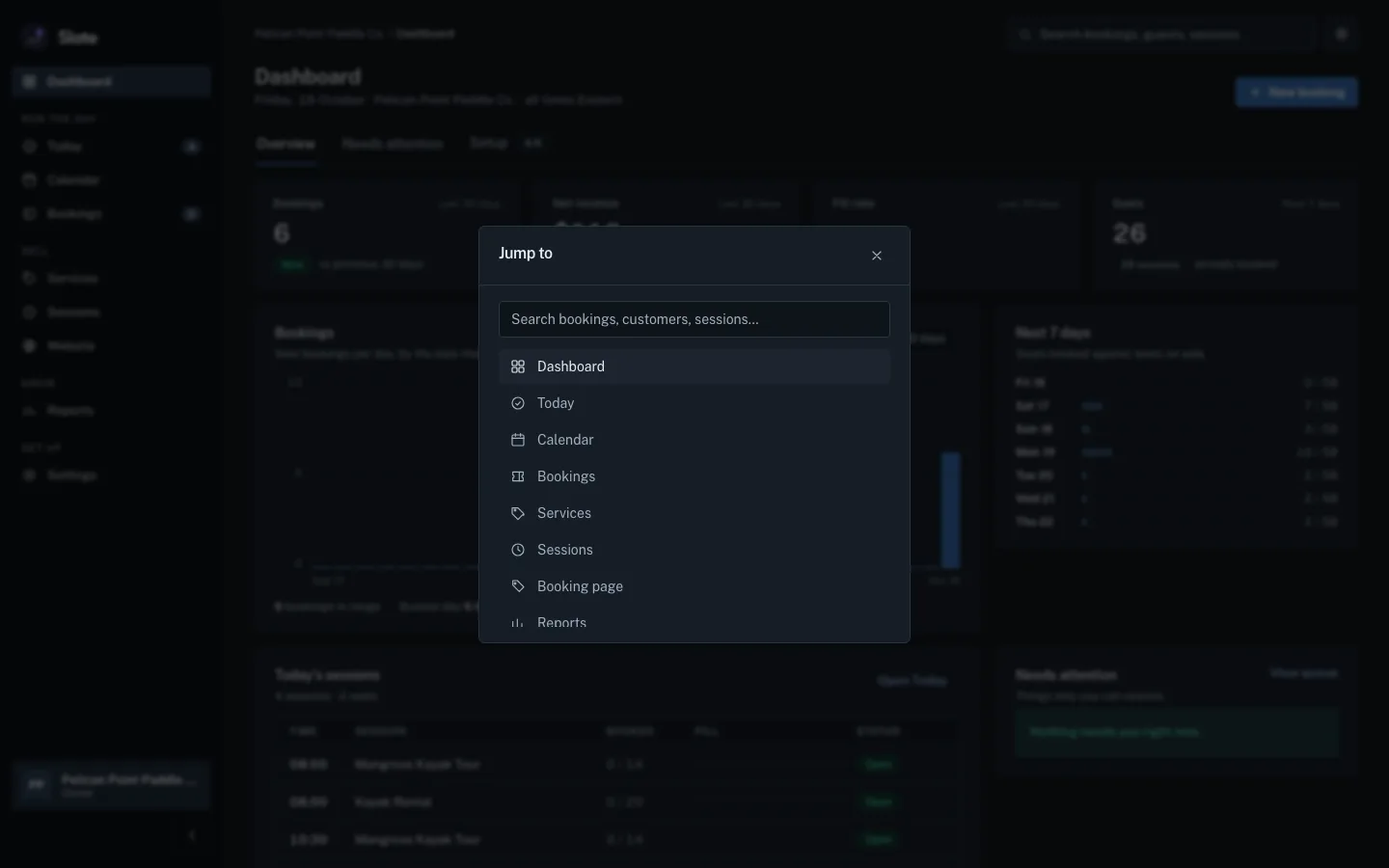
Type the start of a page name, for example
Rep, and press Enter to open Reports. Type a guest's name or a booking reference and choose Search bookings for to search your bookings.

Tips
- The menu on the left is grouped the way you work: Run the day (Today, Calendar, Bookings), Sell (Experiences), Grow (Reports) and Set up (Settings). Dashboard sits above them all.
- Experiences holds what you sell and when: each experience has its prices, photo, repeating times and booking button. The old Services and Sessions pages open there, and you can still find them by typing
servicesorsessionsin the search box. - Share all, at the top of Experiences, holds your booking page link, QR code, Book now button and booking widget.
- On a phone, the menu runs across the top of the screen. Swipe it sideways to see every page. The search box is on computers only.
- During the tour you can also use the arrow keys to move between steps, and Esc to close it.
Related
- Read your dashboard: See your last 30 days of bookings and revenue, the week ahead, today's sessions, anything that needs you, and what is left to set up.
- Run your day from Today: check guests in: See every session running today, open the next one's guest list, check parties in as they arrive, and find any guest fast.
- Find a booking: Search your bookings by reference, guest name, email or phone, narrow them by date or status, and open the one you need.
- Share your booking page: link, QR code and FAQ: Copy your booking page address, show its QR code, and add the questions and answers guests see before they book.
Still stuck?
Tell us what you were trying to do and what you saw. A person reads every message.
Contact support