Help Center · Bookings & guests
Read your reports and export them
See your revenue, seats sold, no-shows and customers for any range of dates, then download a report as a CSV file for a spreadsheet.
All help articlesChecked against Slate on
On this page
Before you start
- You are signed in to Slate. Owners and admins see every report. Staff see Occupancy, No-shows and Channels.
Steps
In the menu on the left, under Grow, click Reports. The Overview tab opens on This month, with Net revenue, Paid bookings, Seats sold and No-show rate at the top and a chart of net revenue by day.
Choose the dates in the bar under the tabs: Today, Last 7 days, Last 30 days, This month or Custom. With Custom, pick the first and last day.
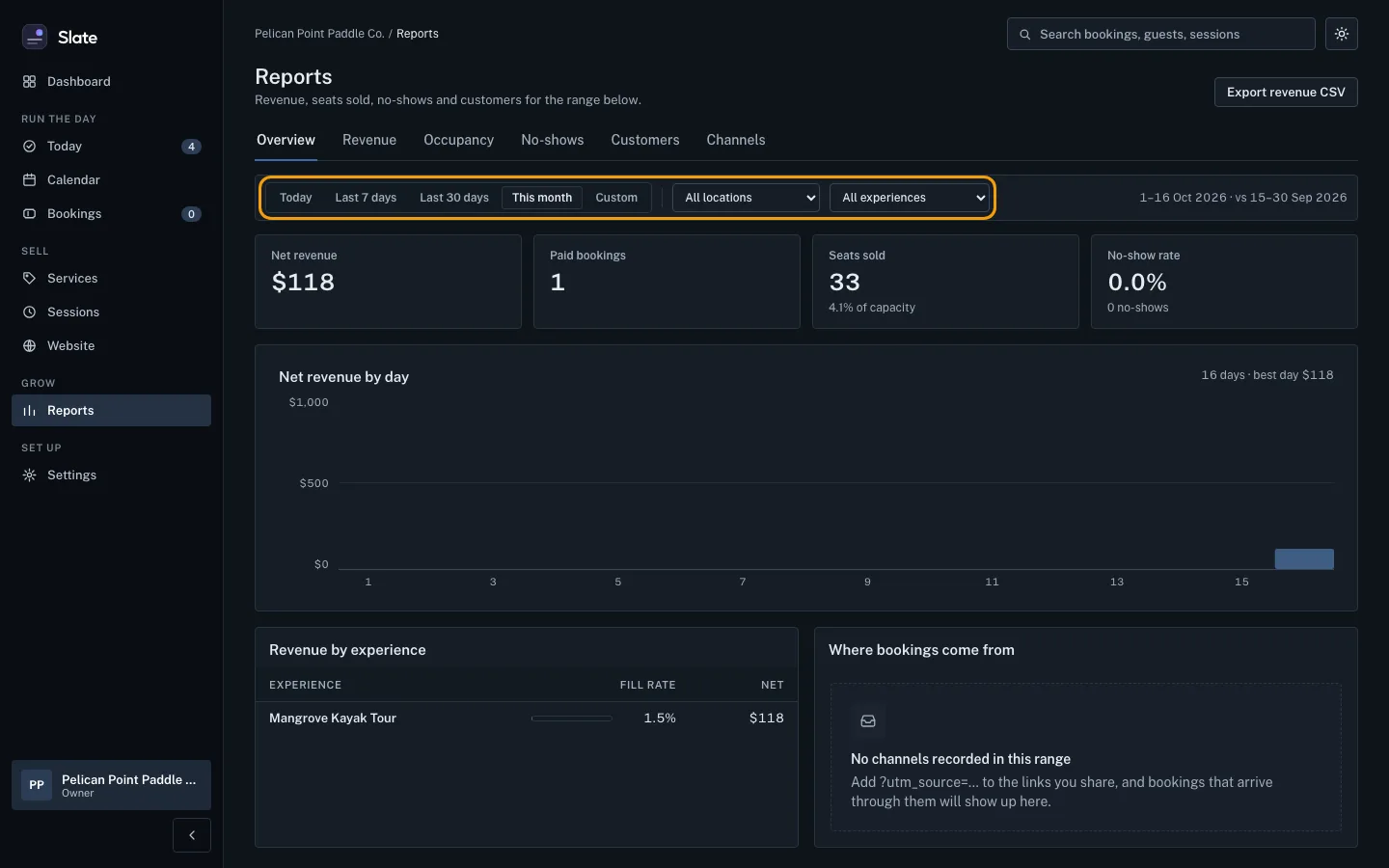
To see one place only, pick it in the All locations list. To see one service in the occupancy figures, pick it in the All experiences list.
Read the dates at the right of the bar. They show the range you are looking at and the same length of time before it, which the figures on Overview compare against.
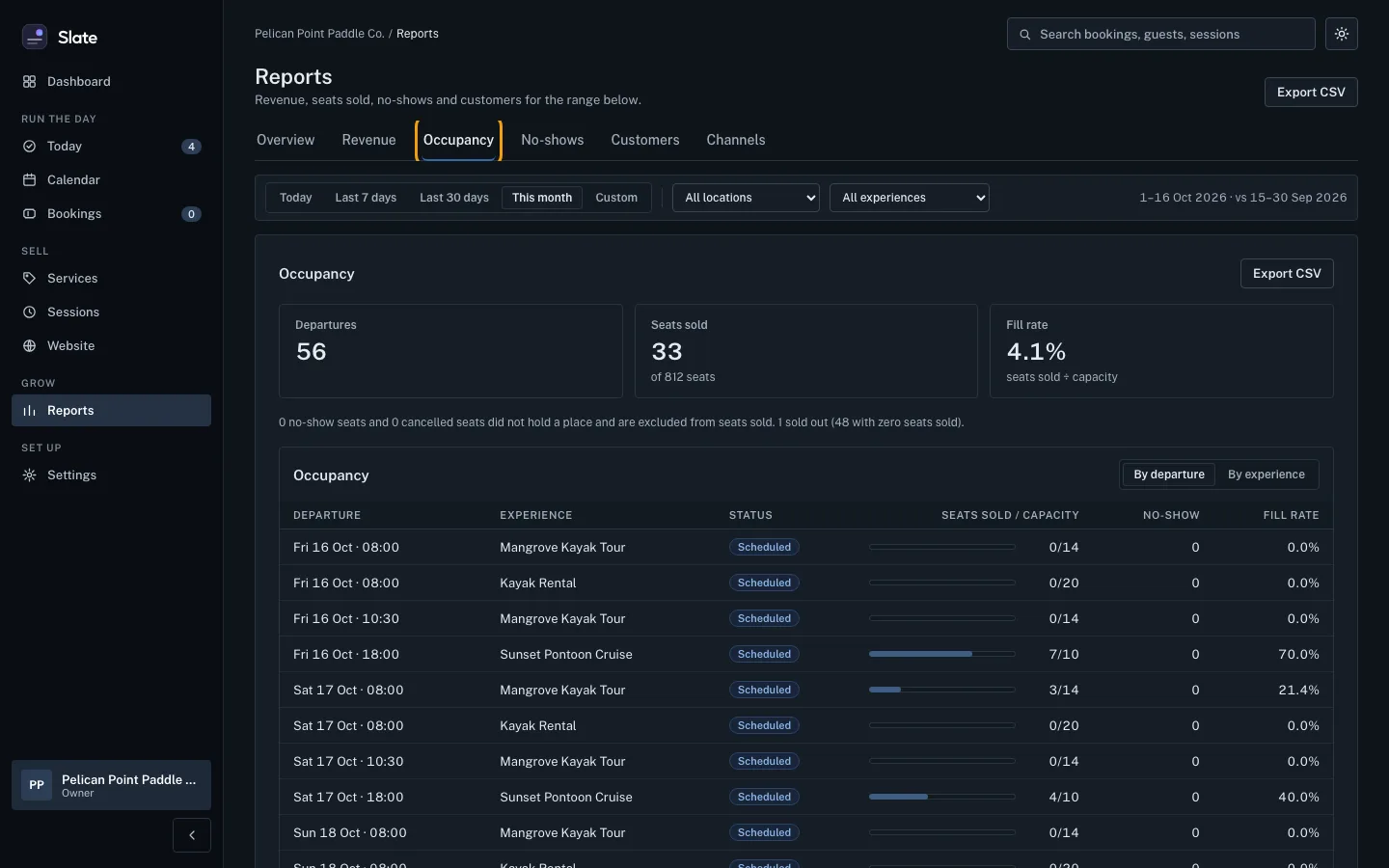
Click a tab for the detail: Revenue, Occupancy, No-shows, Customers or Channels (where your bookings came from).
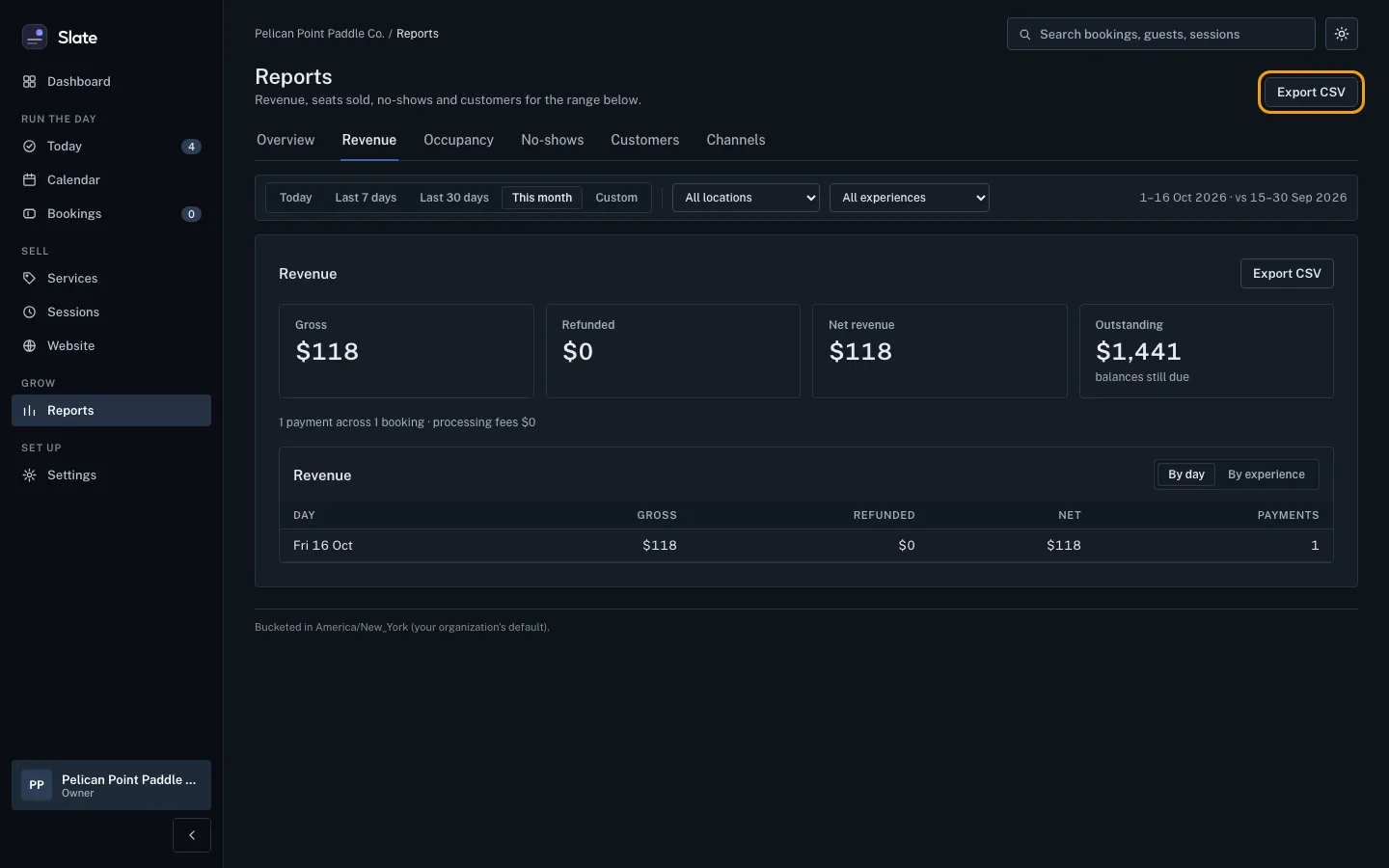
To download what you are looking at, click Export CSV at the top right. On Overview the button is Export revenue CSV. The file uses the same dates and location you picked.
When you have changed the dates, location or service, a Clear link shows in the bar. Click it to go back to this month for every location.


Tips
- Channels has no CSV export.
- Revenue and Customers are for owners and admins only. A staff member sees a note to ask an owner or admin instead.
- The All experiences list changes the Occupancy figures only.
- Reports count days in your business's time zone, or in the location's time zone when you pick one location. The note at the bottom of the page says which.
- On a phone, swipe the tabs and the date choices sideways to see them all.
Related
- Read your dashboard: See your last 30 days of bookings and revenue, the week ahead, today's sessions, anything that needs you, and what is left to set up.
- Find a booking: Search your bookings by reference, guest name, email or phone, narrow them by date or status, and open the one you need.
- Run your day from Today: check guests in: See every session running today, open the next one's guest list, check parties in as they arrive, and find any guest fast.
- Share your booking page: link, QR code and FAQ: Copy your booking page address, show its QR code, and add the questions and answers guests see before they book.
Still stuck?
Tell us what you were trying to do and what you saw. A person reads every message.
Contact support