Help Center · Team & integrations
See what Ask Slate changed, and undo it
Review every change Ask Slate made or asked to make for your business, and undo one within 48 hours.
All help articlesChecked against Slate on
On this page
Before you start
- You are signed in as an owner or admin. Staff can see the list but cannot undo anything.
- The change was made through Ask Slate in the last 48 hours. Changes you make yourself on a settings page are not listed here.
Steps
In the menu on the left, under Set up, click Settings. In the settings list, click History.
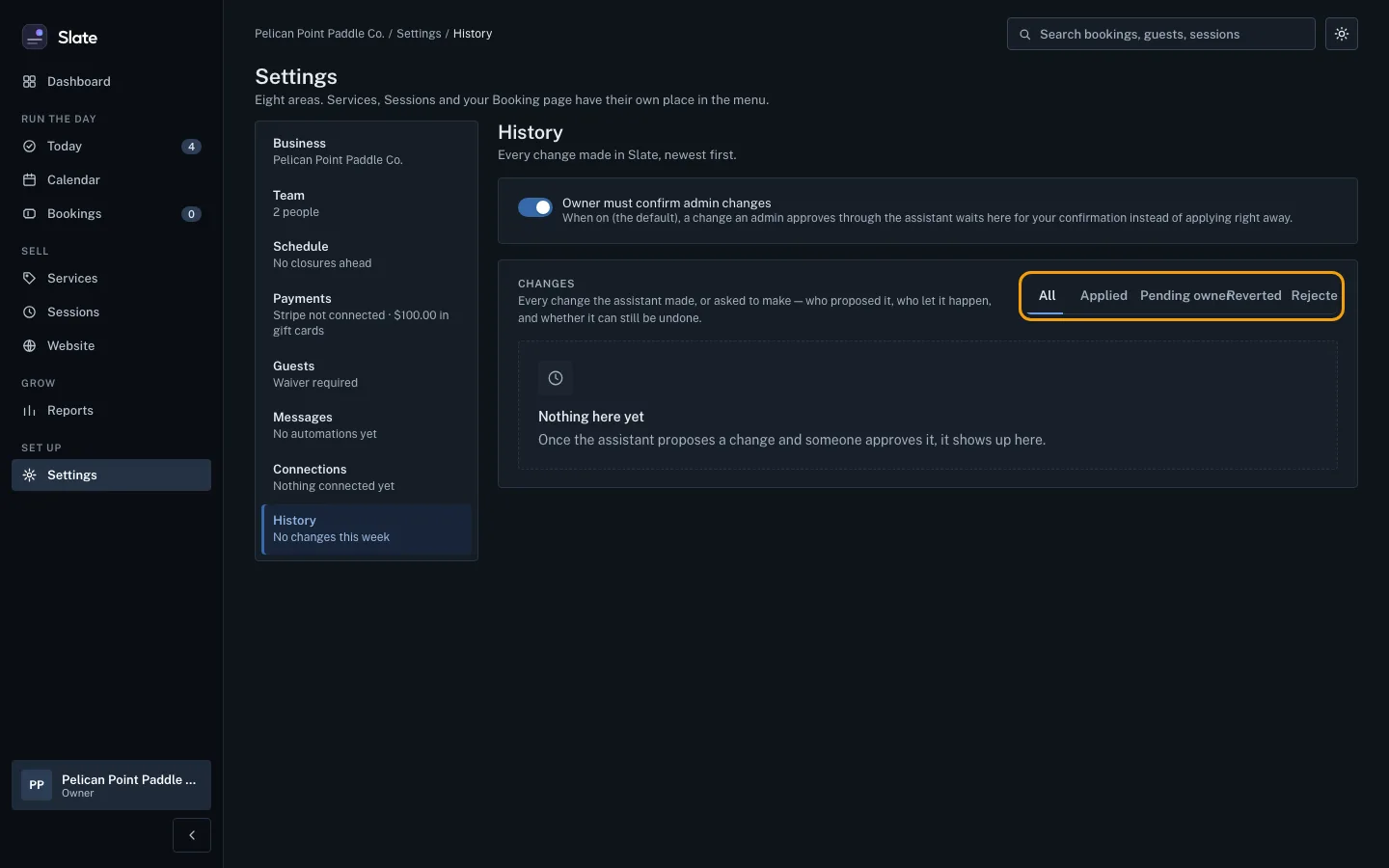
Find the change under Changes. Each one shows what it did, before and after, who proposed it and when. To narrow the list, click Applied, Pending owner, Reverted or Rejected. Click All to see everything again.
Click Undo on the change. When it is done, you see Undone. and the change is marked Reverted.
If there is no Undo button, the change says why: The 48-hour undo window has passed. or This change cannot be undone. Change the setting yourself on its own settings page instead.

Tips
- If something in the change has been edited again since, Slate undoes nothing and tells you which items changed.
- Owners: with Owner must confirm admin changes turned on, a change an admin approves in Ask Slate waits here as Pending owner until you click Approve or Reject. It is on unless you turn it off.
- Only the owner can approve or reject a pending change, or turn Owner must confirm admin changes on or off.
Related
- Ask Slate to make changes for you: Tell Ask Slate what to set up in plain words, check the changes it proposes, and approve them. Nothing changes until you approve.
- Invite your team and choose their roles: Send someone an email invitation to join your business in Slate, as staff or as an admin.
Still stuck?
Tell us what you were trying to do and what you saw. A person reads every message.
Contact support