Help Center · Team & integrations
Choose where Slate sends your alerts
Pick the email addresses that get Slate's alerts for your business, set quiet hours for automated messages, and check what was sent.
All help articlesChecked against Slate on
On this page
Before you start
- You are signed in as an owner or admin. Staff can see this page but cannot change it.
Steps
In the menu on the left, under Set up, click Settings. In the settings list, click Messages, then the Notifications tab.
In Alert emails, type the addresses that should get alerts, one per line. To add a name, put it after a comma, for example
dock@yourbusiness.com, Dock office. You can add up to 10.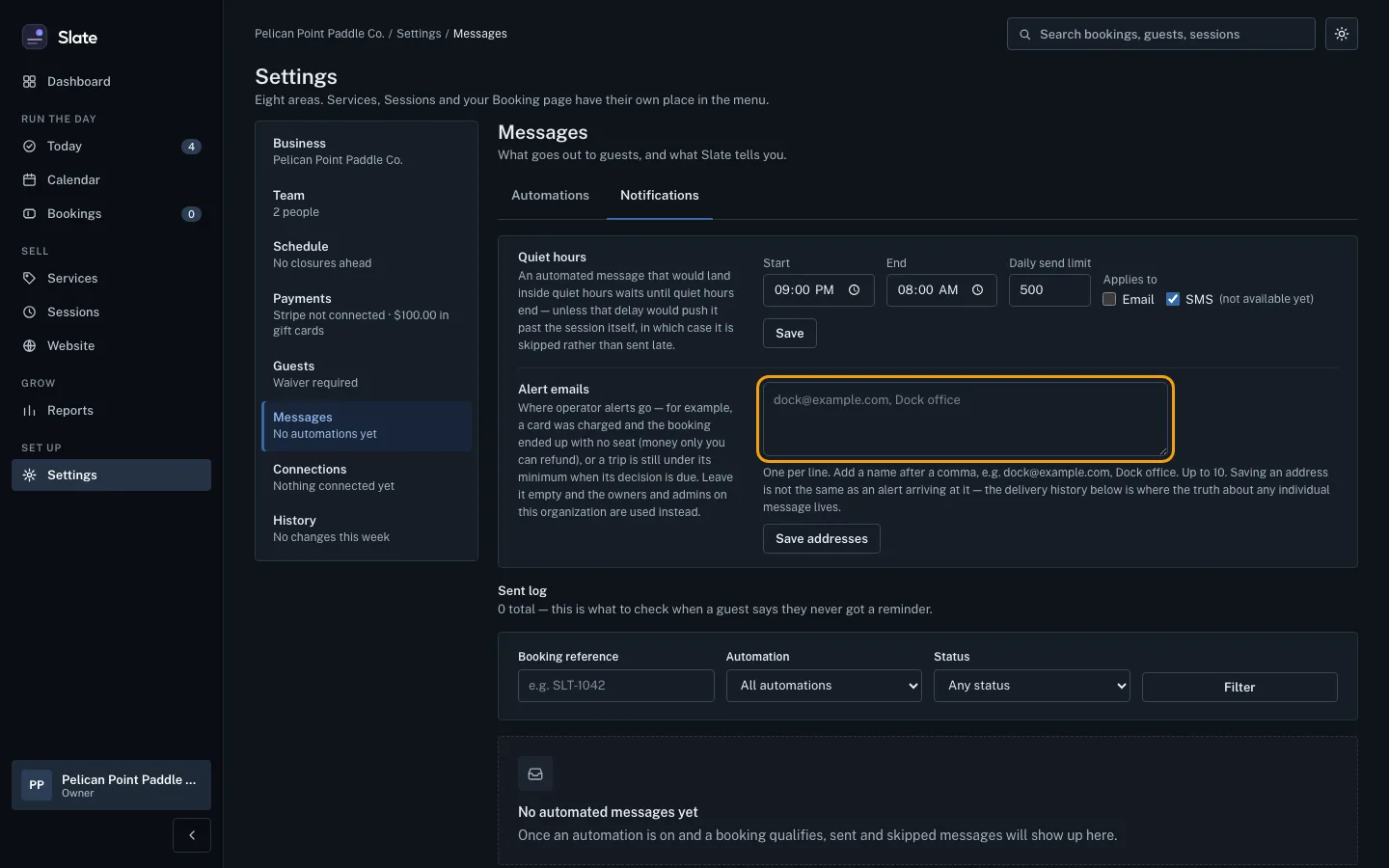
Click Save addresses. Slate confirms how many it saved. If you leave the box empty, alerts go to the business's owners and admins instead.
Under Quiet hours, set the Start and End times when automated messages should wait, and a Daily send limit.
Under Applies to, tick Email if quiet hours should hold automated emails too. Then click Save.
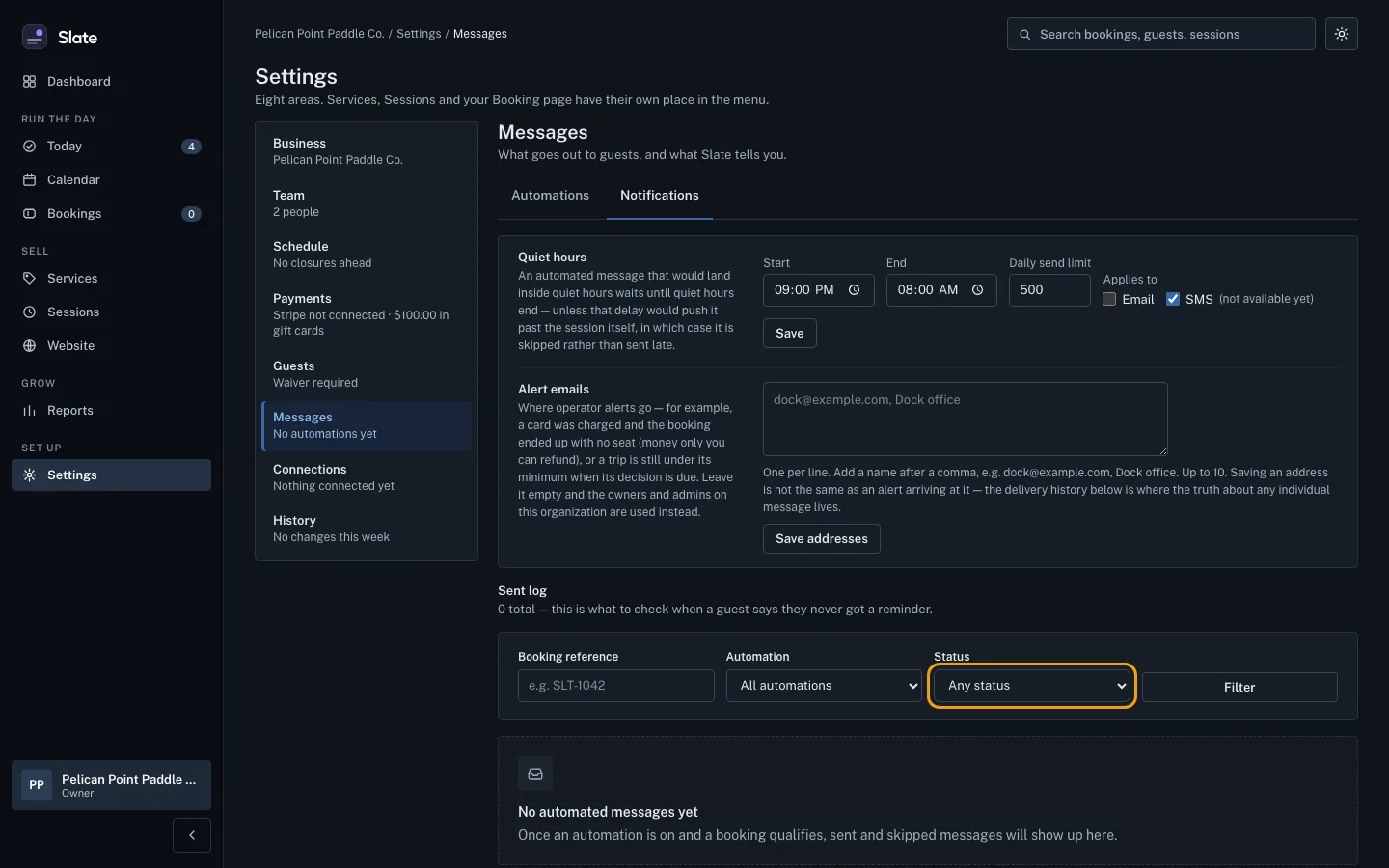
To check a message to a guest, use the Sent log below. Type a Booking reference, or pick an Automation or a Status, and click Filter.


Tips
- Alerts are for things that need you, for example a card was charged but the booking ended up with no seat, or a trip is still under its minimum when its decision is due.
- These settings are for the whole business, not just for you.
- A message that would land inside quiet hours waits until they end. If waiting would push it past the session itself, Slate skips it rather than send it late.
- Times in the sent log are shown in UTC (Coordinated Universal Time).
Related
- Invite your team and choose their roles: Send someone an email invitation to join your business in Slate, as staff or as an admin.
Still stuck?
Tell us what you were trying to do and what you saw. A person reads every message.
Contact support